Bitwarden - Passwoerter importieren/en /
Version vom 14. April 2026, 21:37 Uhr von Mariels (Diskussion | Beiträge)
Die deutsche Version finden Sie auf der Seite Bitwarden - Passwörter importieren
You can import passwords from other password managers into Bitwarden. Detailed instructions for various password managers can be found here on the manufacturer's website.
Step-by-Step Instructions[Bearbeiten | Quelltext bearbeiten]
This guide shows you how to import passwords from the KeePass password manager.
- Open KeePass and unlock your vault.
- Select your vault.
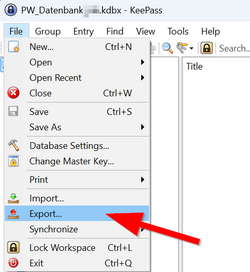
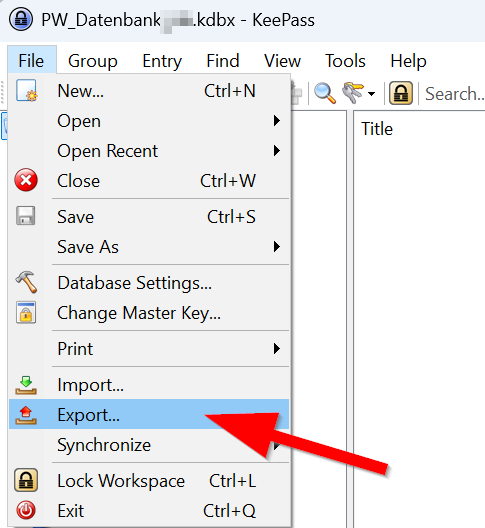
- Click on "Files" in the menu bar.
- Click on "Export".
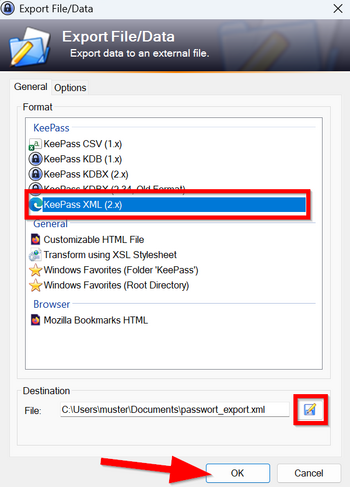
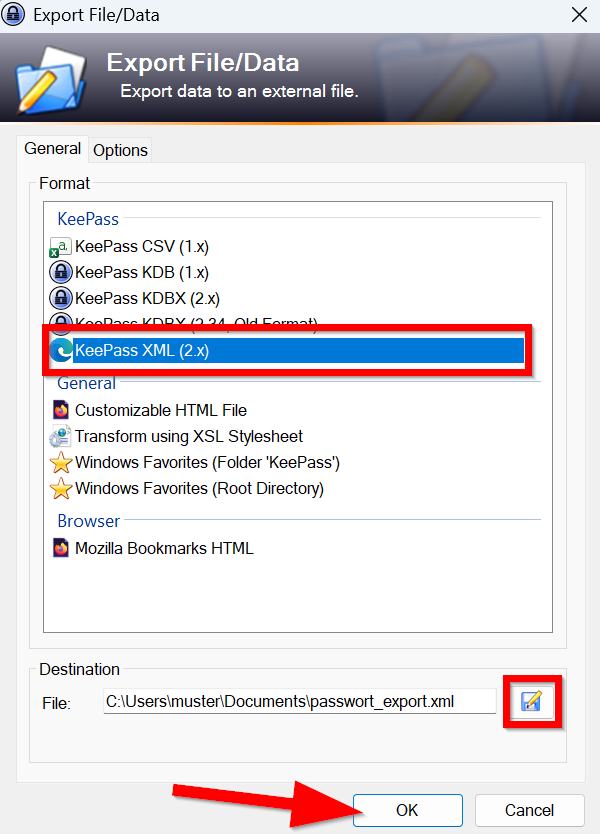
- Select "KeePass XML (2.x)" as the format.
- Click the floppy disk icon and choose a location to save the exported file.
- Choose a local location - Do not save this file to the cloud!
- Click "OK" to finish.
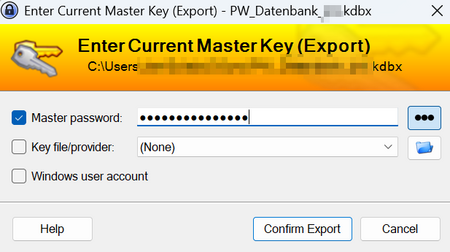
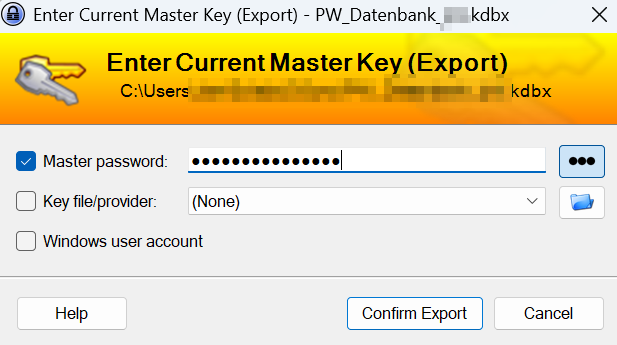
- Enter your KeePass master password to unlock the vault.
⚠
- You have now exported your passwords and saved them unencrypted.
- This file should be deleted after the import process!
Open the Bitwarden Web Interface
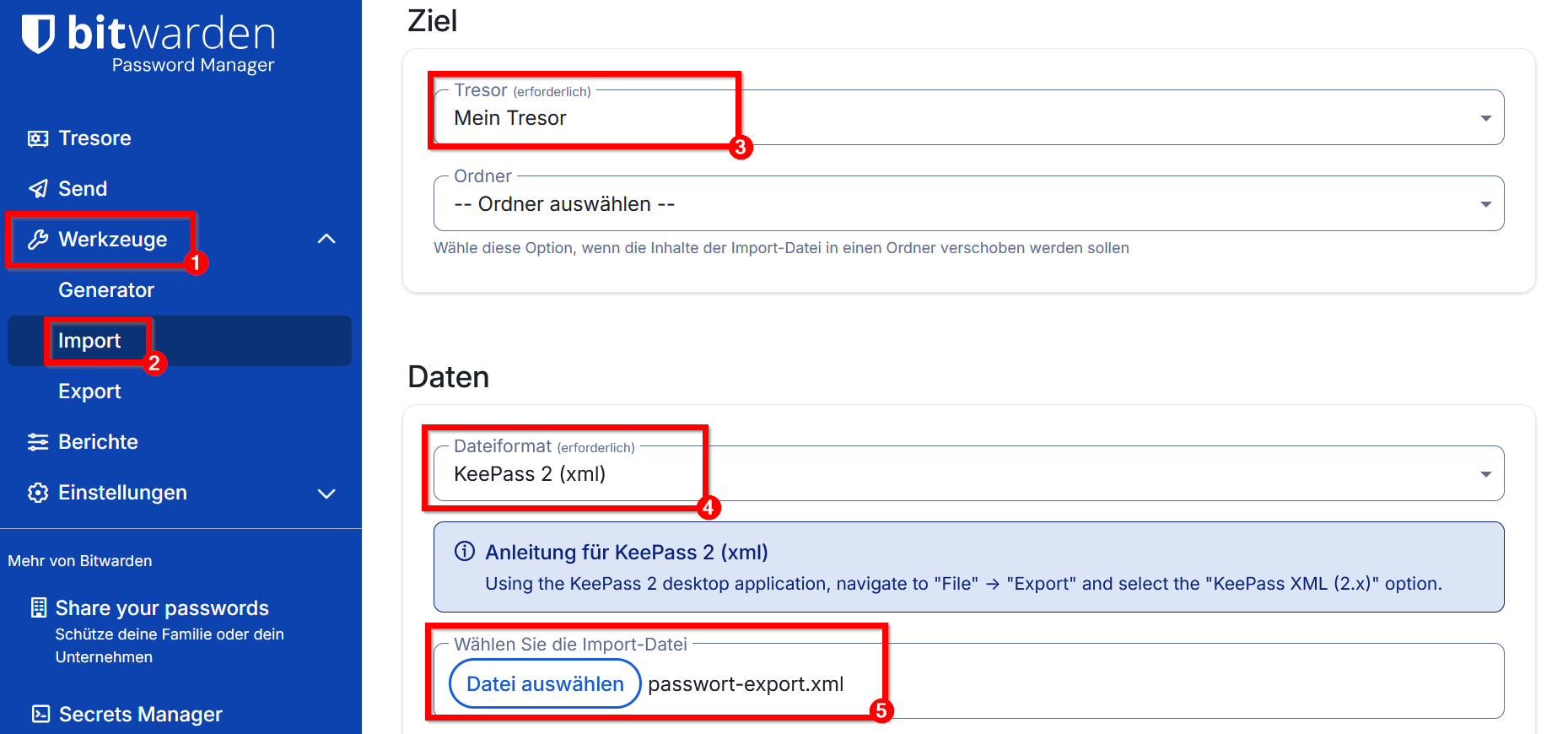
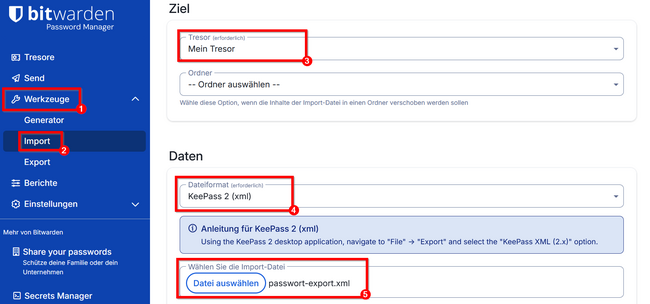
- Click on "Tools".
- Click on "Import".
- Select a destination - In this example, the passwords will be saved in your own vault.
- Select "KeePass 2 (xml)" as the file format.
- Click on "Choose File" and select the file exported to KeePass.
- Click on "Import" to start the import process.
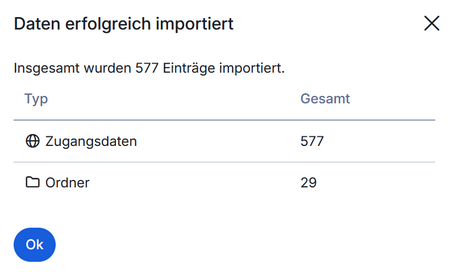
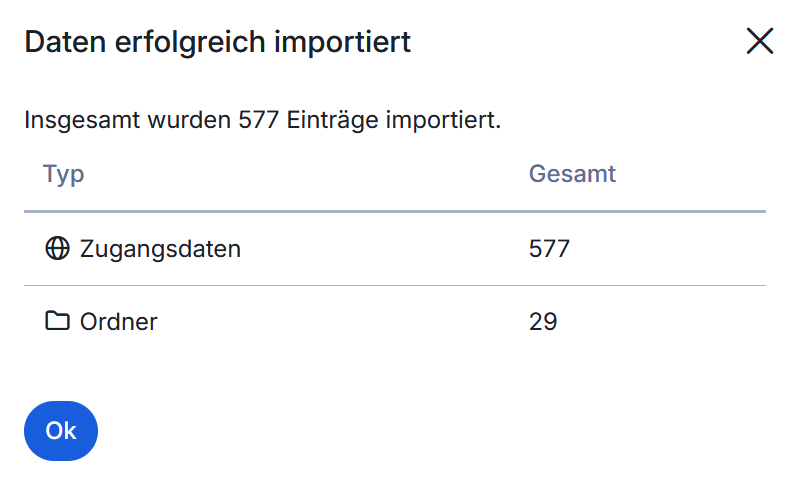
- Bitwarden will now display the number of login credentials that were successfully imported.
- If you have organized your passwords in KeePass into folders, the missing folders will be created automatically in KeePass – including subfolders.
- Not all KeePass features are available in Bitwarden.
⚠
- After the successful import, delete your export file from KeePass. Even from the recycle bin!
- Passwords should not be stored unencrypted on the device!