| (15 dazwischenliegende Versionen von 2 Benutzern werden nicht angezeigt) | |||
| Zeile 4: | Zeile 4: | ||
|translated title=eduroam on Linux | |translated title=eduroam on Linux | ||
}} | }} | ||
| − | |||
| − | == What | + | <!-- Hinweis für den Zertifikatswechsel bei den Radius-Server - Aktuell auskommentiert und kann bei Bedarf eingeblendet werden |
| − | * Create | + | {{Fingerprint_Radiuszertifikat-en}} |
| − | ** <optional> Download the | + | --> |
| − | * | + | |
| − | * Delete the | + | These instructions for setting up the eduroam WLAN at the University of Paderborn apply to devices with Linux via the user interface (GUI). As an example, the network is set up here under Ubuntu 14.04 LTS with Gnome Desktop. Depending on the Linux version, the settings may vary slightly. Please note that the Notebook Café does not offer immediate Linux support. |
| + | |||
| + | == What to do? == | ||
| + | * Create your personal university network certificate | ||
| + | ** <optional> Download the root certificate. This is a standard root certificate, so it should already exist. | ||
| + | * Set up the eduroam network. | ||
| + | * Delete any existing webauth profile so that the device automatically connects to eduroam. | ||
| + | * '''Special case:''' Depending on the Linux version, ''uni-paderborn.de'' must be entered under '''Domain/domain'''. | ||
== Step-by-step instructions == | == Step-by-step instructions == | ||
| − | === | + | ===Provide certificates === |
| − | + | Visit the Serviceportal an login with your Uni-Account. | |
| − | + | * https://serviceportal.uni-paderborn.de/ | |
| − | + | ||
| − | + | Go to '''Netzwerkeinstellungen'''. | |
| − | + | ||
| − | + | [[Datei:Eduroam-unter-android-4.png|left|mini|without|350px]] | |
<br> | <br> | ||
| + | * Click '''"Neues Zertifikat erstellen"'''. | ||
| + | <br clear=all> | ||
| − | [[Datei:Netzwerkzertifikat | + | [[Datei:Netzwerkzertifikat-container-v2.png|links|mini|without|350px]] |
<br> | <br> | ||
| − | * | + | * Give the certificate a unique name (Ex: Laptop xy) |
| − | * | + | * Select '''Version 2''' as the file format. |
| − | * | + | * Then click on '''"Neues Zertifikat zusenden"'''. |
<br clear=all> | <br clear=all> | ||
| − | * | + | [[Datei:Netzwerkzertifikat-download.png|links|mini|without|350px]] |
| − | * | + | <br> |
| + | * A new network certificate has been created for you. | ||
| + | * First copy the '''Import Password''' to the clipboard. | ||
| + | * Now click on '''"Netzwerkzertifikat herunterladen"'''. | ||
| + | * Then click '''"CA-Zertifikat herunterladen"'''. | ||
| + | <br clear=all> | ||
| − | === | + | Save both certificates e.g. B. in your user folder or another safe location. Do not delete/move this folder! |
| − | [[Datei:Eduroam unter Linux_01.png| | + | |
| − | <br> | + | ===Set up Eduroam=== |
| − | * Open | + | [[Datei:Eduroam unter Linux_01.png|left|mini|without|350px|status menu]] |
| + | <br clear=all> | ||
| + | * Open the status menu. | ||
| + | * Select '''"WLAN-Netzwerke auswählen"'''. | ||
| + | <br clear=all> | ||
| + | |||
| + | [[Datei:Eduroam unter Linux_02.png|left|mini|without|350px|WLAN settings]] | ||
| + | <br clear=all> | ||
| + | * Choose eduroam. | ||
<br clear=all> | <br clear=all> | ||
| − | [[Datei:Eduroam unter | + | Set up eduroam as follows: |
| − | <br> | + | [[Datei:Eduroam unter Linux_03.png|links|mini|without|350px|eduroam setup]] |
| − | * | + | <br clear=all> |
| + | * '''Security:''' WPA & WPA2 Enterprise | ||
| + | * '''Legitimation:''' TLS | ||
| + | * '''Identity:''' <username>@uni-paderborn.de (replace <username> with your university account | ||
| + | * '''Domain (if available):''' radius.uni-paderborn.de | ||
| + | * '''CA Certificate:''' Select the '''USERTrust RSA Certification Authority'' certificate (''USERTrustRSACertificationAuthority.crt''). | ||
| + | * '''Password CA certificate:''' Remains blank. | ||
| + | * '''User certificate:''' Select your personal network certificate (the file that ends in .p12 and contains your university account username). | ||
| + | * '''User certificate password:''' Remains blank. | ||
| + | * '''Secret user key:''' Is usually automatically filled with "User certificate" - otherwise insert it yourself | ||
| + | * '''User key password:''' Import password for your personal network certificate. | ||
<br clear=all> | <br clear=all> | ||
| − | + | * ''<variable> domain:'' | |
| − | + | *# ''uni-paderborn.de (Some Linux versions require this entry)'' | |
| + | *# ''radius.uni-paderborn.de (or this one)'' | ||
| + | *# ''<leave blank> (or something like that, if it shows at all)'' | ||
| + | |||
| + | ==Troubleshooting== | ||
| + | ===Add manually=== | ||
| + | You may also be able to add the eduroam network manually: | ||
| + | * '''Connection name:''' Can be freely selected | ||
| + | * '''SSID:''' eduroam | ||
| + | * See above for remaining settings. | ||
| + | |||
| + | ===Ubuntu=== | ||
| + | Some customers report problems setting up eduroam on Ubuntu 22.04 and newer. The problem is described here: | ||
<br> | <br> | ||
| − | * | + | * https://bugs.launchpad.net/ubuntu/+source/wpa/+bug/1958267 |
| − | + | <br> | |
| − | + | ||
| − | + | {| width="70%" style="background-color:yellow; border-style:dashed; border-width:3px; border-color:red; padding: 5px; " | |
| − | + | | '''Attention:''' <br> | |
| − | + | The following solution suggestion comes from a customer. Use at your own risk. There was no examination by the ZIM. | |
| − | + | |} | |
| − | |||
<br clear=all> | <br clear=all> | ||
| − | === | + | <pre> |
| − | + | 1) Find wpa_supplicant service file with `systemctl status wpa_supplicant`. | |
| + | For me, the path is "/lib/systemd/system/wpa_supplicant.service" | ||
| + | 2) In that file, (with superuser rights), add the line | ||
| + | `Environment="OPENSSL_CONF=/usr/lib/ssl/openssl.cnf"` | ||
| + | 3) Backup old config: | ||
| + | `sudo cp /usr/lib/ssl/openssl.cnf /usr/lib/ssl/openssl.cnf.backup` | ||
| + | 4) Modify "openssl.cnf" like follows: | ||
| + | a) Below "[openssl_init]" add the line "ssl_conf = ssl_sect". | ||
| + | b) At the end of the file, add | ||
| + | [ssl_sect] | ||
| + | system_default = system_default_sect | ||
| + | |||
| + | [system_default_sect] | ||
| + | Options = UnsafeLegacyRenegotiation | ||
| + | CipherString = DEFAULT:@SECLEVEL=1 | ||
| + | 5) Restart the service `sudo systemctl restart wpa_supplicant.service`. | ||
| + | If that doesn't work, reboot. | ||
| + | </pre> | ||
| + | |||
| + | <!-- | ||
| + | ===User certificate === | ||
| + | * You may be able to leave the User Certificate field blank. | ||
| + | * Some network managers do not save the profile as long as all certificate fields are not filled in, including the '''User Certificate''' field. It is then sufficient to enter any file in the user certificate field (0byte file, or e.g. the telekom-cert). You should then be able to save the profile. | ||
| + | --> | ||
| + | === Linux Mint === | ||
| + | On Linux Mint it can happen that the user certificate cannot be selected when selecting it in the network settings. Linux Mint does not recognize the file extension/format .p12 in the selection. | ||
| + | |||
| + | ==== Solution: ==== | ||
| + | Convert user certificate from P12 to PEM format | ||
| + | <pre>openssl pkcs12 -in Network_Certificate_UNIACCOUNTNAME_XXXX.p12 -out Network_Certificate_UNIACCOUNTNAME_XXXX.pem -nodes</pre> | ||
| + | After the conversion you can continue as described. | ||
| − | + | ==See also== | |
| + | * [[Netzwerk]] | ||
Aktuelle Version vom 29. August 2025, 21:07 Uhr
These instructions for setting up the eduroam WLAN at the University of Paderborn apply to devices with Linux via the user interface (GUI). As an example, the network is set up here under Ubuntu 14.04 LTS with Gnome Desktop. Depending on the Linux version, the settings may vary slightly. Please note that the Notebook Café does not offer immediate Linux support.
What to do?[Bearbeiten | Quelltext bearbeiten]
- Create your personal university network certificate
- <optional> Download the root certificate. This is a standard root certificate, so it should already exist.
- Set up the eduroam network.
- Delete any existing webauth profile so that the device automatically connects to eduroam.
- Special case: Depending on the Linux version, uni-paderborn.de must be entered under Domain/domain.
Step-by-step instructions[Bearbeiten | Quelltext bearbeiten]
Provide certificates[Bearbeiten | Quelltext bearbeiten]
Visit the Serviceportal an login with your Uni-Account.
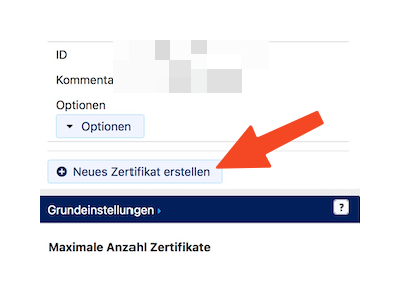
Go to Netzwerkeinstellungen.
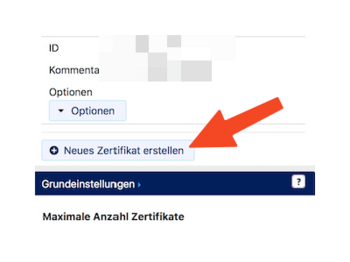
- Click "Neues Zertifikat erstellen".
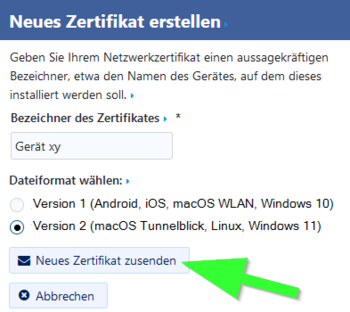
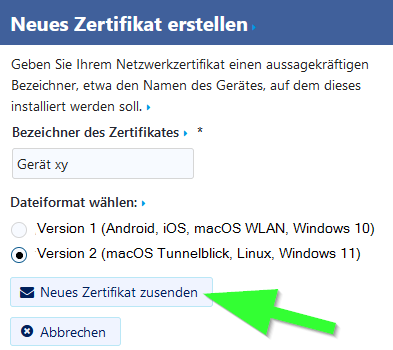
- Give the certificate a unique name (Ex: Laptop xy)
- Select Version 2 as the file format.
- Then click on "Neues Zertifikat zusenden".
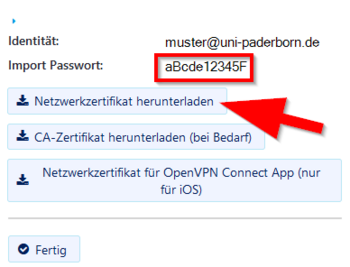
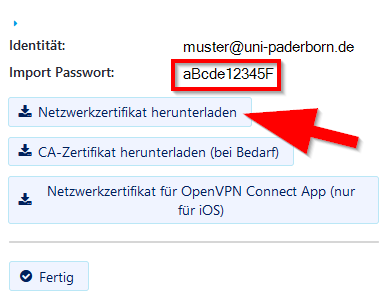
- A new network certificate has been created for you.
- First copy the Import Password to the clipboard.
- Now click on "Netzwerkzertifikat herunterladen".
- Then click "CA-Zertifikat herunterladen".
Save both certificates e.g. B. in your user folder or another safe location. Do not delete/move this folder!
Set up Eduroam[Bearbeiten | Quelltext bearbeiten]

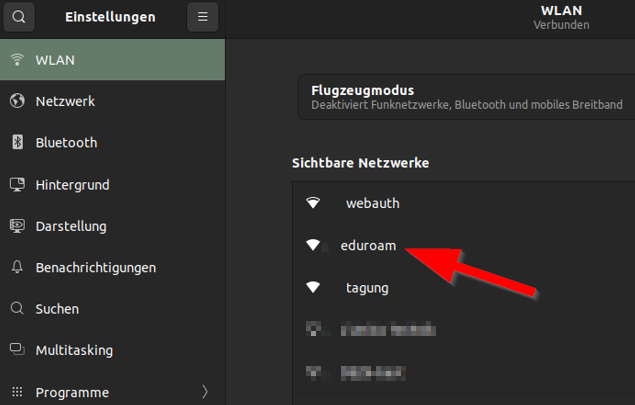
- Open the status menu.
- Select "WLAN-Netzwerke auswählen".
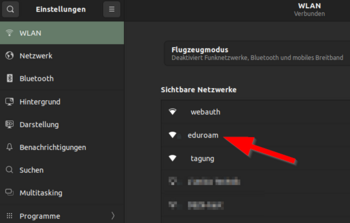
- Choose eduroam.
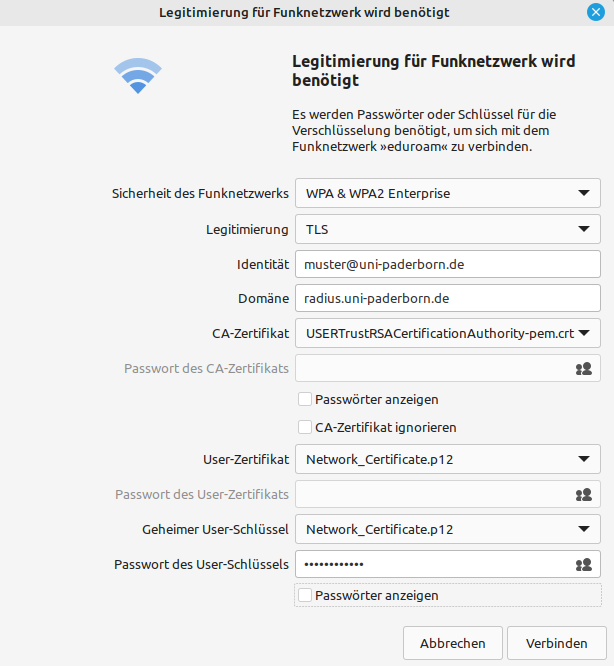
Set up eduroam as follows:

- Security: WPA & WPA2 Enterprise
- Legitimation: TLS
- Identity: <username>@uni-paderborn.de (replace <username> with your university account
- Domain (if available): radius.uni-paderborn.de
- CA Certificate:' Select the USERTrust RSA Certification Authority certificate (USERTrustRSACertificationAuthority.crt).
- Password CA certificate: Remains blank.
- User certificate: Select your personal network certificate (the file that ends in .p12 and contains your university account username).
- User certificate password: Remains blank.
- Secret user key: Is usually automatically filled with "User certificate" - otherwise insert it yourself
- User key password: Import password for your personal network certificate.
- <variable> domain:
- uni-paderborn.de (Some Linux versions require this entry)
- radius.uni-paderborn.de (or this one)
- <leave blank> (or something like that, if it shows at all)
Troubleshooting[Bearbeiten | Quelltext bearbeiten]
Add manually[Bearbeiten | Quelltext bearbeiten]
You may also be able to add the eduroam network manually:
- Connection name: Can be freely selected
- SSID: eduroam
- See above for remaining settings.
Ubuntu[Bearbeiten | Quelltext bearbeiten]
Some customers report problems setting up eduroam on Ubuntu 22.04 and newer. The problem is described here:
| Attention: The following solution suggestion comes from a customer. Use at your own risk. There was no examination by the ZIM. |
1) Find wpa_supplicant service file with `systemctl status wpa_supplicant`.
    For me, the path is "/lib/systemd/system/wpa_supplicant.service"
2) In that file, (with superuser rights), add the line
    `Environment="OPENSSL_CONF=/usr/lib/ssl/openssl.cnf"`
3) Backup old config:
    `sudo cp /usr/lib/ssl/openssl.cnf /usr/lib/ssl/openssl.cnf.backup`
4) Modify "openssl.cnf" like follows:
    a) Below "[openssl_init]" add the line "ssl_conf = ssl_sect".
    b) At the end of the file, add
      [ssl_sect]
      system_default = system_default_sect

      [system_default_sect]
      Options = UnsafeLegacyRenegotiation
      CipherString = DEFAULT:@SECLEVEL=1
5) Restart the service `sudo systemctl restart wpa_supplicant.service`.
    If that doesn't work, reboot.
Linux Mint[Bearbeiten | Quelltext bearbeiten]
On Linux Mint it can happen that the user certificate cannot be selected when selecting it in the network settings. Linux Mint does not recognize the file extension/format .p12 in the selection.
Solution:[Bearbeiten | Quelltext bearbeiten]
Convert user certificate from P12 to PEM format
openssl pkcs12 -in Network_Certificate_UNIACCOUNTNAME_XXXX.p12 -out Network_Certificate_UNIACCOUNTNAME_XXXX.pem -nodes
After the conversion you can continue as described.