Jnk (Diskussion | Beiträge) K |
|||
| (11 dazwischenliegende Versionen von 3 Benutzern werden nicht angezeigt) | |||
| Zeile 1: | Zeile 1: | ||
| − | |||
| − | |||
| − | |||
| − | |||
| − | |||
| − | |||
| − | |||
{{translated page | {{translated page | ||
| − | |origin= | + | |origin=Dateiverschluesselung mit 7-ZIP unter Windows 10 |
|lang=en | |lang=en | ||
| − | |translated title=File Encryption with 7-ZIP under Windows 10 | + | |translated title=File Encryption with 7-ZIP under Windows 10 |
}} | }} | ||
| − | <bootstrap_alert color=" | + | If you wish to send or exchange personal data, special protective measures are necessary. Sensitive data should only be sent in encrypted form to protect it from unauthorised access. |
| − | + | In this example, we show how to encrypt documents in a ZIP archive. The 7-ZIP programme can be used for this purpose, for example. | |
| − | + | ||
| − | The 7-ZIP application is automatically integrated into the context menu of | + | <bootstrap_alert color=warning> |
| + | <span style="font-size:30px;">⚠</span> | ||
| + | <br> | ||
| + | 7-ZIP does not support automatic updates. You must ensure that this programme is up to date yourself. Missing software updates are a security risk. | ||
| + | </bootstrap_alert> | ||
| + | |||
| + | 7-ZIP can be downloaded free of charge: | ||
| + | * https://7-zip.org | ||
| + | |||
| + | The 7-ZIP application is automatically integrated into the context menu of Windows Explorer. | ||
| + | |||
| + | |||
Please save all files you want to send in one folder (e.g. documents).<br> | Please save all files you want to send in one folder (e.g. documents).<br> | ||
<br clear=all>[[Datei:7zip-win10-en-1.png|links|mini|ohne|350px]] | <br clear=all>[[Datei:7zip-win10-en-1.png|links|mini|ohne|350px]] | ||
| Zeile 39: | Zeile 43: | ||
* [[Netzlaufwerk einbinden]] | * [[Netzlaufwerk einbinden]] | ||
'''Dateiverschlüsselung'''<br> | '''Dateiverschlüsselung'''<br> | ||
| − | * [[ | + | * [[Dateiverschluesselung einsetzen]] |
* [[Daten sicher teilen]] | * [[Daten sicher teilen]] | ||
* [[Daten sicher aufbewahren]] | * [[Daten sicher aufbewahren]] | ||
Version vom 28. November 2025, 13:09 Uhr
If you wish to send or exchange personal data, special protective measures are necessary. Sensitive data should only be sent in encrypted form to protect it from unauthorised access. In this example, we show how to encrypt documents in a ZIP archive. The 7-ZIP programme can be used for this purpose, for example.
⚠
7-ZIP does not support automatic updates. You must ensure that this programme is up to date yourself. Missing software updates are a security risk.
7-ZIP can be downloaded free of charge:
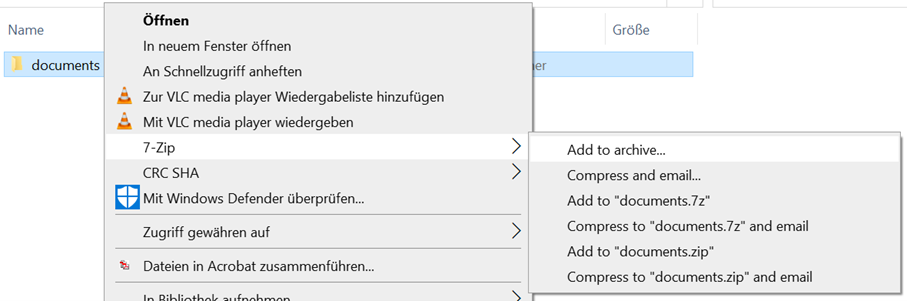
The 7-ZIP application is automatically integrated into the context menu of Windows Explorer.
Please save all files you want to send in one folder (e.g. documents).

Select the folder to be encrypted, click the right mouse button and select "Add to archive" from the displayed context menu.
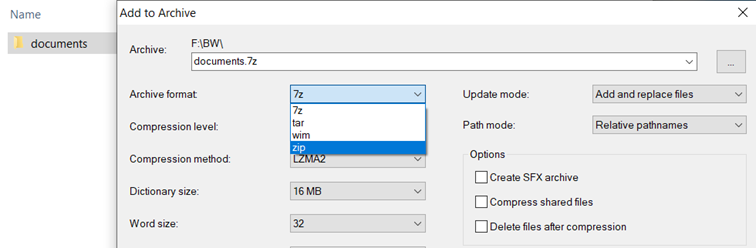
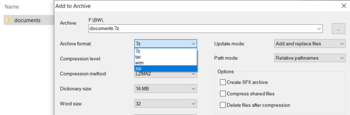
In the now displayed 7-ZIP window please change the archive format from "7z" to "ZIP". Now the folder can also be opened by users who do not use 7-ZIP.
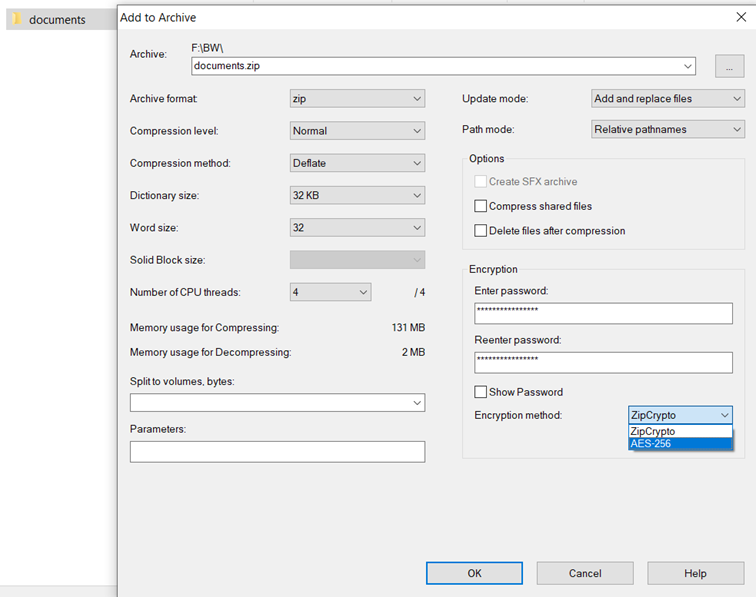
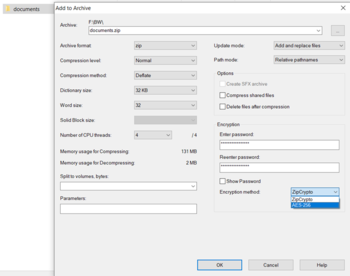
In the next step please enter a strong password. Please remember the password you have assigned, it is needed to open the encrypted folder. Select "AES256" under Procedure and click OK.
A compressed and encrypted folder is automatically created and saved. The original folder remains unchanged.
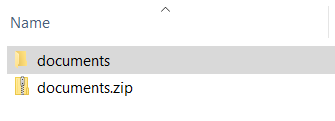
The encrypted folder "documents.zip" can be sent by email without hesitation, because the personal data is securely encrypted.
Please do not send the password for opening the folder by email, but rather by telephone or other secure means.
Further Reading[Bearbeiten | Quelltext bearbeiten]
Sciebo
Netzwerkspeicher
Dateiverschlüsselung