(Links wurden eingefügt) |
Mfunk (Diskussion | Beiträge) K |
||
| (9 dazwischenliegende Versionen von 3 Benutzern werden nicht angezeigt) | |||
| Zeile 1: | Zeile 1: | ||
{{translated page | {{translated page | ||
| − | |origin=Teilnehmerverwaltung: Selbsteinschreibung ( | + | |origin=Teilnehmerverwaltung: Selbsteinschreibung (Kurspasswoerter setzen - aendern) |
|lang=en | |lang=en | ||
|translated title=Participant management: Self-enrollment (set/change course passwords) | |translated title=Participant management: Self-enrollment (set/change course passwords) | ||
}} | }} | ||
| − | + | Self-enrollment is an enrollment method that allows participants to independently register for and withdraw from a course. It can be used with or without an enrollment password. The password is entered once during enrollment. | |
| − | |||
| − | + | Teachers can announce the enrollment password for the course in the lecture, by email, or via PAUL. | |
| − | + | These instructions explain how to activate and deactivate self-enrollment and how to change the password. | |
== Call up enrollment methods == | == Call up enrollment methods == | ||
| − | First | + | First, log in to [https://panda.uni-paderborn.de PANDA]. |
| − | Then | + | Then, open the course you want to edit. |
| − | [[Datei:Einschreibemethoden auswählen.png|links|miniatur| | + | [[Datei:Einschreibemethoden auswählen.png|links|miniatur|400px]] |
| − | + | : Click on '''participants''' in the course view. | |
| − | : Click on | + | :: At the top left, you will find a pull-down menu where you can select the enrollment methods, among other things. |
| − | :: | + | :: The important option here is self-enrollment (participant). |
| − | :: | ||
<br clear=all> | <br clear=all> | ||
| − | + | This will take you to an overview of all enrollment methods set up for the course: | |
| − | * [[Datei:Löschen icon.png]]: Deletes the method completely ( | + | *'''Manual enrollment (always active) (1):''' This method allows instructors and teaching assistants to manually enroll participants and staff. Please do NOT make any changes! |
| − | * [[Datei:Sichtbar icon.png]]: Method is active and visible. Can be | + | *'''Self-enrollment (student) (2):''' You can edit/activate this method, which allows participants to enroll themselves in the course. |
| − | ** [[Datei:unsichtbar icon.png]]: Method is inactive/invisible | + | *'''Add method (3):''' You can use this menu item to activate a new/additional self-enrollment method. |
| − | * [[Datei:Einstellungen Icon.png]]: Edit method | + | |
| − | * [[Datei:Nutzer einschreiben Icon.png]]: Here you can add users with | + | You will also find the following icons: |
| + | * [[Datei:Löschen icon.png]]: Deletes the method completely (caution: if you delete an enrollment method that is already in use, the participants will be automatically removed from the course). | ||
| + | * [[Datei:Sichtbar icon.png]]: Method is active and visible. Can be set to inactive/invisible by clicking on it. | ||
| + | ** [[Datei:unsichtbar icon.png]]: Method is inactive/invisible. | ||
| + | * [[Datei:Einstellungen Icon.png]]: Edit settings for the method. | ||
| + | * [[Datei:Nutzer einschreiben Icon.png]]: Here you can add users with a single click. | ||
== Activate self-enrollment == | == Activate self-enrollment == | ||
| − | + | This section of the instructions assumes that self-enrollment has not yet been activated.[[Datei:koaLA-NG Selbsteinschreibung konfigurieren 03.png|links|mini|455x455px]] | |
| − | + | Now click on the '''Edit''' icon for self-enrollment. | |
| − | |||
| − | |||
| − | |||
| − | |||
| − | [[Datei:koaLA-NG Selbsteinschreibung konfigurieren | ||
| − | |||
| − | |||
| − | |||
| − | |||
| − | |||
<br clear=all> | <br clear=all> | ||
| + | You will be taken to the self-enrollment overview. There are many settings here, but only four of them are really important for activation. | ||
| + | # '''Custom instance name (1):''' Here you can set the name of the registration method. We recommend, for example, “Participant Registration” as the title. This will then be displayed to those registering. | ||
| + | # '''Keep current self enrolments active (2):''' If the option is disabled, all existing self-enrollments will be disabled and will no longer have access to the course. This is relevant if you have set up multiple self-enrollments. | ||
| + | # '''Enrolment key (3):''' This field contains the password that participants must enter. | ||
| + | #: You can display the password by clicking on the ''eye icon''. | ||
| + | #: '''Blank''' means registration without a password (any PANDA user can join the course). | ||
| + | #: If you save your PANDA password in your browser, the browser may fill in the field automatically. In this case, please change it! | ||
| + | # '''Custom welcome message (4):''' If desired, you can leave a welcome message here for newly registered participants. | ||
| + | # Finally, click on "Save changes." | ||
| − | + | Then activate the registration method by clicking on the eye icon. | |
| − | + | [[Datei:koaLA-NG Selbsteinschreibung konfigurieren 04.png|mini|531x531px|alternativtext=|ohne]] | |
| + | === Additional settings === | ||
| + | * '''Default assigned role:''' Defines the role of the enrolled user. | ||
| + | * '''Enrolment duration:''' By checking the ''Enrolment duration'' checkbox, you can define a time limit for participation. | ||
| + | * '''Start and End date:''' By activating the respective checkboxes, you can specify the start and/or end time of the period during which students can register for the course. | ||
| + | * '''Unenrol inactive after:''' After a certain number of days, it can be specified that inactive students will be automatically removed from the course. | ||
| + | *'''Max enrolled users:''' Maximum number of people who can register using this enrollment method. There may be more people in the course (e.g., via manual enrollment or other self-enrollment methods). | ||
| − | + | === Open courses === | |
| + | '''"Open courses"''' “Open courses” are PANDA courses that students can enroll in without a password. | ||
| + | You can create these by activating self-enrollment '''without a password'''. Instructions can be found [[Teilnehmerverwaltung:_Offener_Kurs|here]]. | ||
| − | + | == Disable self-enrollment == | |
| − | |||
| − | |||
| − | |||
| − | |||
| − | |||
| − | |||
| − | |||
| − | |||
| − | |||
| − | |||
| − | + | [[Datei:koaLA-NG Selbsteinschreibung konfigurieren 06.png|links|mini|480x480px]] | |
| − | |||
| − | |||
| − | [[Datei:koaLA-NG Selbsteinschreibung konfigurieren | ||
<br> | <br> | ||
| − | |||
| − | + | Click on the visible/active icon to deactivate self-enrollment. | |
| − | |||
| − | |||
| − | |||
| − | + | '''Please note''': All persons who have enrolled in the course via self-enrollment will be set to “Inactive” status upon deactivation. This means that participating students will still be enrolled, but will no longer be able to actively access the course. | |
| − | |||
| − | |||
| − | |||
| − | |||
| − | |||
| − | |||
| − | |||
| − | |||
| − | |||
== Change password == | == Change password == | ||
| − | Initial situation: Self-enrollment is already active, but the password | + | Initial situation: Self-enrollment is already active, but the password needs to be changed or deleted. |
[[Datei:koaLA-NG Selbsteinschreibung konfigurieren 07.png|links|mini|455x455px]] | [[Datei:koaLA-NG Selbsteinschreibung konfigurieren 07.png|links|mini|455x455px]] | ||
<br> | <br> | ||
| − | + | Click on the '''Edit''' icon for the self-enrollment you want to change. | |
| − | |||
| − | |||
| − | |||
| − | |||
| − | |||
| − | |||
| − | |||
| − | |||
| − | |||
| − | |||
| − | |||
| − | |||
| − | |||
| − | |||
| − | [[Datei: | + | [[Datei:koaLA-NG Selbsteinschreibung konfigurieren 08.png|mini|450x450px|alternativtext=|links]]'''Enrolment key:''' Change the password as desired. |
| − | + | : You can display the password by clicking on the ''eye icon''. | |
| − | <br clear=all> | + | #: '''Blank''' means registration without a password (any PANDA user can join the course). |
| + | #: If you save your PANDA password in your browser, the browser may fill in the field automatically. In this case, please change it! | ||
| + | : At the end, please click on ‘’'Save changes'‘’. This will activate the new password. | ||
| + | ==View for students== | ||
| + | [[Datei:Ansicht TN Selbsteinschreibung.png|mini|439x439px|verweis=https://hilfe.uni-paderborn.de/Datei:Offener_Kurs7.png|alternativtext=|ohne]]PANDA users can now search for your course in PANDA and enroll themselves in the course after entering the password. | ||
| + | : <br clear="all"> | ||
== See also == | == See also == | ||
| − | Self- | + | Self-enrollment is only one of the possible ways for students to enroll. There are also |
| − | * | + | * '''manual enrollment''' |
| − | * | + | * '''[https://hilfe.uni-paderborn.de/Dozent:_Kurseinschreibung_(Teilnehmer,_Gruppen_und_PAUL-Abgleich)#PAUL-Abgleich PAUL-Sync]''' |
* [[Teilnehmerverwaltung: Offener Kurs/en|Participant management: Open course]] | * [[Teilnehmerverwaltung: Offener Kurs/en|Participant management: Open course]] | ||
Aktuelle Version vom 5. Februar 2026, 16:47 Uhr
Self-enrollment is an enrollment method that allows participants to independently register for and withdraw from a course. It can be used with or without an enrollment password. The password is entered once during enrollment.
Teachers can announce the enrollment password for the course in the lecture, by email, or via PAUL.
These instructions explain how to activate and deactivate self-enrollment and how to change the password.
Call up enrollment methods[Bearbeiten | Quelltext bearbeiten]
First, log in to PANDA. Then, open the course you want to edit.
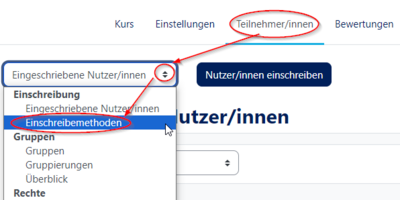
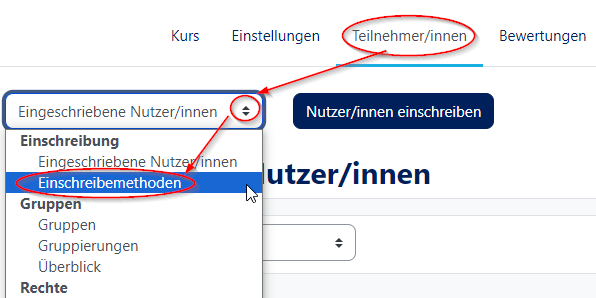
- Click on participants in the course view.
- At the top left, you will find a pull-down menu where you can select the enrollment methods, among other things.
- The important option here is self-enrollment (participant).
This will take you to an overview of all enrollment methods set up for the course:
- Manual enrollment (always active) (1): This method allows instructors and teaching assistants to manually enroll participants and staff. Please do NOT make any changes!
- Self-enrollment (student) (2): You can edit/activate this method, which allows participants to enroll themselves in the course.
- Add method (3): You can use this menu item to activate a new/additional self-enrollment method.
You will also find the following icons:
 : Deletes the method completely (caution: if you delete an enrollment method that is already in use, the participants will be automatically removed from the course).
 : Method is active and visible. Can be set to inactive/invisible by clicking on it.
 : Method is inactive/invisible.
 : Edit settings for the method.
 : Here you can add users with a single click.
Activate self-enrollment[Bearbeiten | Quelltext bearbeiten]
This section of the instructions assumes that self-enrollment has not yet been activated.

Now click on the Edit icon for self-enrollment.
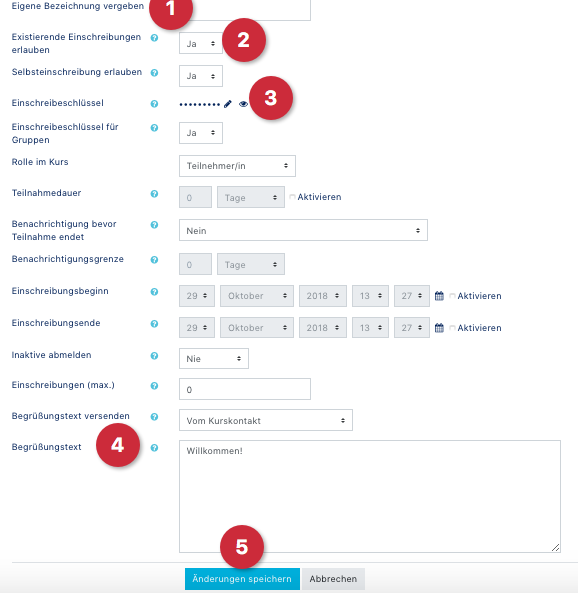
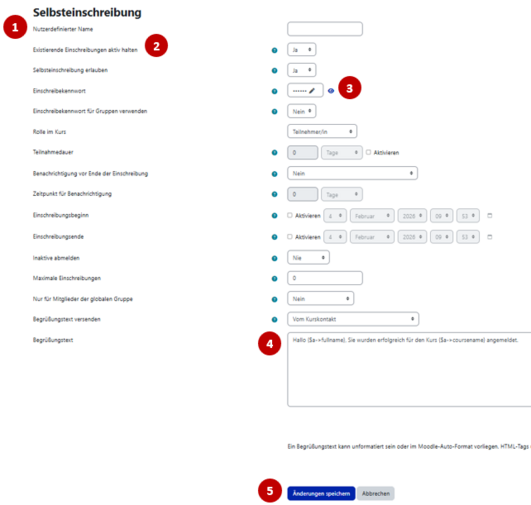
You will be taken to the self-enrollment overview. There are many settings here, but only four of them are really important for activation.
- Custom instance name (1): Here you can set the name of the registration method. We recommend, for example, “Participant Registration” as the title. This will then be displayed to those registering.
- Keep current self enrolments active (2): If the option is disabled, all existing self-enrollments will be disabled and will no longer have access to the course. This is relevant if you have set up multiple self-enrollments.
- Enrolment key (3): This field contains the password that participants must enter.
- You can display the password by clicking on the eye icon.
- Blank means registration without a password (any PANDA user can join the course).
- If you save your PANDA password in your browser, the browser may fill in the field automatically. In this case, please change it!
- Custom welcome message (4): If desired, you can leave a welcome message here for newly registered participants.
- Finally, click on "Save changes."
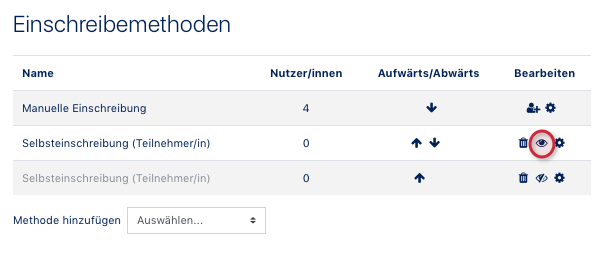
Then activate the registration method by clicking on the eye icon.
Additional settings[Bearbeiten | Quelltext bearbeiten]
- Default assigned role: Defines the role of the enrolled user.
- Enrolment duration: By checking the Enrolment duration checkbox, you can define a time limit for participation.
- Start and End date: By activating the respective checkboxes, you can specify the start and/or end time of the period during which students can register for the course.
- Unenrol inactive after: After a certain number of days, it can be specified that inactive students will be automatically removed from the course.
- Max enrolled users: Maximum number of people who can register using this enrollment method. There may be more people in the course (e.g., via manual enrollment or other self-enrollment methods).
Open courses[Bearbeiten | Quelltext bearbeiten]
"Open courses" “Open courses” are PANDA courses that students can enroll in without a password. You can create these by activating self-enrollment without a password. Instructions can be found here.
Disable self-enrollment[Bearbeiten | Quelltext bearbeiten]
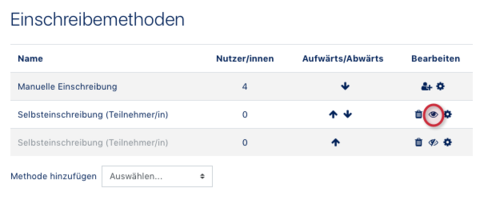
Click on the visible/active icon to deactivate self-enrollment.
Please note: All persons who have enrolled in the course via self-enrollment will be set to “Inactive” status upon deactivation. This means that participating students will still be enrolled, but will no longer be able to actively access the course.
Change password[Bearbeiten | Quelltext bearbeiten]
Initial situation: Self-enrollment is already active, but the password needs to be changed or deleted.
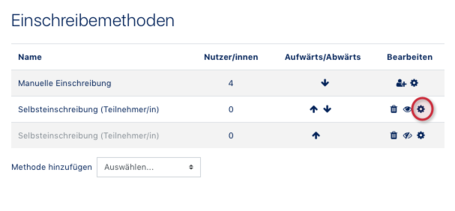
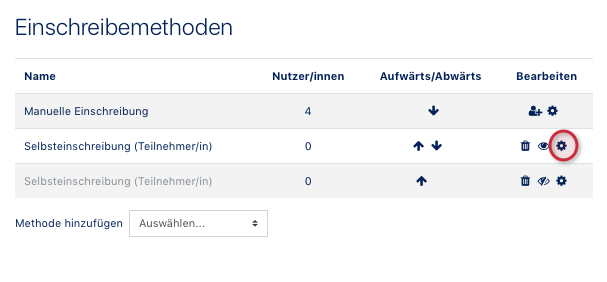
Click on the Edit icon for the self-enrollment you want to change.
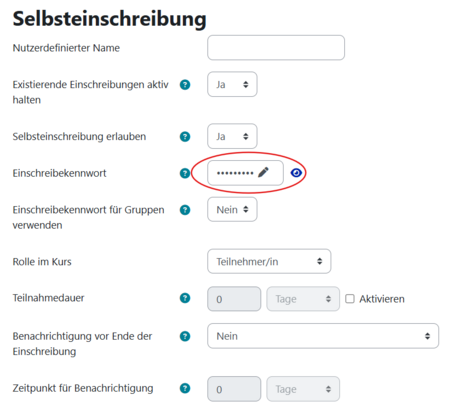
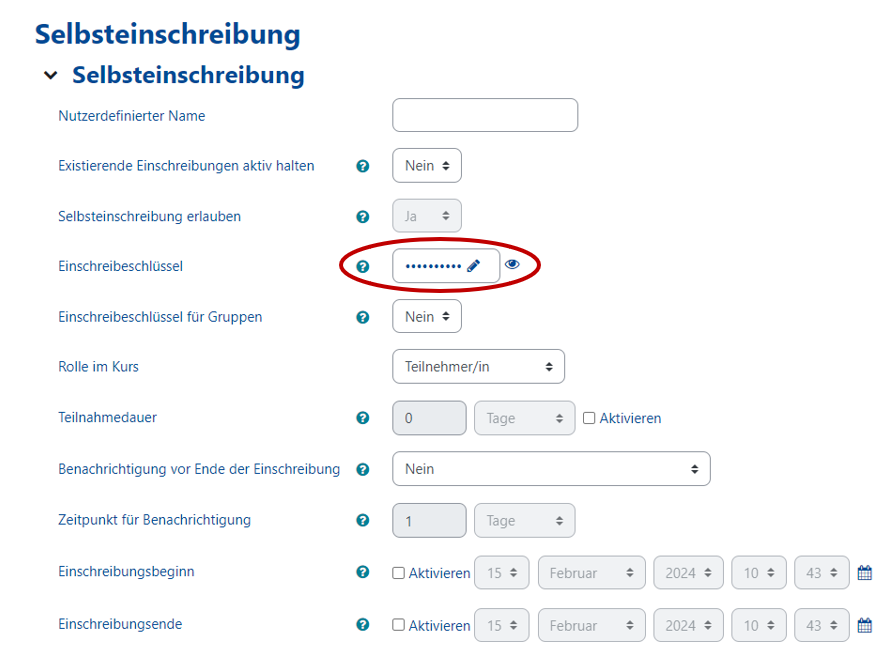
Enrolment key: Change the password as desired.
- You can display the password by clicking on the eye icon.
- Blank means registration without a password (any PANDA user can join the course).
- If you save your PANDA password in your browser, the browser may fill in the field automatically. In this case, please change it!
- At the end, please click on ‘’'Save changes'‘’. This will activate the new password.
View for students[Bearbeiten | Quelltext bearbeiten]

PANDA users can now search for your course in PANDA and enroll themselves in the course after entering the password.
See also[Bearbeiten | Quelltext bearbeiten]
Self-enrollment is only one of the possible ways for students to enroll. There are also
- manual enrollment
- PAUL-Sync
- Participant management: Open course