Jnk (Diskussion | Beiträge) |
|||
| (23 dazwischenliegende Versionen von 2 Benutzern werden nicht angezeigt) | |||
| Zeile 4: | Zeile 4: | ||
|translated title=Mail setup in Thunderbird (Windows) | |translated title=Mail setup in Thunderbird (Windows) | ||
}} | }} | ||
| − | Thunderbird is an open source | + | Thunderbird is an open-source email program from the Mozilla community. You can use the free Thunderbird to retrieve, send, and manage your emails from your University of Paderborn email account. |
| − | |||
| − | ==Step-by-step | + | == What needs to be done? == |
| − | + | ||
| + | * Open Thunderbird | ||
| + | * Set up your email account | ||
| + | |||
| + | == Step-by-step instructions == | ||
Open Thunderbird. | Open Thunderbird. | ||
| − | [[Datei:Mail-unter-Thunderbird-01.png|links|mini|ohne| | + | |
| + | [[Datei:Mail-unter-Thunderbird-01.png|links|mini|ohne|250px]] | ||
| + | |||
<br> | <br> | ||
| − | * Click on the | + | * Click on the three horizontal bars in the upper right corner. |
| − | * | + | * Then, click on the gear icon for '''"Settings"''' in the lower left corner. |
| + | |||
<br clear=all> | <br clear=all> | ||
| − | [[Datei:Mail-unter-Thunderbird-02.png|links|mini|ohne| | + | [[Datei:Mail-unter-Thunderbird-02.png|links|mini|ohne|300px]] |
| − | <br> | + | * Now click on '''"Account Settings"'''. |
| − | * Click on '''Account | + | <br clear=all> |
| + | |||
| + | [[Datei:Mail-unter-Thunderbird-03.png|links|mini|ohne|300px]] | ||
| + | * The account settings will now open. | ||
| + | * Click on '''"New Account"'''. | ||
| + | * Then click on '''"Email Account..."'''. | ||
| + | * Set up your email account using the following settings: | ||
| + | <br clear=all> | ||
| + | |||
| + | [[Datei:Mail-unter-Thunderbird-04.png|links|mini|ohne|450px]] | ||
| + | * '''Name:''' Your name - This will be displayed as the sender when you send emails. | ||
| + | * '''Email Address:''' Your email address. | ||
| + | * '''Password (if requested):''' Password for your university account. | ||
| + | * Finally, click '''Next'''. | ||
<br clear=all> | <br clear=all> | ||
| − | [[Datei:Mail-unter-Thunderbird- | + | {{E-Mail-Aliase-en}} |
| + | |||
| + | [[Datei:Mail-unter-Thunderbird-07.png|links|mini|ohne|450px]] | ||
| + | |||
<br> | <br> | ||
| − | * | + | * A configuration should be automatically found for your mailbox. If that is not the case, look below for a manual setup. |
| − | * Click | + | |
| + | * Click '''"Next"'''. | ||
| + | |||
<br clear=all> | <br clear=all> | ||
| + | [[Datei:Mail-unter-Thunderbird-06.png|links|mini|ohne|500px|Finish Setup]] | ||
| − | |||
| − | |||
<br> | <br> | ||
| − | * ''' | + | * Click '''"Finish"'''. |
| − | + | ||
| − | |||
| − | |||
<br clear=all> | <br clear=all> | ||
<bootstrap_accordion> | <bootstrap_accordion> | ||
| − | + | ||
| − | + | <bootstrap_panel heading="Manual Setup" color="info"> | |
| − | + | If automatic setup is not possible, you can also configure Thunderbird manually. | |
| − | + | ||
<br> | <br> | ||
| − | + | * Click on '''Manual Setup'''. | |
| − | * | + | |
| − | + | Select the following settings: | |
| − | |||
| − | |||
| − | |||
<br> | <br> | ||
| − | * | + | * '''Name:''' Your name - This will be displayed as the sender when you send emails. |
| + | |||
| + | * '''Email Address:''' Your email address | ||
| + | |||
| + | * '''Password:''' Password for your university account | ||
| + | |||
<br clear=all> | <br clear=all> | ||
| + | Now come the settings for the incoming mail server and then for the outgoing mail server. The outgoing mail server settings are usually detected automatically. If not, please enter the following settings: | ||
| − | + | [[Datei:Mail-unter-Thunderbird-05.png|links|mini|ohne|350px]] | |
| − | [[Datei:Mail-unter-Thunderbird- | ||
| − | |||
| − | |||
| − | |||
| − | |||
| − | |||
| − | * ''' | + | '''Incoming Mail Server:''' |
| − | * '''Server | + | * '''Protocol''': IMAP |
| + | * '''Server Address:''' mail.uni-paderborn.de | ||
* '''Port:''' 993 | * '''Port:''' 993 | ||
* '''SSL:''' SSL/TLS | * '''SSL:''' SSL/TLS | ||
* '''Authentication:''' Password, normal | * '''Authentication:''' Password, normal | ||
| + | * '''Username:''' Your personal username from your university account | ||
<br> | <br> | ||
| − | * ''' | + | '''Outgoing Mail Server:''' |
| − | * '''Server | + | * '''Protocol:''' SMTP |
| + | * '''Server Address:''' mail.uni-paderborn.de | ||
* '''Port:''' 465 | * '''Port:''' 465 | ||
* '''SSL:''' SSL/TLS | * '''SSL:''' SSL/TLS | ||
| − | * '''Authentication:''' | + | * '''Authentication:''' Password, normal |
| − | * '''Username:''' | + | * '''Username:''' Your personal username from your university account |
<br clear=all> | <br clear=all> | ||
| − | Thunderbird | + | |
| + | [[Datei:Mail-unter-Thunderbird-06.png|links|mini|ohne|500px]] | ||
| + | Finally, click '''Finish'''. Once your email account is set up with the correct settings, Thunderbird should begin retrieving your existing emails. | ||
| + | |||
| + | </bootstrap_panel> | ||
| + | |||
| + | </bootstrap_accordion> | ||
== See also == | == See also == | ||
| − | [ | + | |
| + | * [[Mail]] | ||
Aktuelle Version vom 26. Februar 2026, 11:02 Uhr
Thunderbird is an open-source email program from the Mozilla community. You can use the free Thunderbird to retrieve, send, and manage your emails from your University of Paderborn email account.
What needs to be done?[Bearbeiten | Quelltext bearbeiten]
- Open Thunderbird
- Set up your email account
Step-by-step instructions[Bearbeiten | Quelltext bearbeiten]
Open Thunderbird.
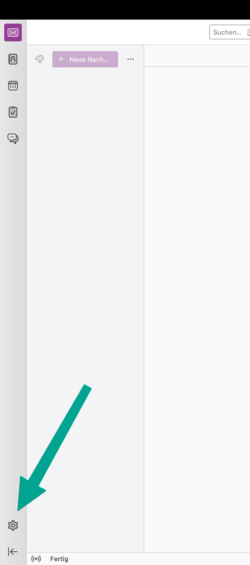
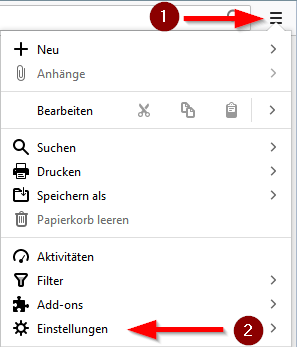
- Click on the three horizontal bars in the upper right corner.
- Then, click on the gear icon for "Settings" in the lower left corner.
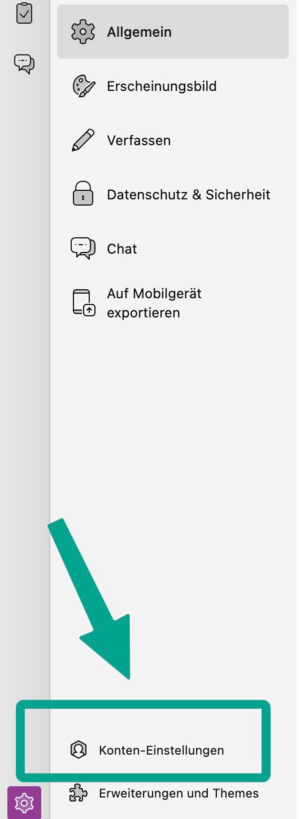
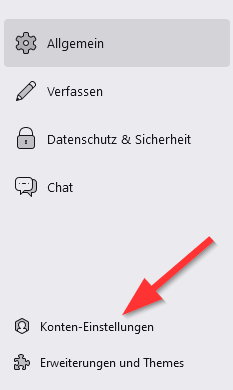
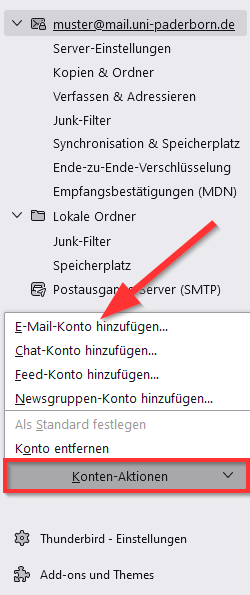
- Now click on "Account Settings".
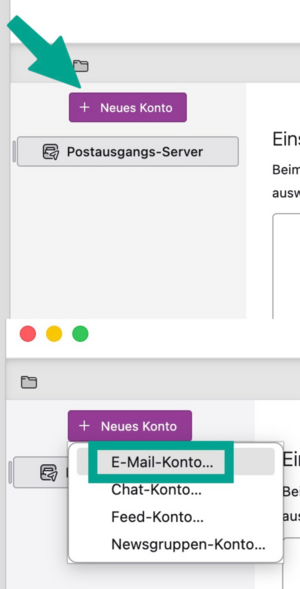
- The account settings will now open.
- Click on "New Account".
- Then click on "Email Account...".
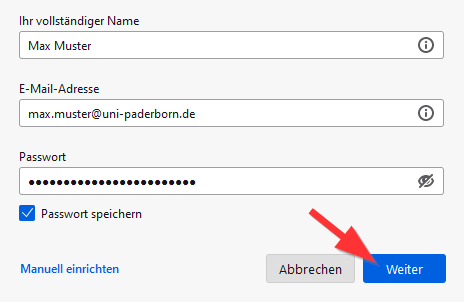
- Set up your email account using the following settings:
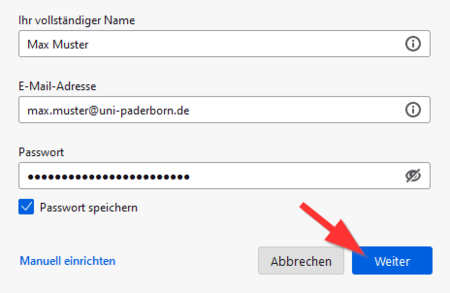
- Name: Your name - This will be displayed as the sender when you send emails.
- Email Address: Your email address.
- Password (if requested): Password for your university account.
- Finally, click Next.
Further info: Which mail address do you have?
As student or employe you have the following e-mail adresses:
- username@mail.uni-paderborn.de
- username@campus.uni-paderborn.de
- username@mail.upb.de
- username@campus.upb.de
Employes have additionally the following E-Mail-Adress:
- name.surname@uni-paderborn.de
- name.surname@upb.de
- Contact the ZIM for additional E-Mail-Aliases.
All aliases are available in the same mailbox. Choose one as you like for sending an receiving mails.
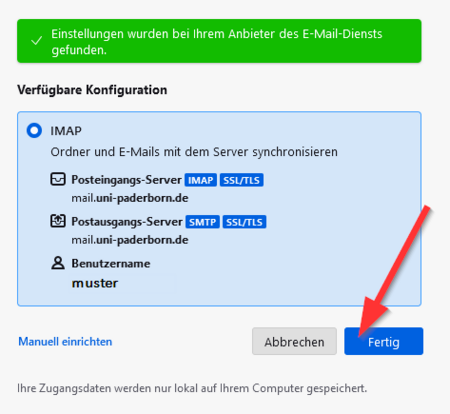
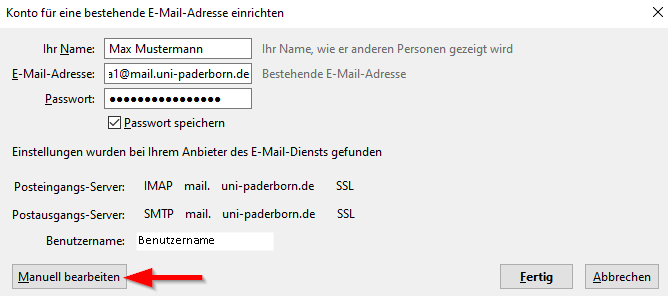
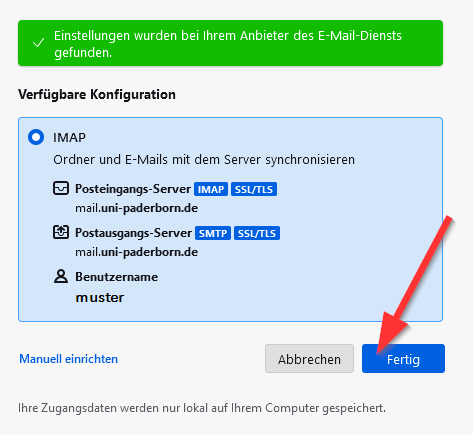
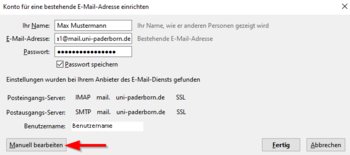
- A configuration should be automatically found for your mailbox. If that is not the case, look below for a manual setup.
- Click "Next".
- Click "Finish".
Manual Setup
If automatic setup is not possible, you can also configure Thunderbird manually.
- Click on Manual Setup.
Select the following settings:
- Name: Your name - This will be displayed as the sender when you send emails.
- Email Address: Your email address
- Password: Password for your university account
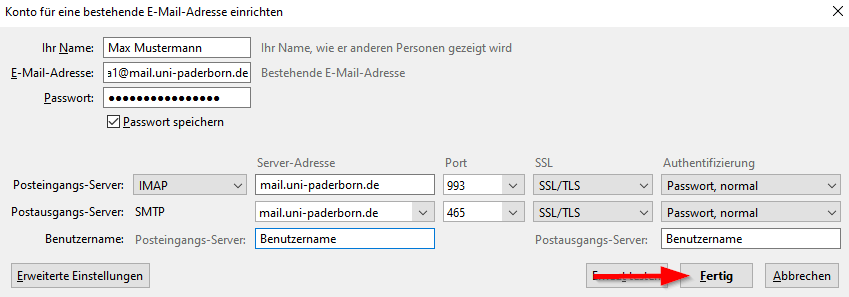
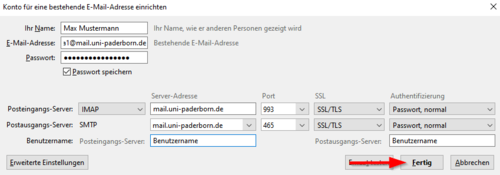
Now come the settings for the incoming mail server and then for the outgoing mail server. The outgoing mail server settings are usually detected automatically. If not, please enter the following settings:
Incoming Mail Server:
- Protocol: IMAP
- Server Address: mail.uni-paderborn.de
- Port: 993
- SSL: SSL/TLS
- Authentication: Password, normal
- Username: Your personal username from your university account
Outgoing Mail Server:
- Protocol: SMTP
- Server Address: mail.uni-paderborn.de
- Port: 465
- SSL: SSL/TLS
- Authentication: Password, normal
- Username: Your personal username from your university account
Finally, click Finish. Once your email account is set up with the correct settings, Thunderbird should begin retrieving your existing emails.