| Zeile 16: | Zeile 16: | ||
==Create a Collection== | ==Create a Collection== | ||
[[Datei:Bitwarden-04.png|left|mini|none|450px]] | [[Datei:Bitwarden-04.png|left|mini|none|450px]] | ||
| + | <br> | ||
* Click on '''"+ New"''' | * Click on '''"+ New"''' | ||
* Then click on '''"Collection"'''. | * Then click on '''"Collection"'''. | ||
| Zeile 21: | Zeile 22: | ||
[[Datei:Bitwarden-30.png|left|mini|none|450px]] | [[Datei:Bitwarden-30.png|left|mini|none|450px]] | ||
| + | <br> | ||
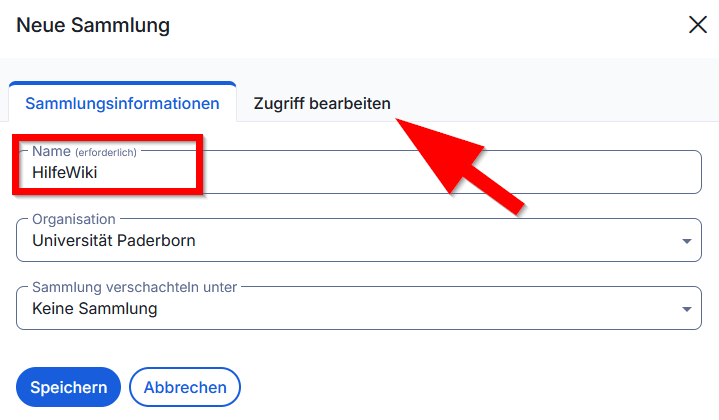
* Enter a name for your collection. | * Enter a name for your collection. | ||
* Then click on '''"Edit Access"'''. | * Then click on '''"Edit Access"'''. | ||
| Zeile 27: | Zeile 29: | ||
[[Datei:Bitwarden-30.png|left|mini|none|450px]] | [[Datei:Bitwarden-30.png|left|mini|none|450px]] | ||
| + | <br> | ||
* Enter a name for your collection. | * Enter a name for your collection. | ||
* Then click on '''"Edit Access"'''. | * Then click on '''"Edit Access"'''. | ||
| Zeile 32: | Zeile 35: | ||
[[Datei:Bitwarden-31.png|left|mini|none|450px]] | [[Datei:Bitwarden-31.png|left|mini|none|450px]] | ||
| + | <br> | ||
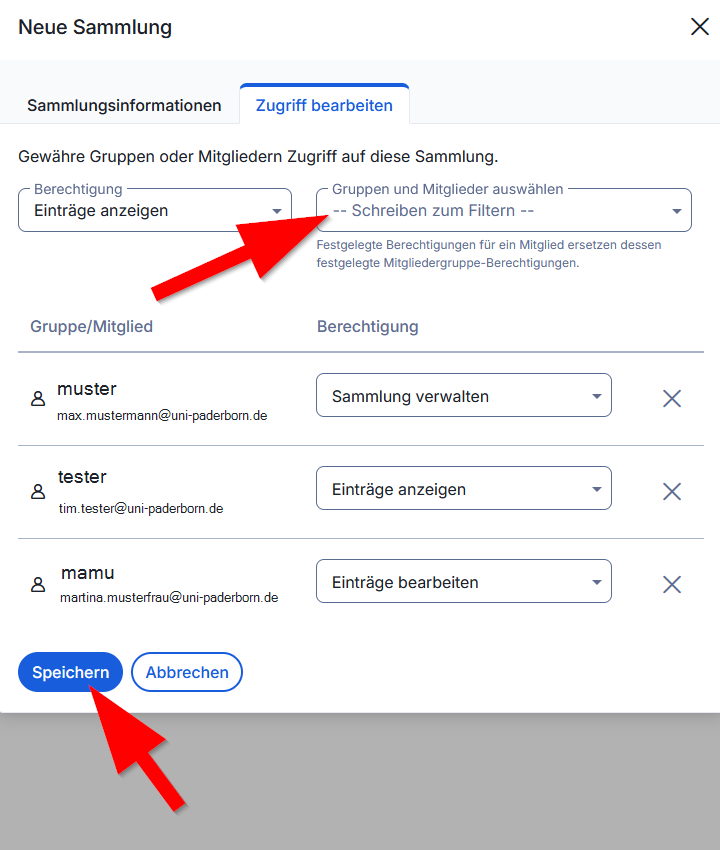
* Select a member who should have access to your collection - The person must already be registered for the UPB Bitwarden service. | * Select a member who should have access to your collection - The person must already be registered for the UPB Bitwarden service. | ||
* Alternatively, you can select an LDAP group that has been activated by the IT Services Center (ZIM) for the password manager function. | * Alternatively, you can select an LDAP group that has been activated by the IT Services Center (ZIM) for the password manager function. | ||
| Zeile 56: | Zeile 60: | ||
* Delete items from the collection | * Delete items from the collection | ||
* Delete the collection | * Delete the collection | ||
| − | |||
<br> | <br> | ||
| Zeile 71: | Zeile 74: | ||
[[Datei:Bitwarden-32.png|left|mini|none|450px]] | [[Datei:Bitwarden-32.png|left|mini|none|450px]] | ||
| + | <br> | ||
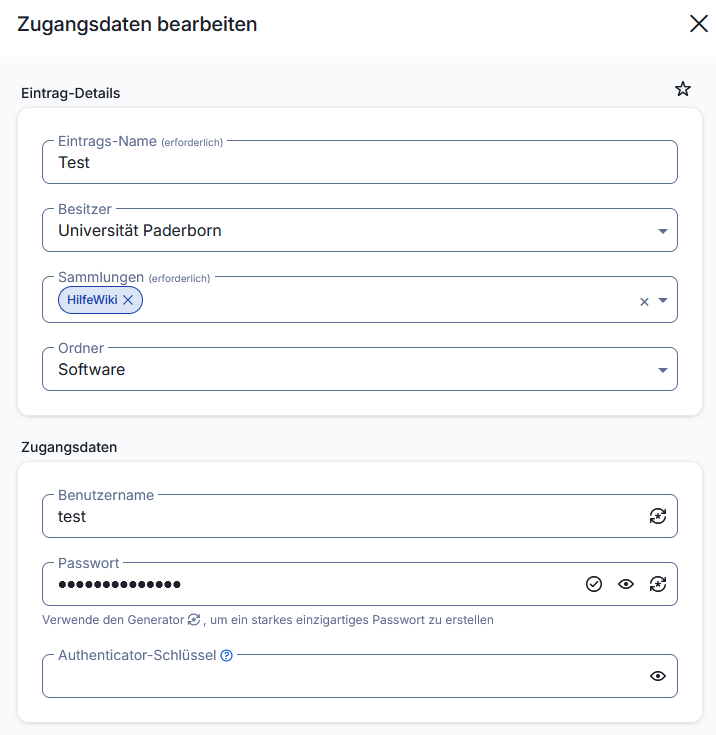
* Select '''"Universität Paderborn"''' as the owner. | * Select '''"Universität Paderborn"''' as the owner. | ||
* Select the collection with which you want to share the access credentials. | * Select the collection with which you want to share the access credentials. | ||
| − | |||
<br clear=all> | <br clear=all> | ||
| Zeile 104: | Zeile 107: | ||
[[Datei:Bitwarden-34.png|left|mini|without|450px|Edit Collection]] | [[Datei:Bitwarden-34.png|left|mini|without|450px|Edit Collection]] | ||
| − | |||
<br> | <br> | ||
* Click on the collection you want to edit. | * Click on the collection you want to edit. | ||
* Then, you can expand the collection menu using the arrow at the top. | * Then, you can expand the collection menu using the arrow at the top. | ||
* You can now rename the collection, add or remove people, change permissions, and delete the entire collection. | * You can now rename the collection, add or remove people, change permissions, and delete the entire collection. | ||
| − | |||
<br clear=all> | <br clear=all> | ||
== See also == | == See also == | ||
* [[Passwortmanager]] | * [[Passwortmanager]] | ||
Version vom 12. April 2026, 21:23 Uhr
 | This article is only a draft. Information provided here is most possibly incomplete and/or imprecise. Feel free to help us by expanding it. |
Collections allow you to share passwords with other people and groups within Bitwarden.
Requirements[Bearbeiten | Quelltext bearbeiten]
- Use the web interface to create and edit collections - Bitwarden - Anmeldung Weboberfläche
- It is not possible to create collections within the apps or browser extensions.
Create a Collection[Bearbeiten | Quelltext bearbeiten]
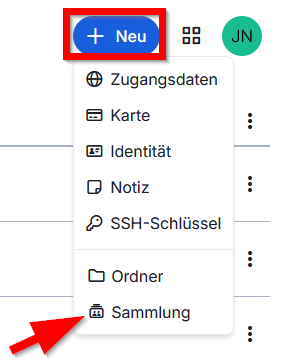
- Click on "+ New"
- Then click on "Collection".
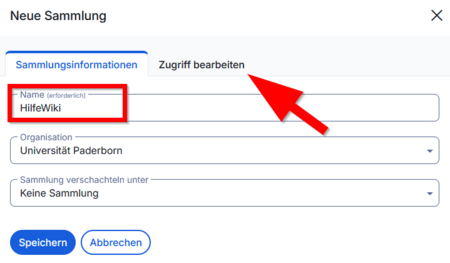
- Enter a name for your collection.
- Then click on "Edit Access".
- Enter a name for your collection.
- Then click on "Edit Access".
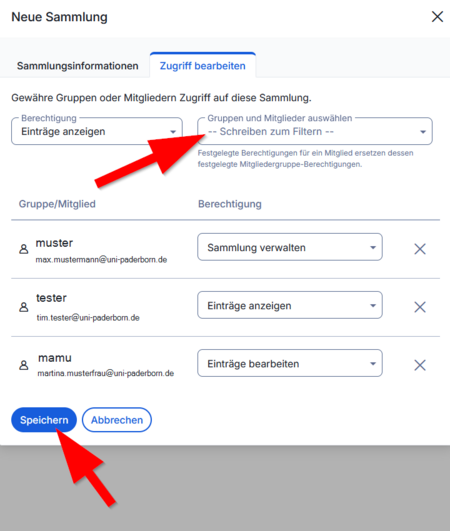
- Select a member who should have access to your collection - The person must already be registered for the UPB Bitwarden service.
- Alternatively, you can select an LDAP group that has been activated by the IT Services Center (ZIM) for the password manager function.
- Grant the group or person permission.
- Click on "Save" to create the collection.
Permissions[Bearbeiten | Quelltext bearbeiten]
You can assign the following permissions to a collection.
Show Entries
- Show all items in the collection
Edit Entries
- Show and edit all items in the collection
Manage Collection
- Show and edit all items in the collection
- Add members and groups to the collection
- Change permissions for members and groups
- Delete items from the collection
- Delete the collection
⚠ Permissions for Hidden Passwords:
Hiding passwords prevents easy copying and pasting, but does not completely prevent the user from accessing this information. Treat hidden passwords like any other shared credentials.
[Bearbeiten | Quelltext bearbeiten]
When creating or editing credentials, you can now share them in a collection.
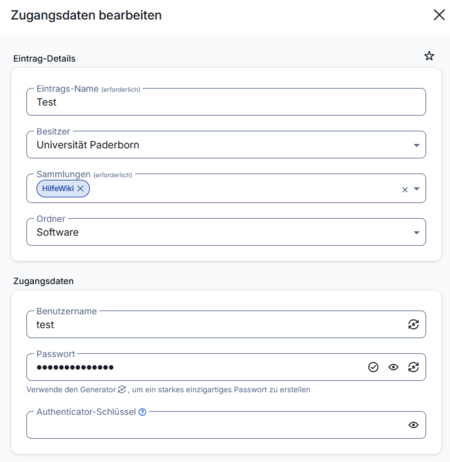
- Select "Universität Paderborn" as the owner.
- Select the collection with which you want to share the access credentials.
🛈
Folders do not affect the sharing of access credentials. Specifying a folder in the access credentials only affects your own view.
Nest Collections[Bearbeiten | Quelltext bearbeiten]
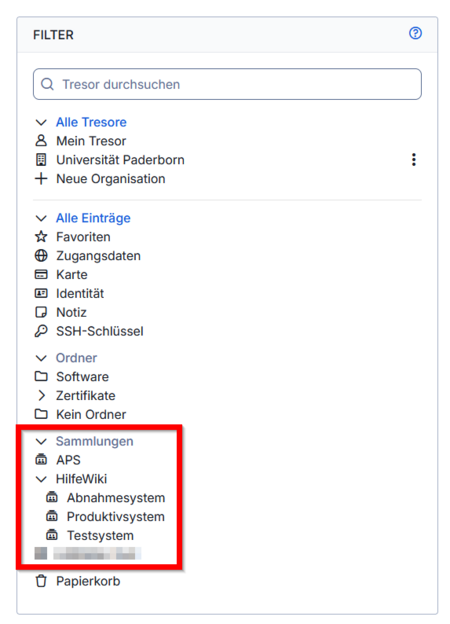
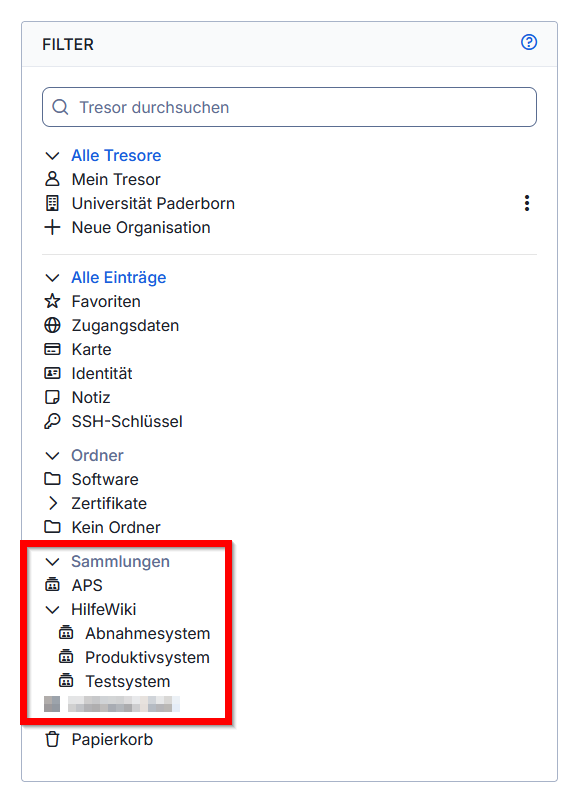
- You can see all collections in the vault overview.
- As with folders, collections can also be nested.
🛈
Nested collections can be used to sort and structure passwords. Nested collections do not inherit any items, access, or permissions from their parent collection. You must define permissions individually for each collection.
Edit Collection[Bearbeiten | Quelltext bearbeiten]
If you have the "Manage Collection" permission, you can perform the following actions.
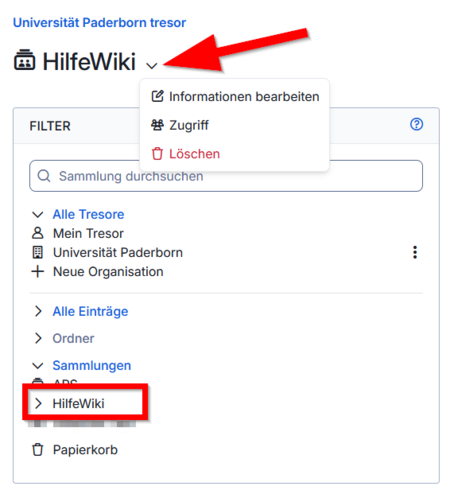
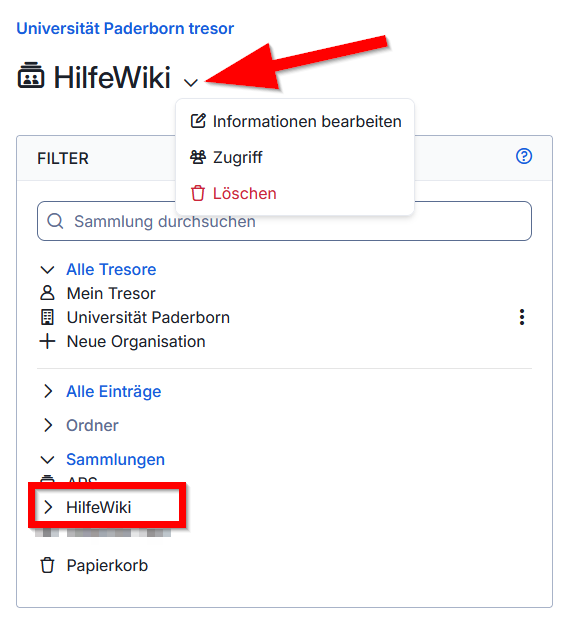
- Click on the collection you want to edit.
- Then, you can expand the collection menu using the arrow at the top.
- You can now rename the collection, add or remove people, change permissions, and delete the entire collection.