Sciebo beantragen/en
(Die Seite wurde neu angelegt: „{{translated page |origin=Sciebo beantragen |lang=en |translated title=Apply for Sciebo }} In order to use the '''Sciebo''' online storage, you must first crea…“) |
|||
| (4 dazwischenliegende Versionen desselben Benutzers werden nicht angezeigt) | |||
| Zeile 5: | Zeile 5: | ||
}} | }} | ||
In order to use the '''Sciebo''' online storage, you must first create an account for this service. To do this, visit the Sciebo homepage. There you will also find extensive information and instructions. | In order to use the '''Sciebo''' online storage, you must first create an account for this service. To do this, visit the Sciebo homepage. There you will also find extensive information and instructions. | ||
| + | |||
| + | ==Requirements== | ||
| + | * University account with the role '''Student''' or '''Employee'''. | ||
| + | * Guests have <span style="color:red">'''no'''</span> access to Sciebo. | ||
== What needs to be done? == | == What needs to be done? == | ||
| − | * Visit the [http://www.sciebo.de/ Sciebo] Homepage | + | * Visit the [http://www.sciebo.de/ Sciebo] Homepage. |
| − | * Register with the '''Uni-Account''' at Sciebo | + | * Register with the '''Uni-Account''' at Sciebo. |
== Step-by-step instructions == | == Step-by-step instructions == | ||
| Zeile 14: | Zeile 18: | ||
[[Datei:Sciebo Regristrieren 1.png|links|mini|ohne|350px]] | [[Datei:Sciebo Regristrieren 1.png|links|mini|ohne|350px]] | ||
<br> | <br> | ||
| − | * Go to the [http://www.sciebo.de/ Sciebo] homepage | + | * Go to the [http://www.sciebo.de/ Sciebo] homepage. |
| − | * Click on '''Registration''' in the upper band | + | * Click on '''Registration''' in the upper band. |
<br clear=all> | <br clear=all> | ||
[[Datei: Sciebo Registrierung 2.png|links|mini|ohne|350px]] | [[Datei: Sciebo Registrierung 2.png|links|mini|ohne|350px]] | ||
<br> | <br> | ||
| − | * Under '''Organization''' select the entry '''"University | + | * Under '''Organization''' select the entry '''"Paderborn University"'''. |
<br clear=all> | <br clear=all> | ||
[[Datei:Scibo-beantragen-3.png|links|mini|ohne|350px]] | [[Datei:Scibo-beantragen-3.png|links|mini|ohne|350px]] | ||
<br> | <br> | ||
| − | * Log in with your '''"Uni-Account"''' of | + | * Log in with your '''"Uni-Account"''' of Paderborn University. Put in your '''username''' (1) and your '''password''' (2) and click on '''sign in''' (3). |
<br clear=all> | <br clear=all> | ||
[[Datei:Scibo-beantragen-4.png|links|mini|ohne|350px]] | [[Datei:Scibo-beantragen-4.png|links|mini|ohne|350px]] | ||
<br> | <br> | ||
| − | * You will be shown an overview of the data transferred from | + | * You will be shown an overview of the data transferred from Paderborn University to the Sciebo service. |
| − | * Decide on a one-time or permanent data transfer | + | * Decide on a one-time or permanent data transfer. |
| − | * Then click on '''"Transfer information"''' | + | * Then click on '''"Transfer information"'''. |
<br clear=all> | <br clear=all> | ||
[[Datei: Sciebo Registrierung 3.png|links|mini|ohne|350px]] | [[Datei: Sciebo Registrierung 3.png|links|mini|ohne|350px]] | ||
<br> | <br> | ||
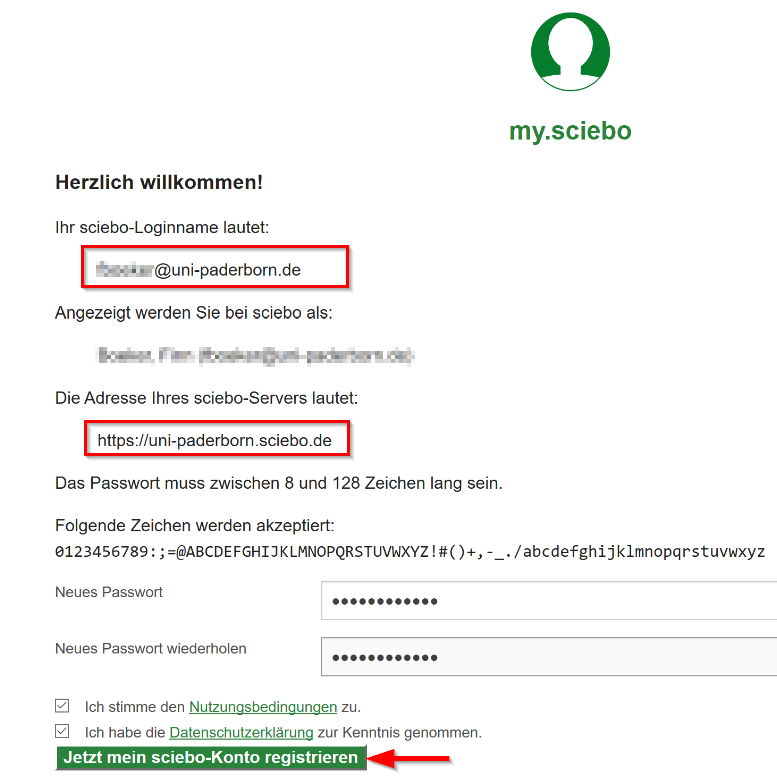
| − | * You will now be assigned a user name for Sciebo | + | * You will now be assigned a user name for Sciebo. |
| − | * Set your own password for the Sciebo service | + | * Set your own password for the Sciebo service. |
| − | * With this data you can then register with Sciebo | + | * With this data you can then register with Sciebo. |
| − | * Accept the terms of use | + | * Accept the terms of use. |
| − | * Finally, click on '''"Register for sciebo now"''' | + | * Finally, click on '''"Register for sciebo now"'''. |
<br clear=all> | <br clear=all> | ||
Now you can use the sciebo service without restrictions. | Now you can use the sciebo service without restrictions. | ||
| + | |||
| + | ==Log in to Sciebo== | ||
| + | You can now log in to [https://uni-paderborn.sciebo.de https://uni-paderborn.sciebo.de] with your sciebo login name.<br> | ||
| + | Your Sciebo login name has the form: '''username@uni-paderborn.de'''. | ||
| + | |||
| + | ==Guests== | ||
| + | A university account with the '''Guest''' role cannot currently register with Sciebo. <br> | ||
| + | If you do not have your own Sciebo account, you can use the following features: | ||
| + | * Sharing links from other users. | ||
| + | * Inviting guests within Sciebo. | ||
| + | ** See https://www.sciebo.de/de/hilfe/gaeste.html | ||
Aktuelle Version vom 19. Mai 2026, 19:30 Uhr
Die deutsche Version finden Sie auf der Seite Sciebo - Beantragen
In order to use the Sciebo online storage, you must first create an account for this service. To do this, visit the Sciebo homepage. There you will also find extensive information and instructions.
Requirements[Bearbeiten | Quelltext bearbeiten]
- University account with the role Student or Employee.
- Guests have no access to Sciebo.
What needs to be done?[Bearbeiten | Quelltext bearbeiten]
- Visit the Sciebo Homepage.
- Register with the Uni-Account at Sciebo.
Step-by-step instructions[Bearbeiten | Quelltext bearbeiten]
Register[Bearbeiten | Quelltext bearbeiten]
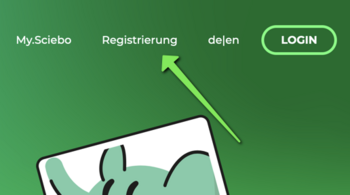
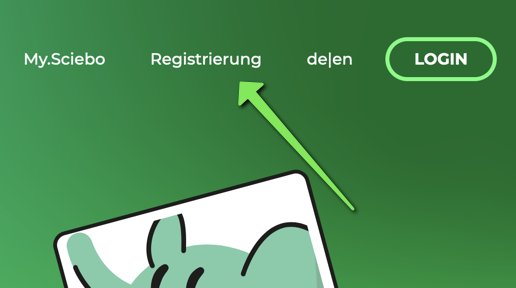
- Go to the Sciebo homepage.
- Click on Registration in the upper band.
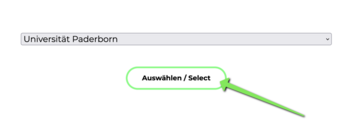
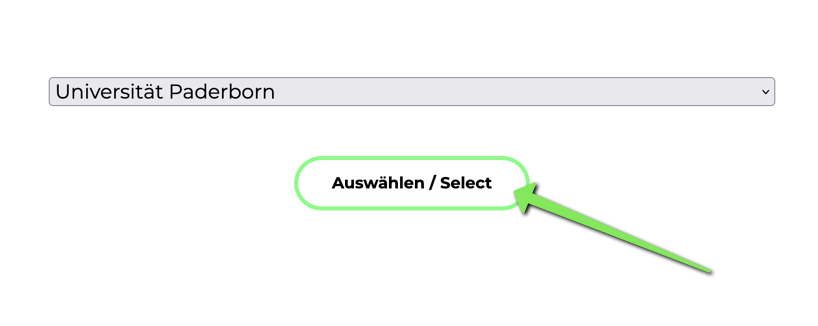
- Under Organization select the entry "Paderborn University".
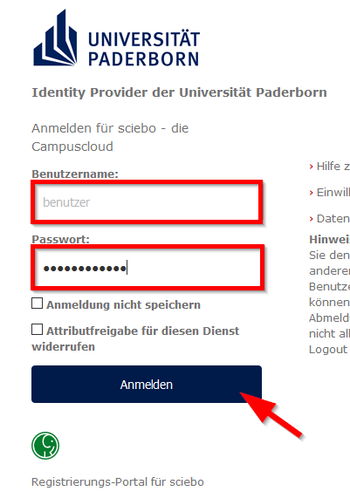
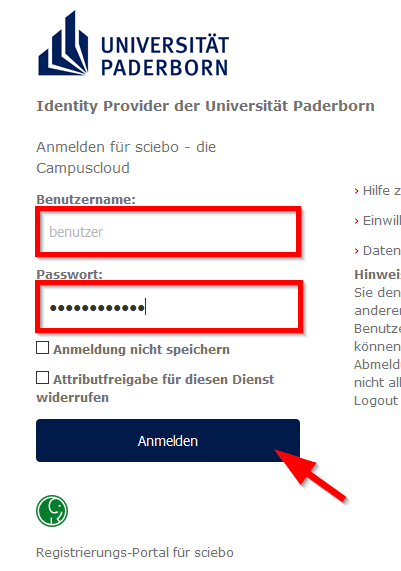
- Log in with your "Uni-Account" of Paderborn University. Put in your username (1) and your password (2) and click on sign in (3).
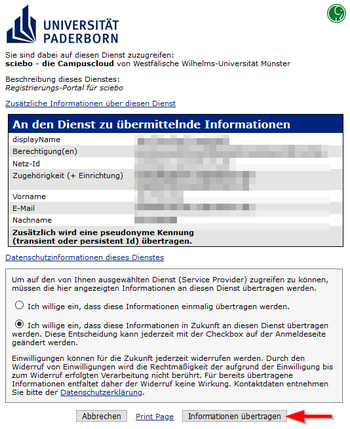
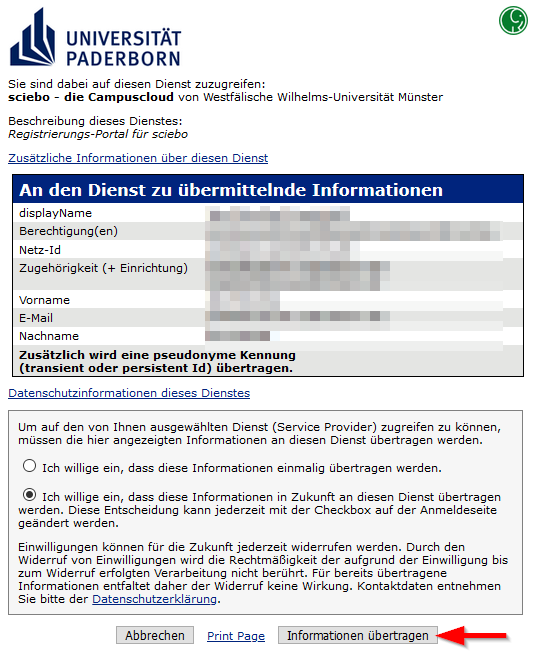
- You will be shown an overview of the data transferred from Paderborn University to the Sciebo service.
- Decide on a one-time or permanent data transfer.
- Then click on "Transfer information".
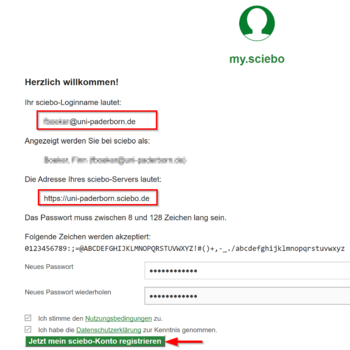
- You will now be assigned a user name for Sciebo.
- Set your own password for the Sciebo service.
- With this data you can then register with Sciebo.
- Accept the terms of use.
- Finally, click on "Register for sciebo now".
Now you can use the sciebo service without restrictions.
Log in to Sciebo[Bearbeiten | Quelltext bearbeiten]
You can now log in to https://uni-paderborn.sciebo.de with your sciebo login name.
Your Sciebo login name has the form: username@uni-paderborn.de.
Guests[Bearbeiten | Quelltext bearbeiten]
A university account with the Guest role cannot currently register with Sciebo.
If you do not have your own Sciebo account, you can use the following features:
- Sharing links from other users.
- Inviting guests within Sciebo.