Jnk (Diskussion | Beiträge) K (Textersetzung - „IMT“ durch „ZIM“) |
K |
||
| Zeile 7: | Zeile 7: | ||
==Requirements== | ==Requirements== | ||
| − | * Student of | + | * Student of Paderborn University |
| − | * Lecturer or teacher of | + | * Lecturer or teacher of Paderborn University |
* MS PowerPoint from Office 2010 or later | * MS PowerPoint from Office 2010 or later | ||
Aktuelle Version vom 19. Mai 2026, 19:31 Uhr
think-cell is an add-in for Microsoft PowerPoint for creating professional diagrams such as waterfall, Mekko and Gantt charts. It allows you to quickly create clear slide layouts from standard elements.
Requirements[Bearbeiten | Quelltext bearbeiten]
- Student of Paderborn University
- Lecturer or teacher of Paderborn University
- MS PowerPoint from Office 2010 or later
Apply for license[Bearbeiten | Quelltext bearbeiten]
First, the think-cell service must be applied for in the Serviceportal.
- Go to the Serviceportal.
- Log in with your university account.
- Change to the section "User Selfcare" and then to "Additional Services"
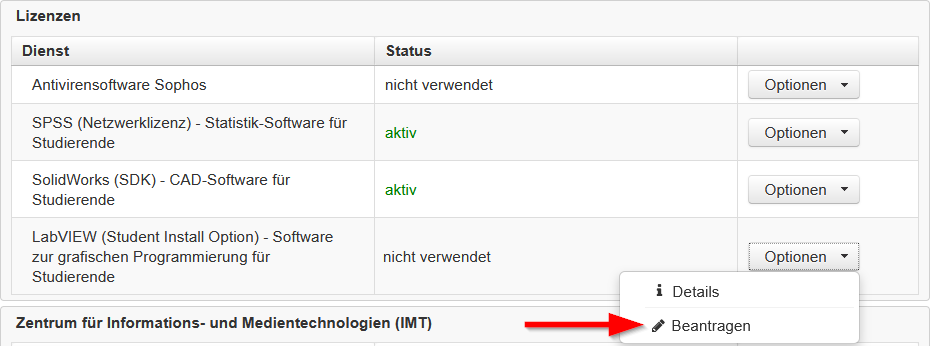
- Under "Lizenzen" you will find the service think-cell'
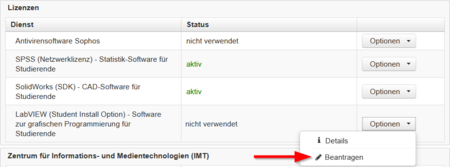
- Click on Optionen and then on Beantragen
- Accept the terms of the license
You should now receive an email within a short time. This will contain the following information:
- A link to the think-cell download page.
- The serial number required for operation
- Further instructions for use and installation
Download think-cell[Bearbeiten | Quelltext bearbeiten]
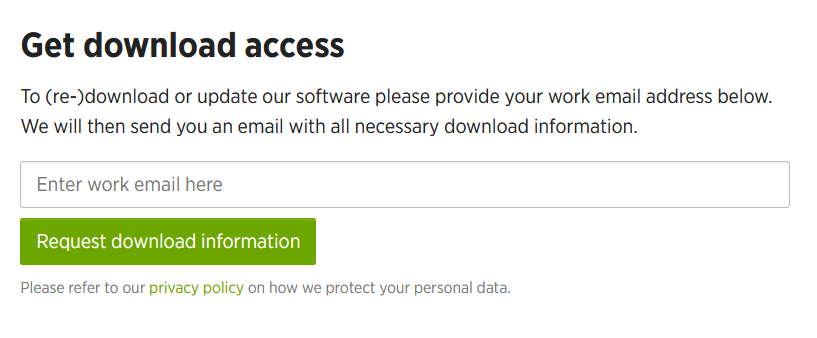
Follow the download link from the ZIM's reply email.
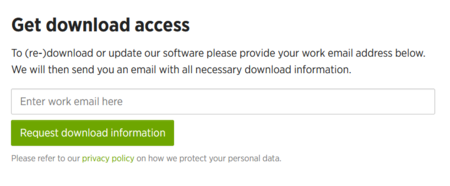
- Enter your e-mail address that ends with @mail.uni-paderborn.de here.
- Click on Request download information
You will then receive a download link to the software via email from the think-cell company. Click on the link and download the installation file.
Installing think-cell[Bearbeiten | Quelltext bearbeiten]
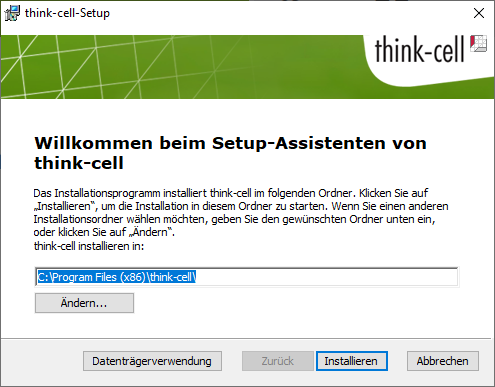
Run the installation file. Accept the license terms during the installation.
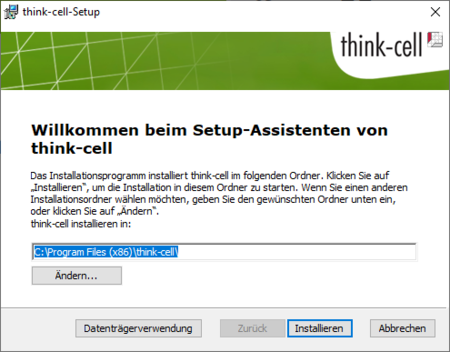
- Click on Installieren
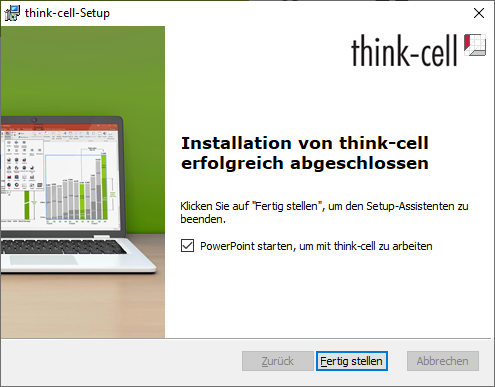
Then the setup wizard installs the think-cell software.
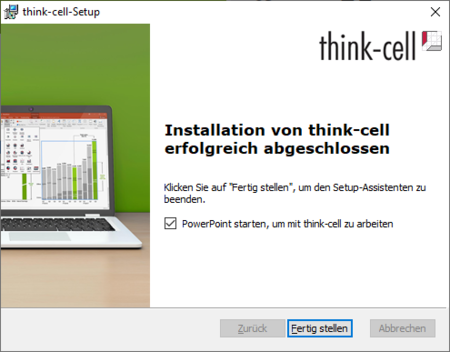
- Click on Fertig stellen
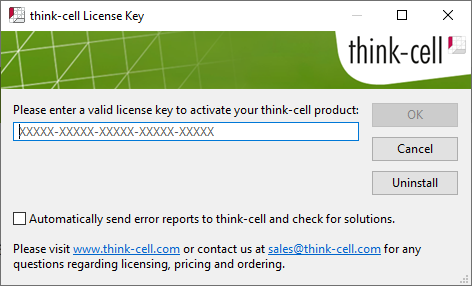
After installation, you will be prompted to enter the license key the first time you start MS PowerPoint.
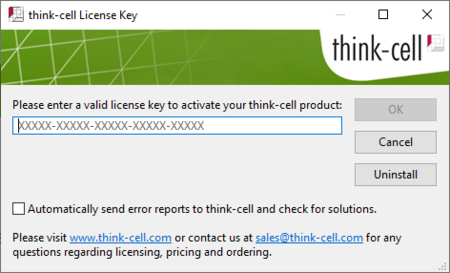
- Insert the license key from the mail from the ZIM.
- Click on OK
Now think-cell can be used in MS PowerPoint.
macOS[Bearbeiten | Quelltext bearbeiten]
The installation process under macOS is the same.