Jnk (Diskussion | Beiträge) (Hinweise zum Radius Server Zertifikat Fingerprint eingeblendet) |
|||
| (13 dazwischenliegende Versionen von 2 Benutzern werden nicht angezeigt) | |||
| Zeile 5: | Zeile 5: | ||
}} | }} | ||
| − | + | {{Fingerprint_Radiuszertifikat-en}} | |
| − | + | ||
| − | |||
| − | |||
| − | |||
| − | |||
| − | |||
These instructions explain how to set up the eduroam WiFi for iPhones and iPads. | These instructions explain how to set up the eduroam WiFi for iPhones and iPads. | ||
| + | |||
| + | ==Video tutorial== | ||
| + | {{#ev:upb|a710352aade9114c52c3a8298ba20026}} | ||
== Step-by-step instructions == | == Step-by-step instructions == | ||
| Zeile 27: | Zeile 25: | ||
* Click on the 3 vertical bars at the top right. | * Click on the 3 vertical bars at the top right. | ||
* Click '''Benutzerverwaltung'''. | * Click '''Benutzerverwaltung'''. | ||
| − | * Then click on | + | * Then click on '''Netzwerkeinstellungen'''. |
<br clear=all> | <br clear=all> | ||
| Zeile 57: | Zeile 55: | ||
* To do this, click '''Allow'''. | * To do this, click '''Allow'''. | ||
<br clear=all> | <br clear=all> | ||
| + | |||
| + | ===Install certificate=== | ||
| + | [[File:Eduroam-ios-8.png|80px]] | ||
| + | Open the Settings app. | ||
| + | <br clear=all> | ||
| + | |||
| + | [[File:Eduroam-ios-14.png|rechts|mini|ohne|350px|You may have to click here first.]] | ||
| + | [[File:Eduroam-ios-5.png|links|mini|ohne|350px|Open the profile.]] | ||
| + | <br> | ||
| + | * Click on the '''Profile loaded''' entry. | ||
| + | ** ''"'''More for your iPhone'''" can also appear here instead if several things are pending (e.g. updates)'' | ||
| + | * Click '''Install'''. | ||
| + | * Enter the code for your iPhone. | ||
| + | * Click ''"Install"'' again. | ||
| + | * Enter the import password that you just copied to the clipboard. | ||
| + | * Click on Continue"'''. | ||
| + | <br clear=all> | ||
| + | |||
| + | ===Connect Eduroam=== | ||
| + | [[File:Eduroam-ios-7.png|links|mini|ohne|350px]] | ||
| + | <br> | ||
| + | * In the Settings app, click '''Wi-Fi'''. | ||
| + | * Then click on the network '''"eduroam"'''. | ||
| + | <br clear=all> | ||
| + | |||
| + | [[File:Eduroam-ios-6.png|links|mini|ohne|350px]] | ||
| + | <br> | ||
| + | * Change the mode to '''"EAP-TLS"'''. | ||
| + | * Select your certificate under '''Identity'''. It ends in ''"@uni-paderborn.de"''. | ||
| + | * Be sure to leave the ''"Username"'' field blank! | ||
| + | * Then click ''"Connect"''. | ||
| + | <br clear=all> | ||
| + | |||
| + | [[File:Eduroam-ios-15.png|links|mini|ohne|350px|Trust certificate]] | ||
| + | <br> | ||
| + | * Click '''Trust'''. | ||
| + | <br clear=all> | ||
| + | |||
| + | Your device should now connect to the eduroam WiFi. | ||
| + | <br> | ||
| + | <br> | ||
| + | |||
| + | <span style="color:red">Important: </span> Remove the network webauth from the list of your known networks. Otherwise your iPhone will not connect reliably to eduroam. To do this, follow these steps: | ||
| + | [[File:Eduroam-ios-11.png|links|mini|ohne|350px]] | ||
| + | <br> | ||
| + | * Open Wi-Fi settings. | ||
| + | * Click on the '''"i"''' next to '''"webauth"'''. [[File:Eduroam-ios-12.png|30px]] | ||
| + | <br clear=all> | ||
| + | |||
| + | [[File:Eduroam-ios-13.png|links|mini|ohne|350px]] | ||
| + | <br> | ||
| + | * Click '''Ignore this network'''. | ||
| + | <br clear=all> | ||
| + | |||
| + | ==Troubleshooting== | ||
| + | Your device doesn't connect to eduroam? Try the following steps: | ||
| + | * Turn WiFi off and on again | ||
| + | * Enable and disable '''Airplane Mode''' | ||
| + | * Restart your device | ||
| + | <br clear=all> | ||
| + | |||
| + | Your device still doesn't connect to eduroam? | ||
| + | * Open Wi-Fi settings. | ||
| + | * Click on the '''"i"''' next to '''"eduroam"'''. [[File:Eduroam-ios-12.png|30px]] | ||
| + | * Click '''Ignore this network'''. | ||
| + | The WLAN eduroam has now been deleted from the list of known networks. You can now connect it again [https://hilfe.uni-paderborn.de./Eduroam_unter_iOS#Eduroam_verbinden]. | ||
| + | <br clear=all> | ||
| + | |||
| + | Your device still doesn't connect to Eduroam? | ||
| + | * Remove eduroam via '''Ignore this network''' as described in the previous tip. | ||
| + | * Open Settings > General > VPN and Device Management. | ||
| + | * Delete all configuration profiles that end with '''"@uni-paderborn.de"''' here. | ||
| + | * If necessary, delete profiles from other universities where you previously had Eduroam access. | ||
| + | * Start again at the beginning of this guide. | ||
| + | <br clear=all> | ||
| + | |||
| + | ==See also== | ||
| + | * [[WLAN]] | ||
Aktuelle Version vom 12. Dezember 2025, 10:56 Uhr
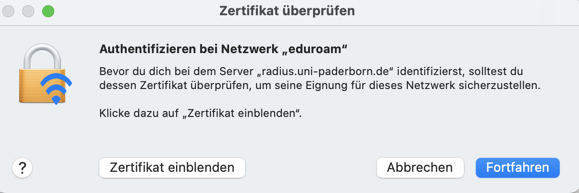
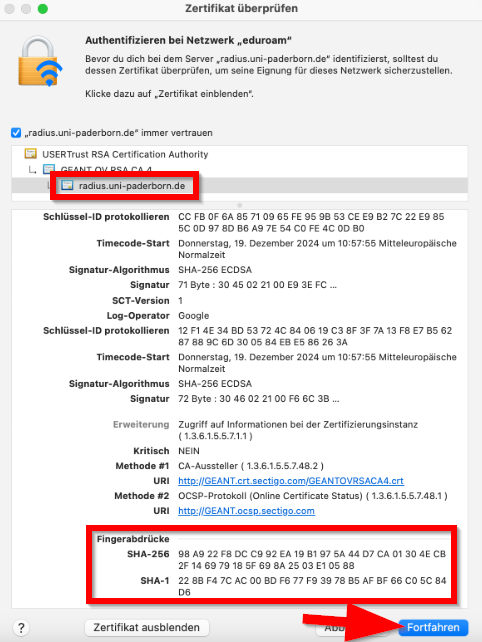
The RADIUS server certificate was replaced on 17 December 2025 at 8:00 a.m. After that, your device may prompt you to verify the certificate before trusting it. You can find the current fingerprint for the certificate here:
You do not need to replace any network certificates on your device. Most devices should still be able to connect to eduroam without any problems. More details on how individual devices will behave can be found here:
For details click here
Depending on the device, you may have to reconnect to eduroam, select the certificate again or trust the certificate.
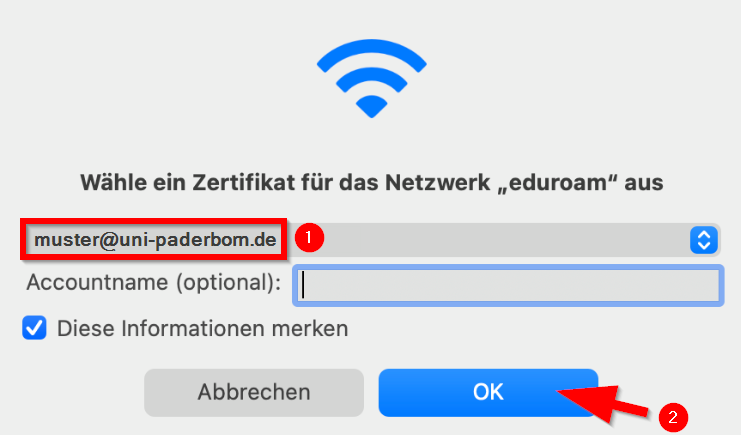
macOS
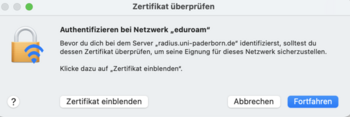
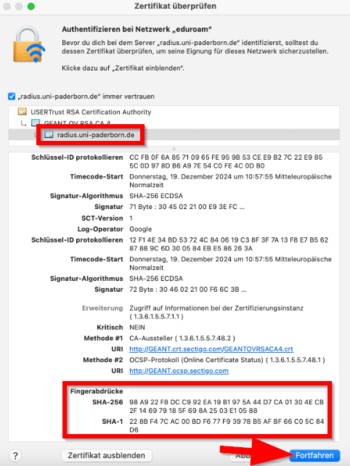
- Zertifikat einblenden to check certificate
- Continue to trust the certificate
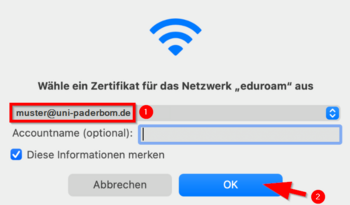
- You may need to select your certificate again afterwards.
- Do not enter a username to log in to eduroam!
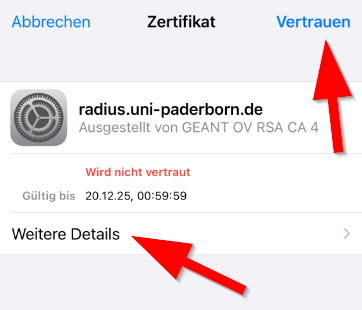
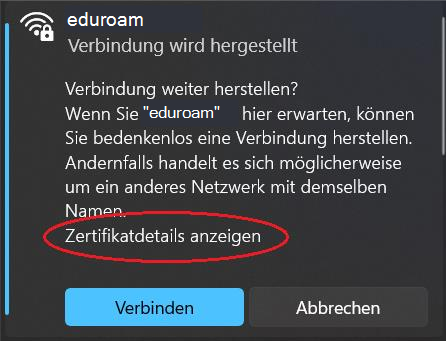
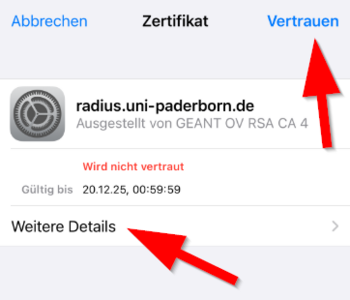
iPhone und iPad
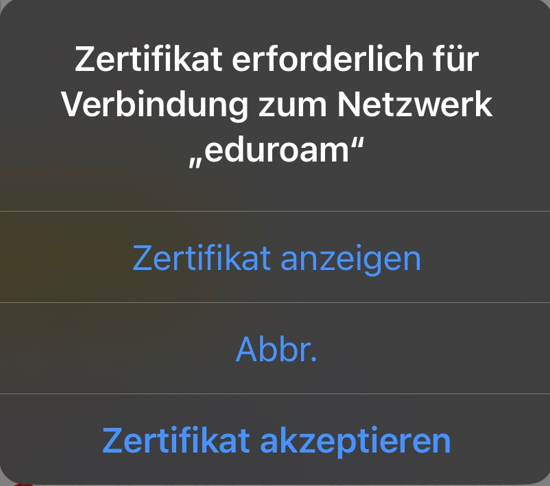
- Display certificate to check the certificate
- Accept certificate to trust the certificate
Windows
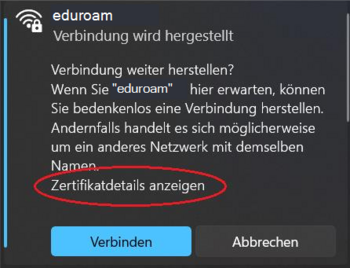
- Show certificate details to check the certificate
- Connect to trust the certificate
These instructions explain how to set up the eduroam WiFi for iPhones and iPads.
Video tutorial[Bearbeiten | Quelltext bearbeiten]
Step-by-step instructions[Bearbeiten | Quelltext bearbeiten]
Apply for certificate[Bearbeiten | Quelltext bearbeiten]

- Open the service portal using Safari.
- Log in with your university account.
Note: Do not use an alternative browser such as Google Chrome or Firefox for this. Downloading files is therefore not permitted under iOS.
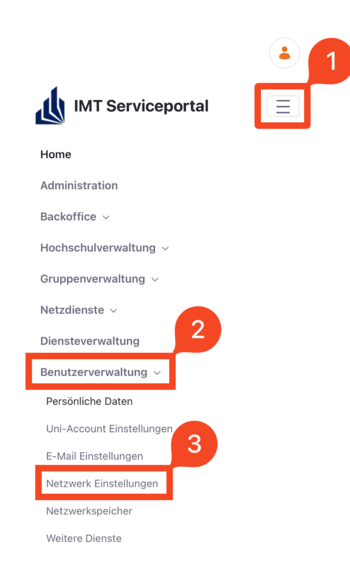
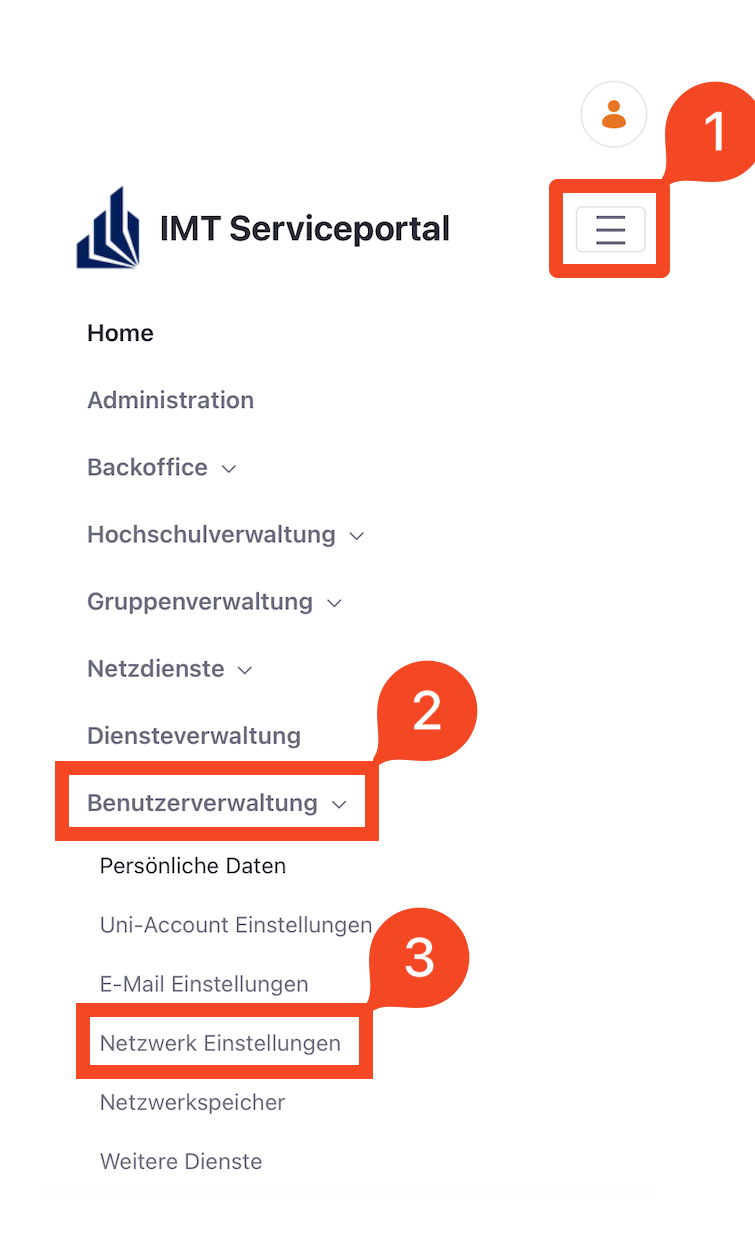
- Click on the 3 vertical bars at the top right.
- Click Benutzerverwaltung.
- Then click on Netzwerkeinstellungen.
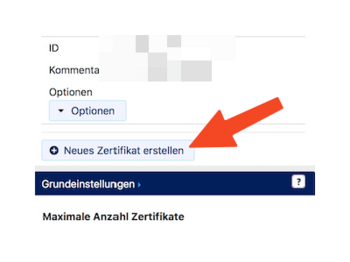
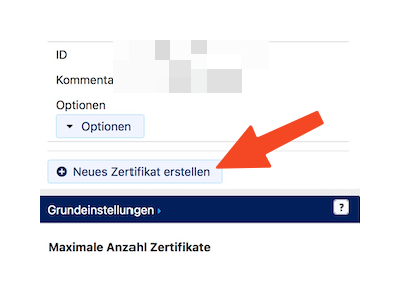
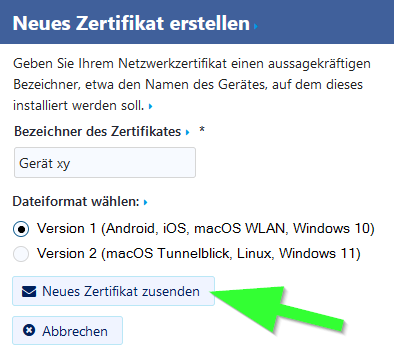
- Click Neues Zertifikat erstellen.
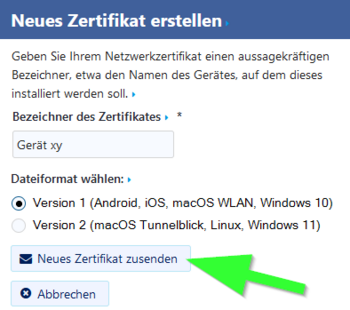
- Give the certificate a unique name (Example: iPhone)
- Select Version 1 as the file format.
- Then click on 'Neues Zertifikat zusenden.
Note: Create a separate certificate for each of your devices. A device is no longer used? Device was lost or stolen? Revoke the certificate via the service portal.
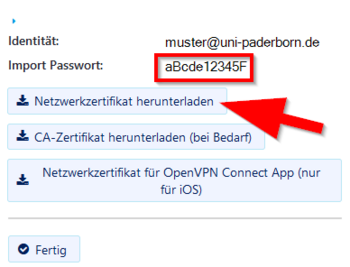
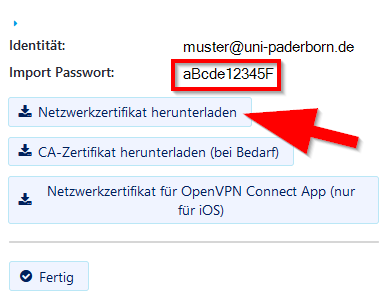
- A new network certificate has been created for you.
- First copy the Import Password to the clipboard.
- Now click on Netzwerkzertifikat herunterladen.
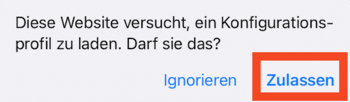
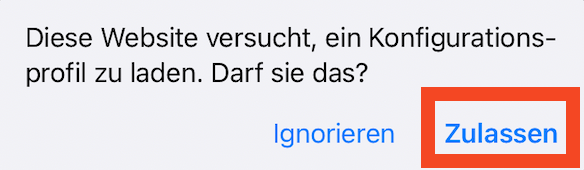
- The network certificate can now be loaded as a configuration profile in the iOS settings.
- To do this, click Allow.
Install certificate[Bearbeiten | Quelltext bearbeiten]
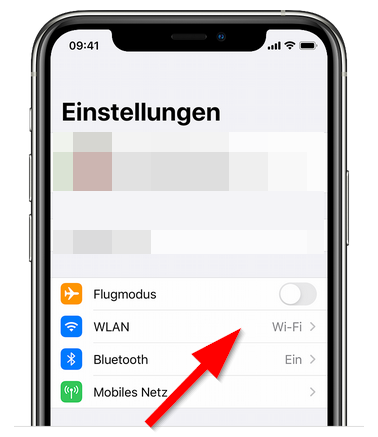
 Open the Settings app.
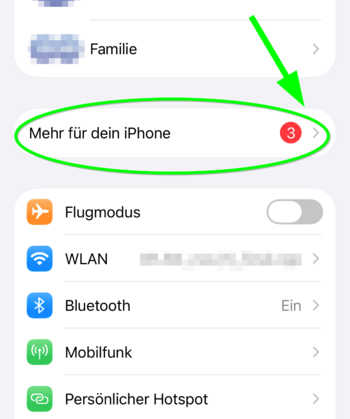
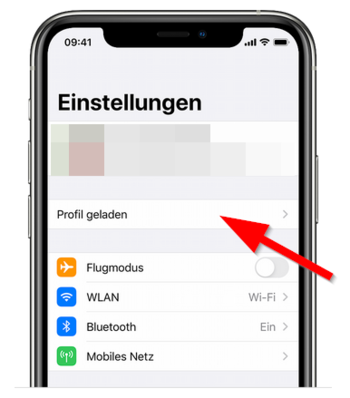
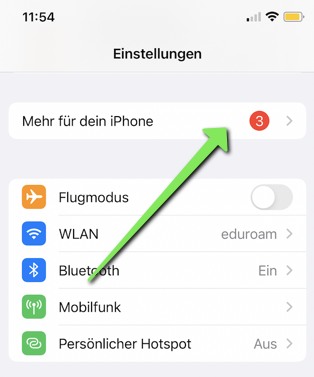
- Click on the Profile loaded entry.
- "More for your iPhone" can also appear here instead if several things are pending (e.g. updates)
- Click Install.
- Enter the code for your iPhone.
- Click "Install" again.
- Enter the import password that you just copied to the clipboard.
- Click on Continue".
Connect Eduroam[Bearbeiten | Quelltext bearbeiten]
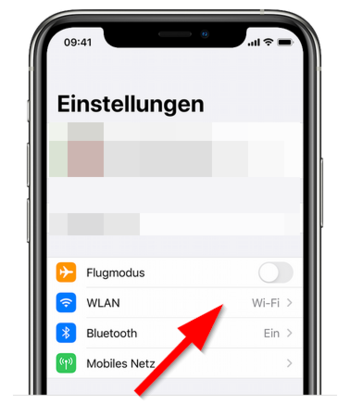
- In the Settings app, click Wi-Fi.
- Then click on the network "eduroam".
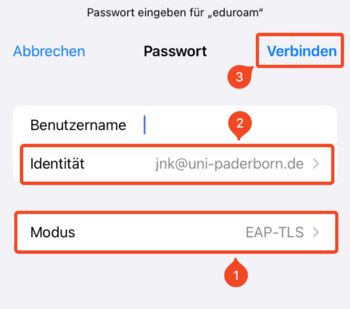
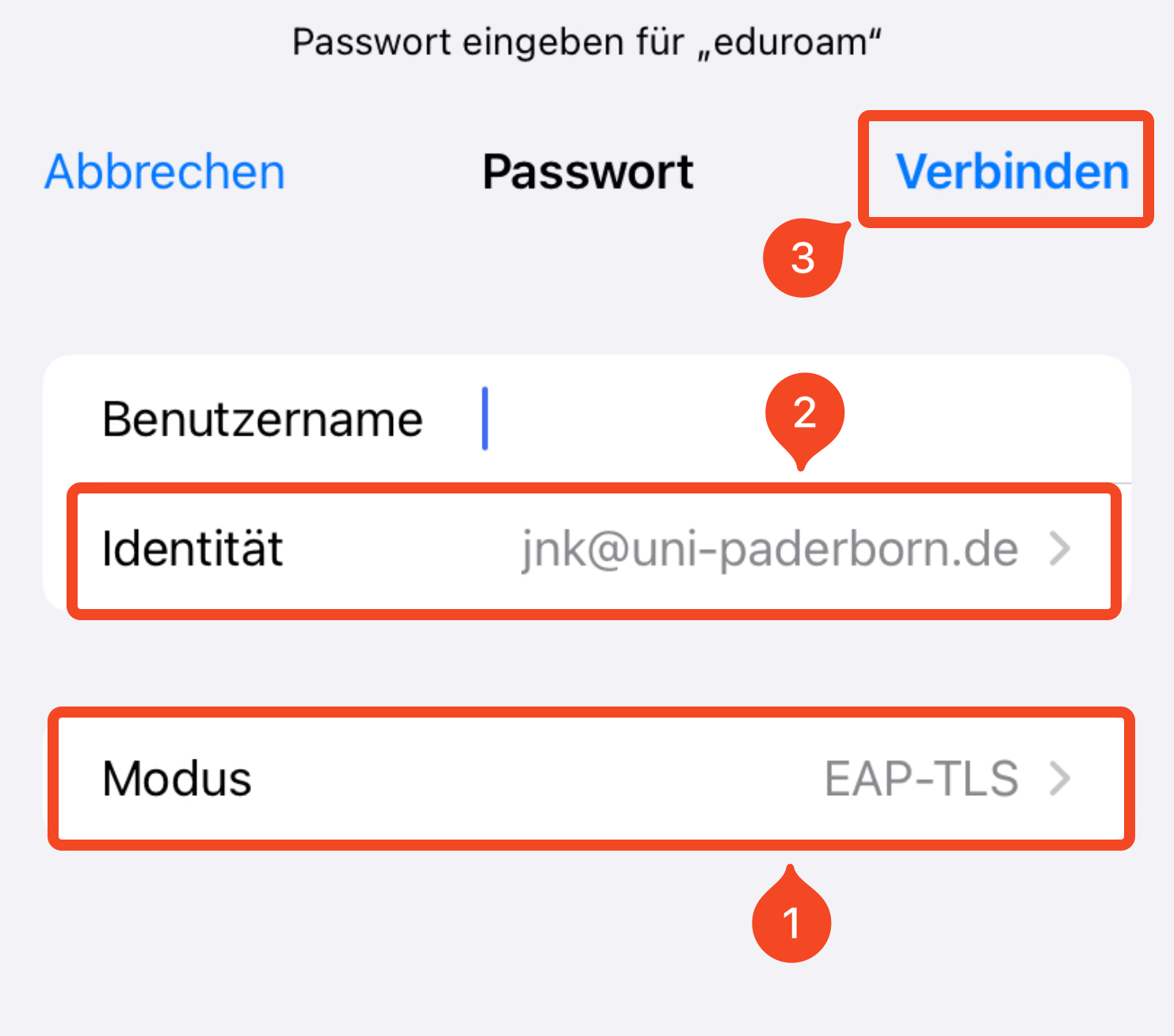
- Change the mode to "EAP-TLS".
- Select your certificate under Identity. It ends in "@uni-paderborn.de".
- Be sure to leave the "Username" field blank!
- Then click "Connect".

- Click Trust.
Your device should now connect to the eduroam WiFi.
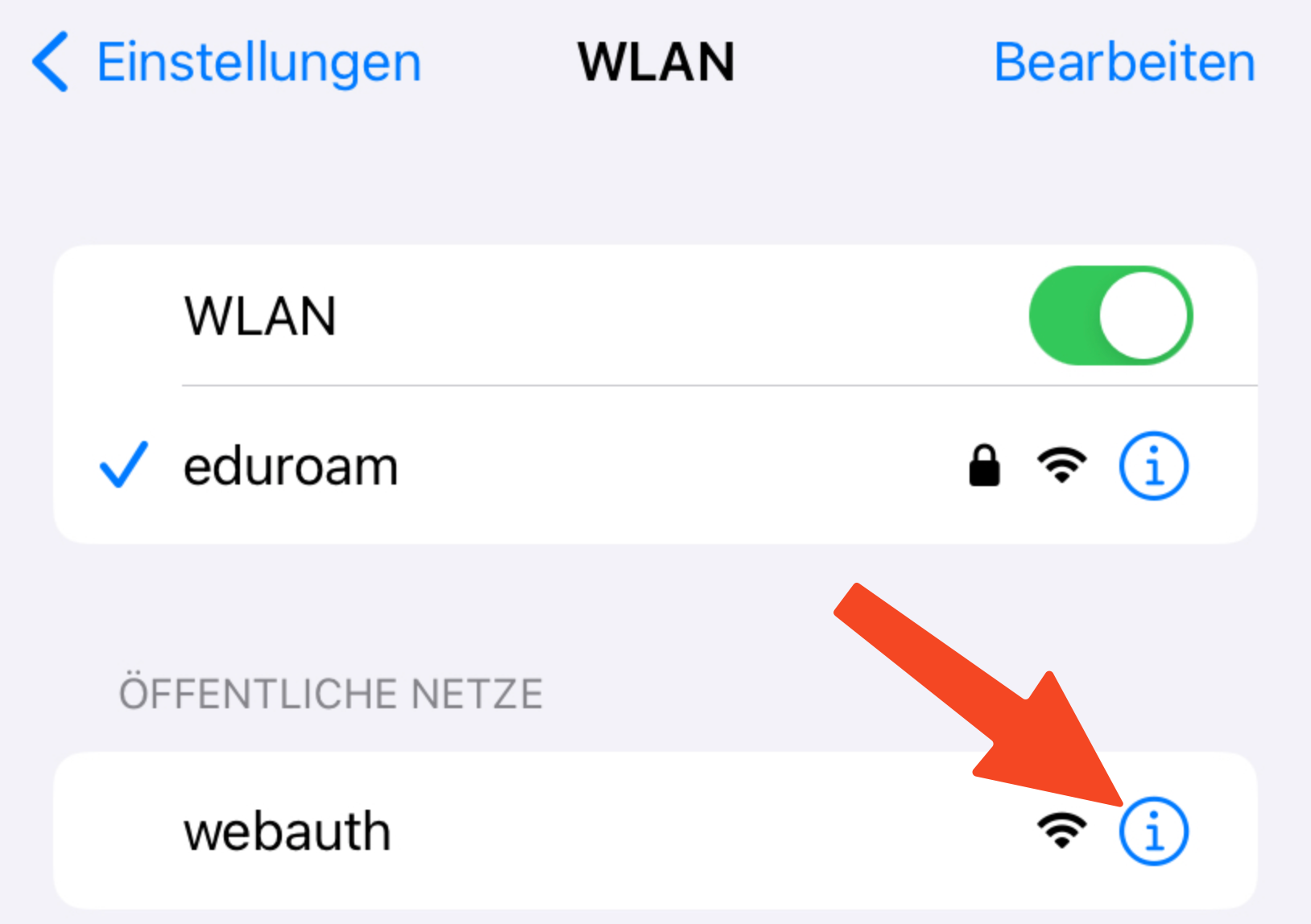
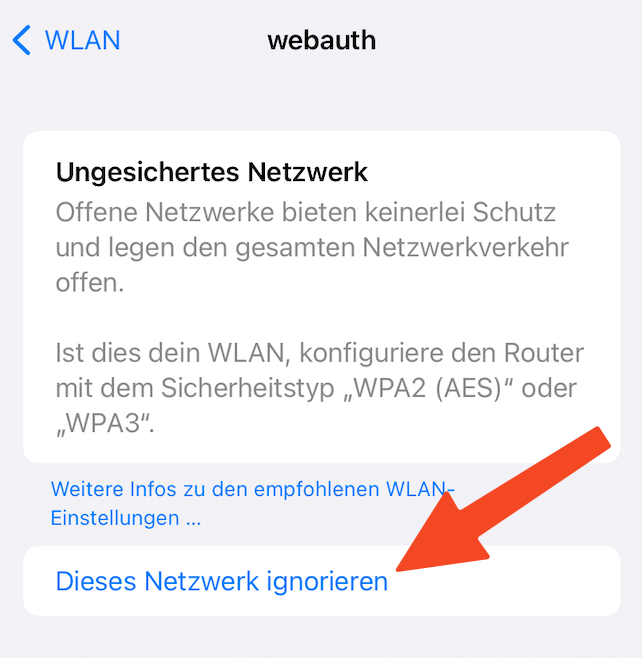
Important: Remove the network webauth from the list of your known networks. Otherwise your iPhone will not connect reliably to eduroam. To do this, follow these steps:
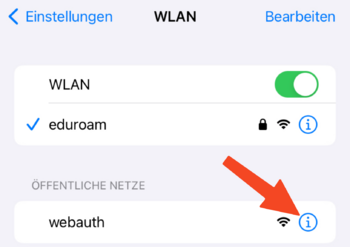
- Open Wi-Fi settings.
- Click on the "i" next to "webauth".

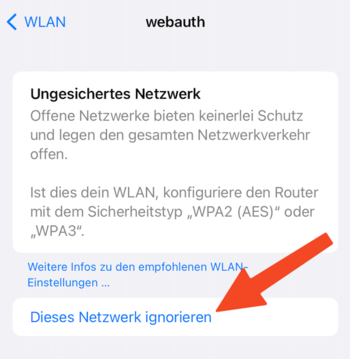
- Click Ignore this network.
Troubleshooting[Bearbeiten | Quelltext bearbeiten]
Your device doesn't connect to eduroam? Try the following steps:
- Turn WiFi off and on again
- Enable and disable Airplane Mode
- Restart your device
Your device still doesn't connect to eduroam?
- Open Wi-Fi settings.
- Click on the "i" next to "eduroam".
- Click Ignore this network.
The WLAN eduroam has now been deleted from the list of known networks. You can now connect it again [1].
Your device still doesn't connect to Eduroam?
- Remove eduroam via Ignore this network as described in the previous tip.
- Open Settings > General > VPN and Device Management.
- Delete all configuration profiles that end with "@uni-paderborn.de" here.
- If necessary, delete profiles from other universities where you previously had Eduroam access.
- Start again at the beginning of this guide.