(Die Seite wurde neu angelegt: „{{translated page |origin=Exchange einrichten in MS Outlook (macOS) |lang=en |translated title=Set up Exchange in MS Outlook (macOS) }} Short Introduction =…“) |
|||
| (8 dazwischenliegende Versionen von 2 Benutzern werden nicht angezeigt) | |||
| Zeile 4: | Zeile 4: | ||
|translated title=Set up Exchange in MS Outlook (macOS) | |translated title=Set up Exchange in MS Outlook (macOS) | ||
}} | }} | ||
| − | |||
| − | == | + | <bootstrap_alert color=warning> |
| − | + | <span style='font-size:30px;'>⚠</span> | |
| − | * all | + | <br> |
| + | Microsoft is currently rolling out the '''New Outlook'''. This version does not support all features of our Exchange service. Please continue to use the classic Outlook or Outlook Legacy for as long as possible. More information can be found in this article. If this is no longer possible on your Mac: | ||
| + | * You can use Apple's Mail app – however, not all Exchange features are available there either: [[Exchange einrichten in Apple Mail (macOS)]] | ||
| + | * You can use OWA in your browser: [[OWA - Anmeldung]] | ||
| + | </bootstrap_alert> | ||
| − | == | + | Outlook is an email program from Microsoft and part of the Microsoft Office package. |
| − | + | <br clear=all> | |
| + | == What needs to be done? == | ||
| + | * Open Microsoft Outlook | ||
| + | * Switching to Outlook Legacy if you are using a new Outlook 365 | ||
| + | * Add new Exchange account | ||
| + | * Set up the Exchange account with the technical address '''<username>@ex.uni-paderborn''' | ||
| + | * Use '''<username>@AD''' as username | ||
| − | == | + | ==Requirement== |
| − | + | * Microsoft Outlook version 2019, 2021 or 365 | |
| − | === in | + | == Step-by-step instructions == |
| − | in | + | ===New Outlook=== |
| + | Microsoft has introduced an updated user interface with the '''New Outlook'''. This version is not compatible with the Exchange of Paderborn University. You cannot connect to the Exchange mailbox in this version. If you have the new Outlook, you first have to switch to '''Outlook Legacy'''. If you still have the old version of Outlook, you can skip this step. | ||
| + | |||
| + | [[Datei:Exchange-einrichten-outlook-macos-01.png|links|mini|ohne|450px|New Outlook - Not compatible with Exchange]] | ||
| + | <div class="tleft" style="clear:none">[[File:Exchange-einrichten-outlook-macos-03.png|mitte|mini|ohne|450px|Outlook Legacy]]</div> | ||
| + | <br clear=all> | ||
| + | |||
| + | [[Datei:Exchange-einrichten-in-Microsoft-Outlook-2019-MacOS-5.png|links|mini|ohne|350px|Switch to '''"Outlook-Legacy"''']] | ||
| + | <br> | ||
| + | * Open Outlook. | ||
| + | * Click on '''"Help"''' in Outlook's menu bar. | ||
| + | * Click '''"Outlook Legacy"'''. | ||
| + | <br clear=all> | ||
| + | |||
| + | [[Datei:Exchange-einrichten-outlook-macos-02.png|links|mini|ohne|350px]] | ||
| + | <br> | ||
| + | * Click '''"Restore"'''. | ||
| + | * Outlook now starts in the ''legacy version''. | ||
| + | <br clear=all> | ||
| + | |||
| + | ===Initial setup=== | ||
| + | If you haven't used Outlook yet or you don't have an account yet, the setup wizard will open when you start | ||
| + | [[Datei:Exchange-einrichten-in-Microsoft-Outlook-2019-MacOS-1.png|links|mini|ohne|350px]] | ||
| + | <br> | ||
| + | * Do not use the suggested email address if one is shown. | ||
| + | * Click '''"Add another account"''' | ||
| + | * Skip the next point in this guide and continue to '''"Setting up Outlook"'''. | ||
| + | <br clear=all> | ||
| + | |||
| + | ===Re-setup=== | ||
| + | If you are already using Outlook and the setup wizard does not appear, follow these steps. | ||
| + | [[Datei:E-Mail SSL-Zertifikate einbinden in Outlook 2019 (macOS 10.14) (3).png|links|mini|ohne|400p|]] | ||
| + | <br> | ||
| + | *Open Microsoft Outlook | ||
| + | * Click “Outlook” at the top right | ||
| + | * Then click on “Settings…” | ||
| + | <br clear=all> | ||
| + | [[Datei:E-Mail SSL-Zertifikate einbinden in Outlook 2019 (macOS 10.14) (4).png|links|mini|ohne|400p|]] | ||
| + | <br> | ||
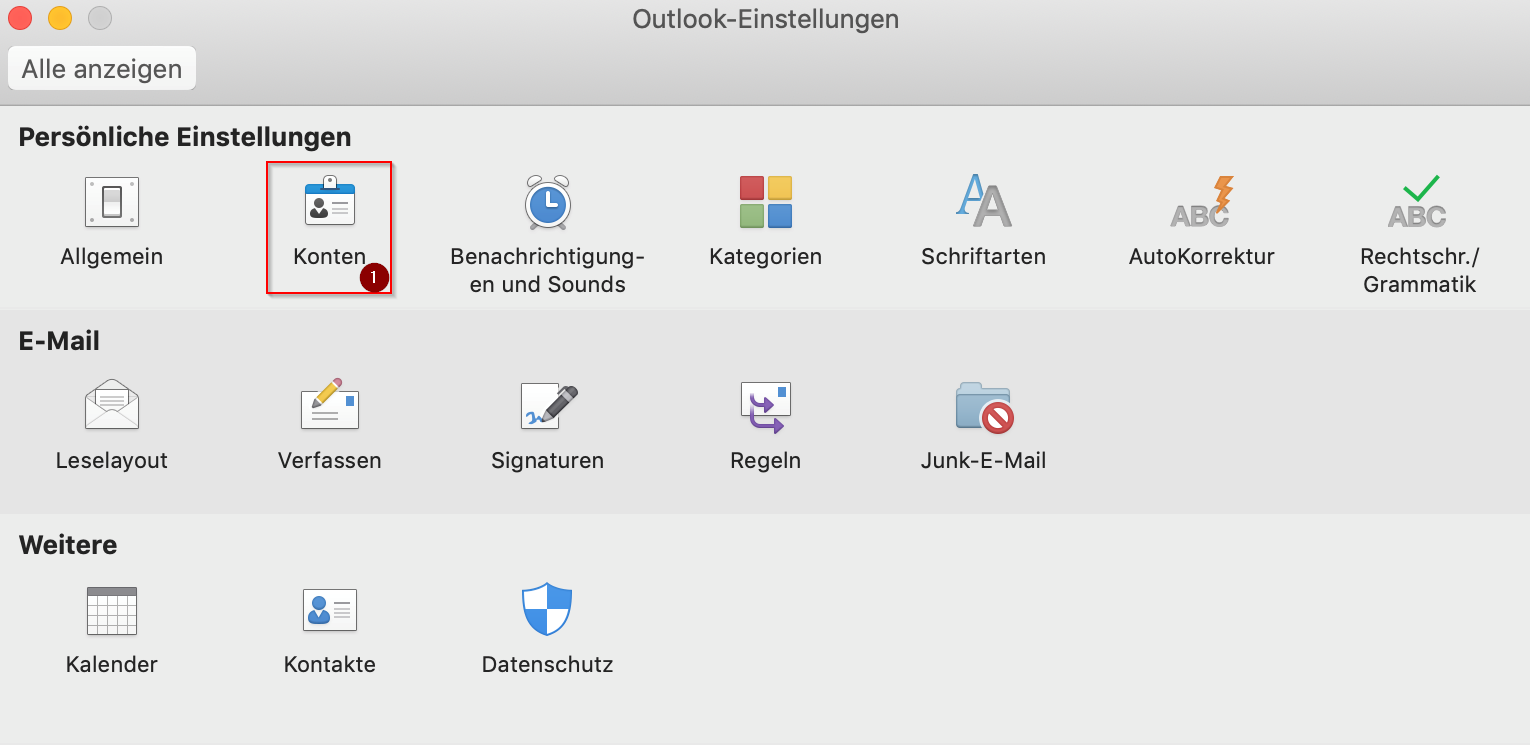
| + | * Click on “Accounts” | ||
| + | * Click on the + symbol at the bottom left and then click on “New Account…” | ||
| + | <br clear=all> | ||
| + | |||
| + | ===Setting up Outlook=== | ||
| + | [[Datei:Exchange-einrichten-in-Microsoft-Outlook-2019-MacOS-2.png|links|mini|ohne|350px]] | ||
| + | <br> | ||
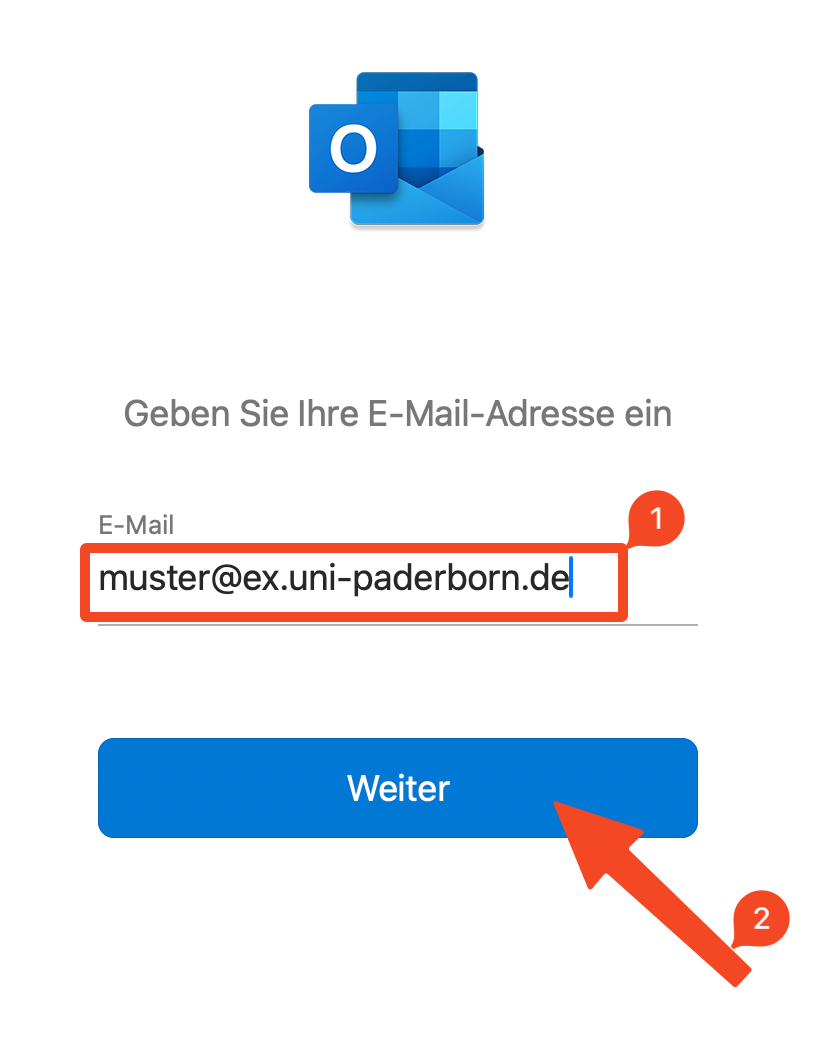
| + | *Enter '''<username>@ex.uni-paderborn.de''' in the email address field | ||
| + | * Don't forget to replace “<username>” with your personal university account username | ||
| + | * Then click “Next” | ||
| + | <br> | ||
| + | Info: This is the technical email address for the Exchange setup. This is not intended for sending and receiving emails. You only need this for setup. | ||
| + | <br clear=all> | ||
| + | |||
| + | [[Datei:Exchange-einrichten-in-Microsoft-Outlook-2019-MacOS-3.png|links|mini|ohne|350px]] | ||
| + | <br> | ||
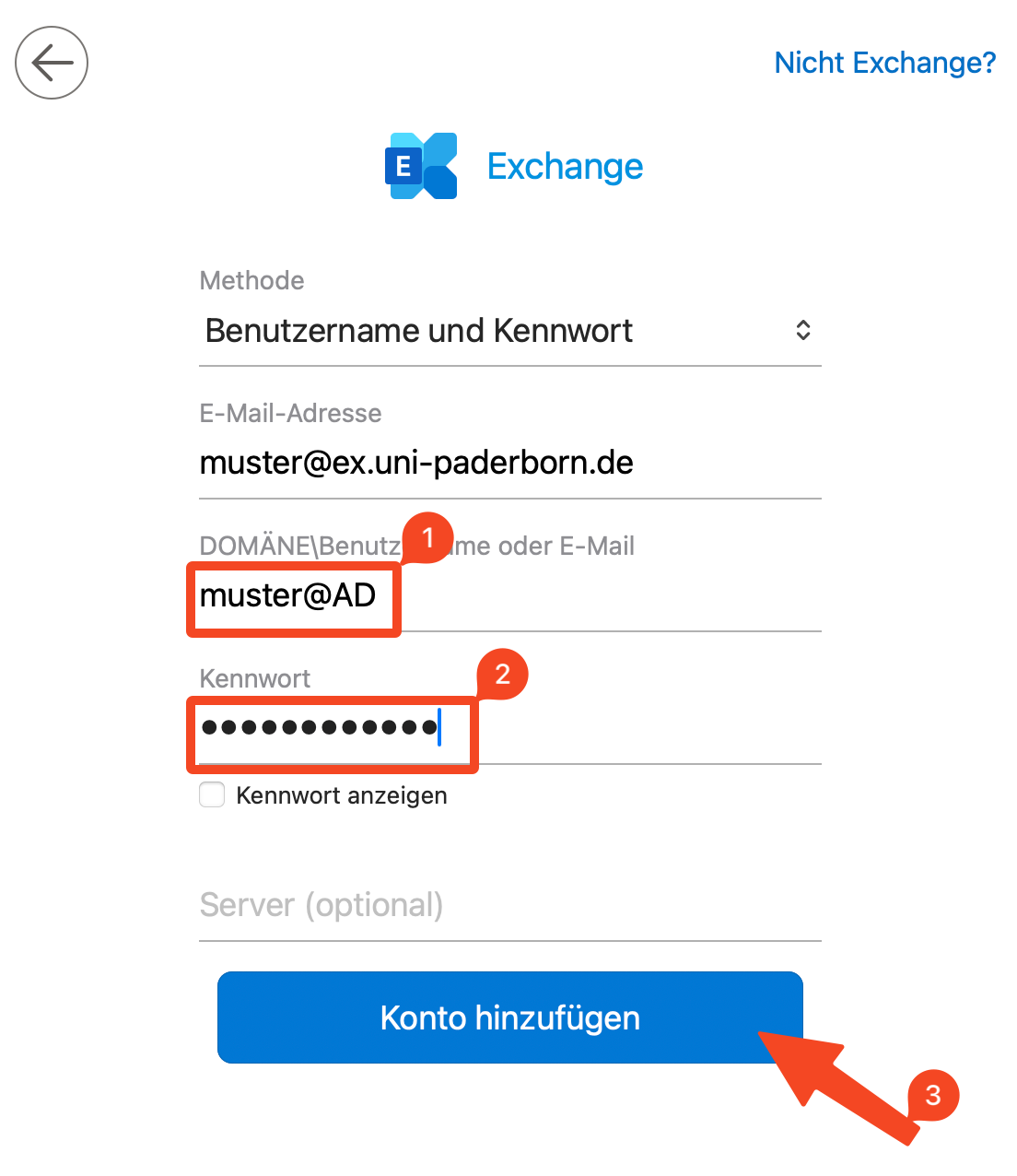
| + | *Username and Password must be selected under Method | ||
| + | * The technical email address for Exchange must still be under email address, as described in the previous point | ||
| + | * In the DOMAIN username or email field, enter '''Username@AD''' | ||
| + | * Don't forget to replace “username” with your personal username from your university account | ||
| + | * Then click on “Add Account” | ||
| + | <br clear=all> | ||
| + | |||
| + | [[Datei:Exchange-einrichten-in-Microsoft-Outlook-2019-MacOS-4.png|links|mini|ohne|350px]] | ||
| + | <br> | ||
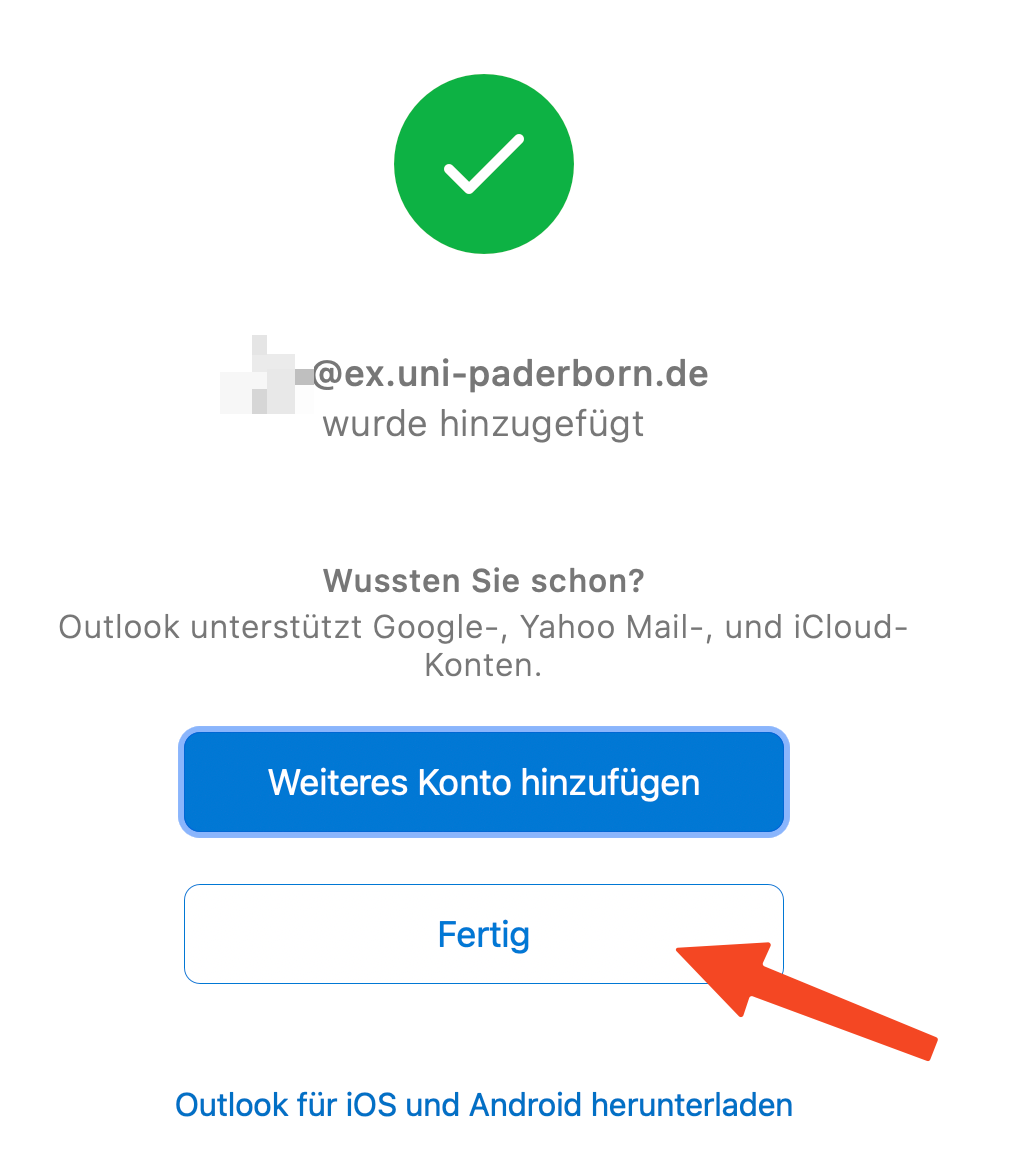
| + | * Your Exchange account has been successfully added | ||
| + | * Click “Done” to finish | ||
| + | <br clear=all> | ||
| + | |||
| + | ==Troubleshooting== | ||
| + | If you receive this error message when setting up Outlook: | ||
| + | [[Datei:Exchange-einrichten-in-Microsoft-Outlook-2019-MacOS-6.png|links|mini|ohne|450px|Error message: No support for Exchange on Premise]] | ||
| + | <br clear=all> | ||
| + | * The new Outlook user interface does not currently support Exchange On Premise accounts. | ||
| + | * Click '''"Restore"''' to switch to ''Legacy Outlook''. | ||
== See also == | == See also == | ||
| − | + | * [[Exchange]] | |
| + | * [[Kalender anderer Benutzer einbinden mit Outlook (macOS)]] | ||
Aktuelle Version vom 13. Mai 2026, 22:41 Uhr
⚠
Microsoft is currently rolling out the New Outlook. This version does not support all features of our Exchange service. Please continue to use the classic Outlook or Outlook Legacy for as long as possible. More information can be found in this article. If this is no longer possible on your Mac:
- You can use Apple's Mail app – however, not all Exchange features are available there either: Exchange einrichten in Apple Mail (macOS)
- You can use OWA in your browser: OWA - Anmeldung
Outlook is an email program from Microsoft and part of the Microsoft Office package.
What needs to be done?[Bearbeiten | Quelltext bearbeiten]
- Open Microsoft Outlook
- Switching to Outlook Legacy if you are using a new Outlook 365
- Add new Exchange account
- Set up the Exchange account with the technical address <username>@ex.uni-paderborn
- Use <username>@AD as username
Requirement[Bearbeiten | Quelltext bearbeiten]
- Microsoft Outlook version 2019, 2021 or 365
Step-by-step instructions[Bearbeiten | Quelltext bearbeiten]
New Outlook[Bearbeiten | Quelltext bearbeiten]
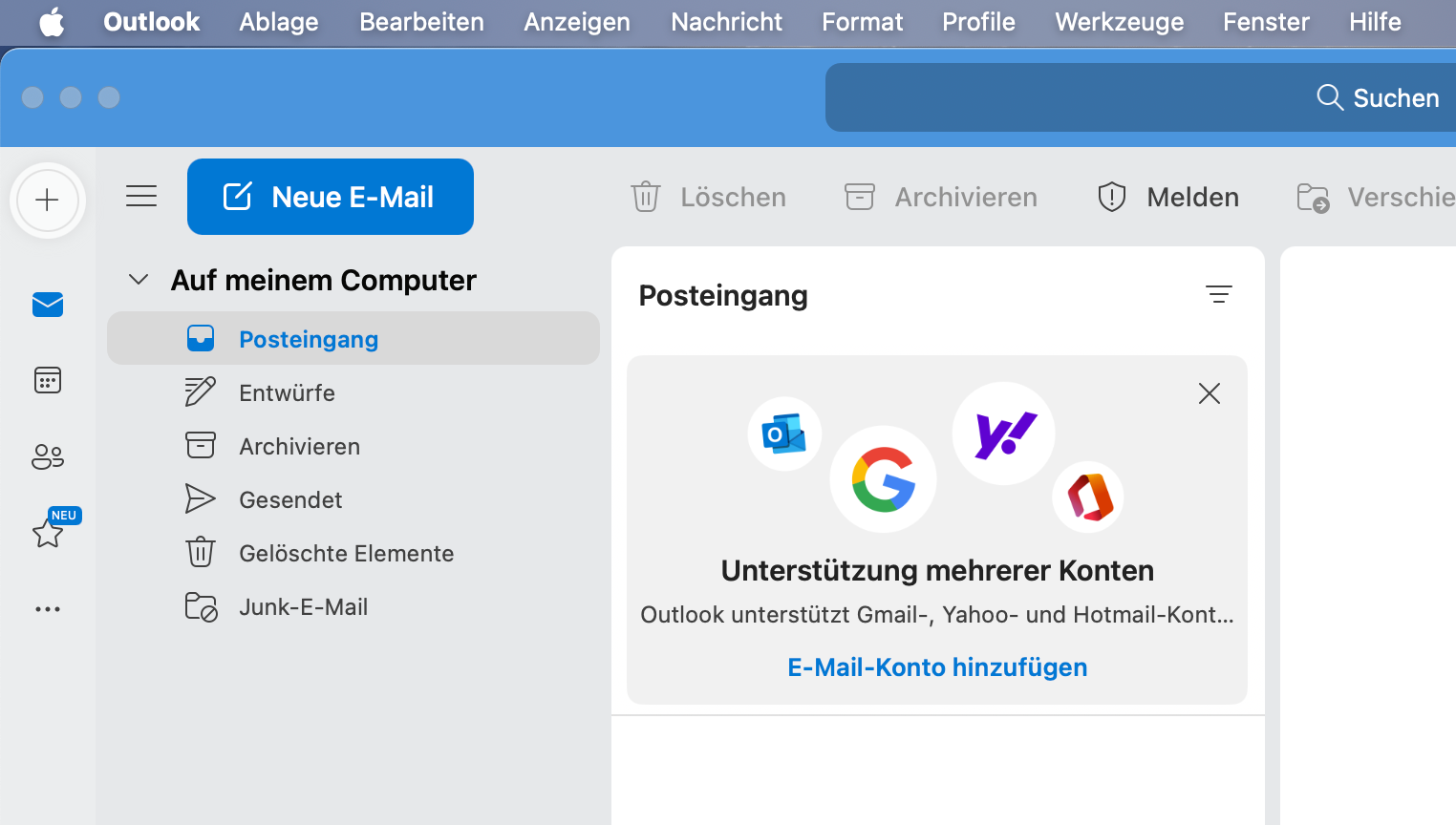
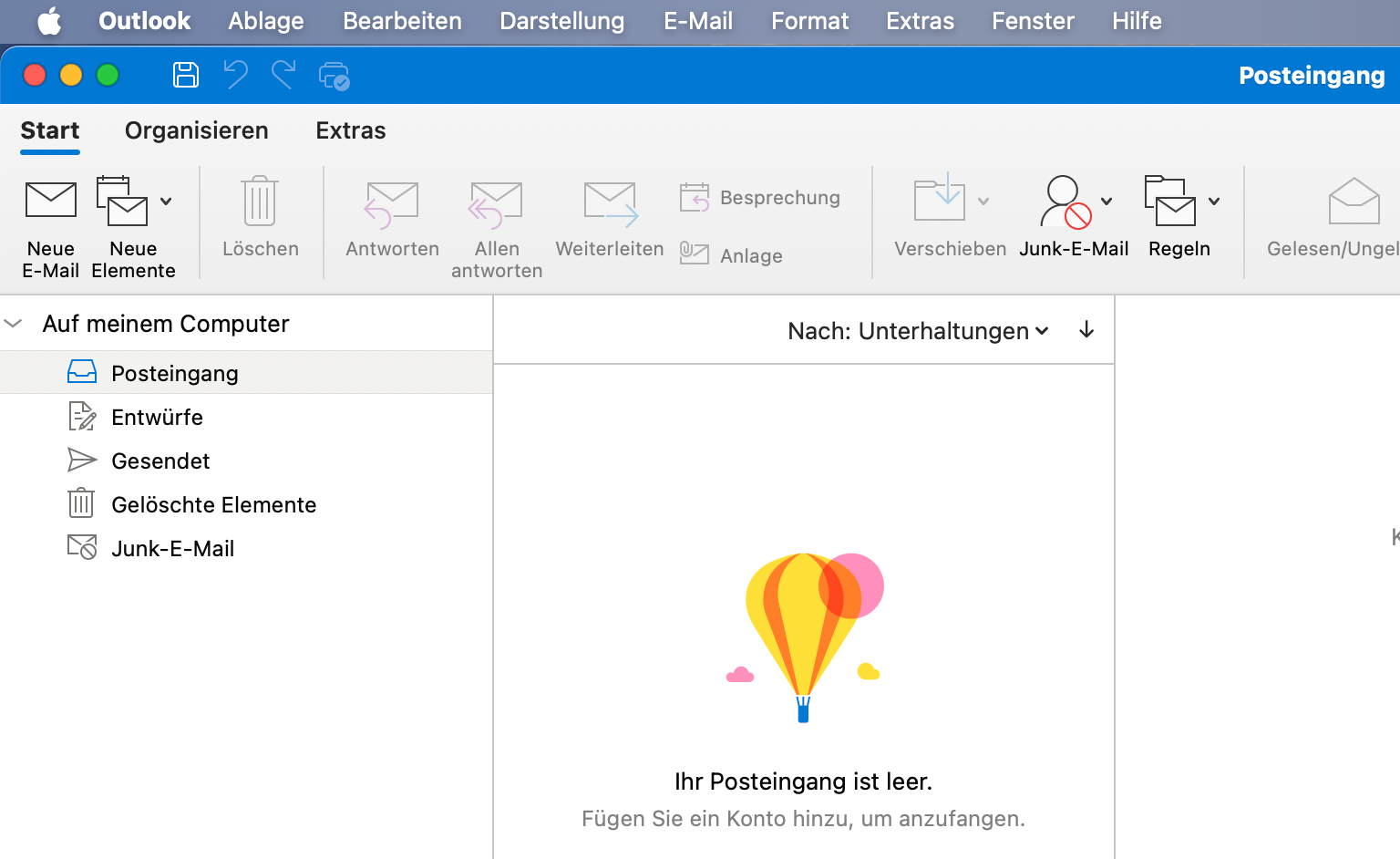
Microsoft has introduced an updated user interface with the New Outlook. This version is not compatible with the Exchange of Paderborn University. You cannot connect to the Exchange mailbox in this version. If you have the new Outlook, you first have to switch to Outlook Legacy. If you still have the old version of Outlook, you can skip this step.

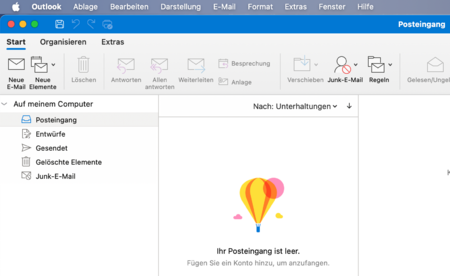
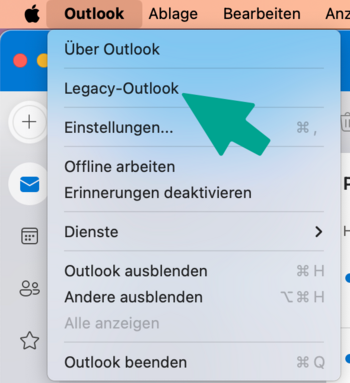
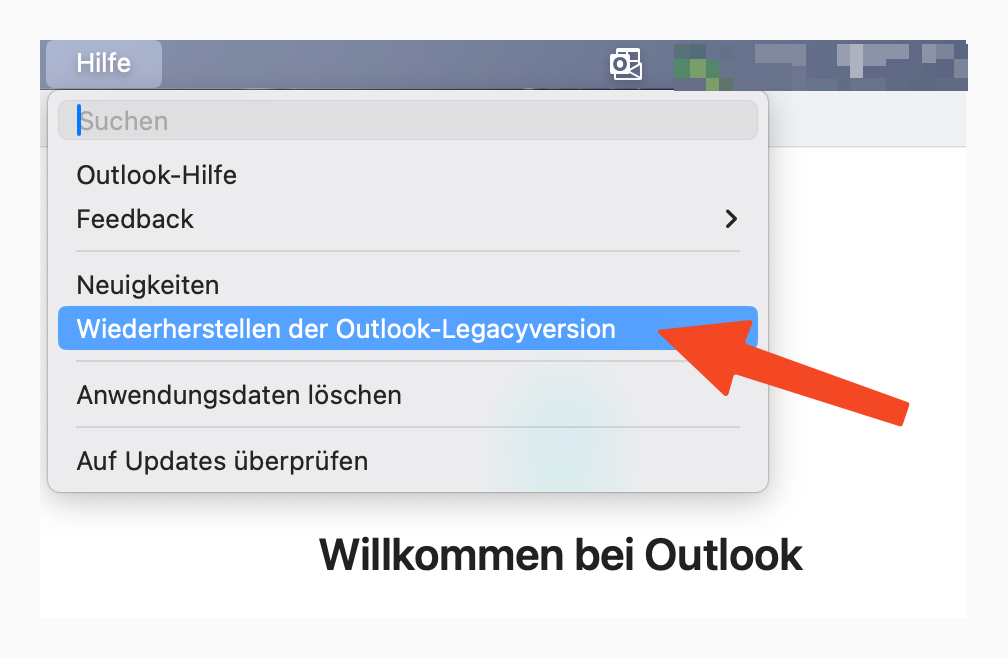
- Open Outlook.
- Click on "Help" in Outlook's menu bar.
- Click "Outlook Legacy".
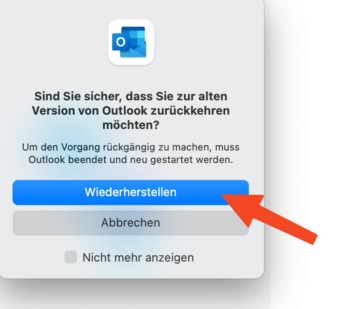
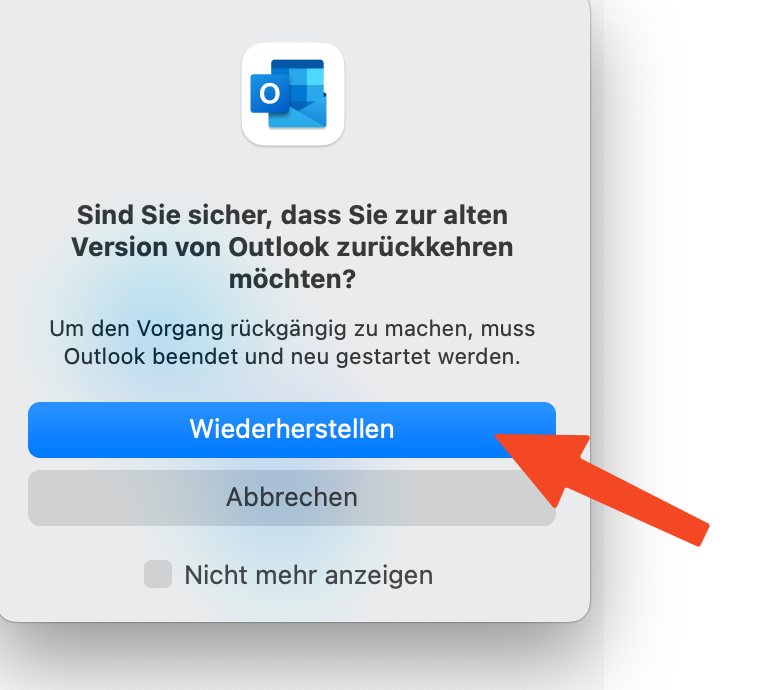
- Click "Restore".
- Outlook now starts in the legacy version.
Initial setup[Bearbeiten | Quelltext bearbeiten]
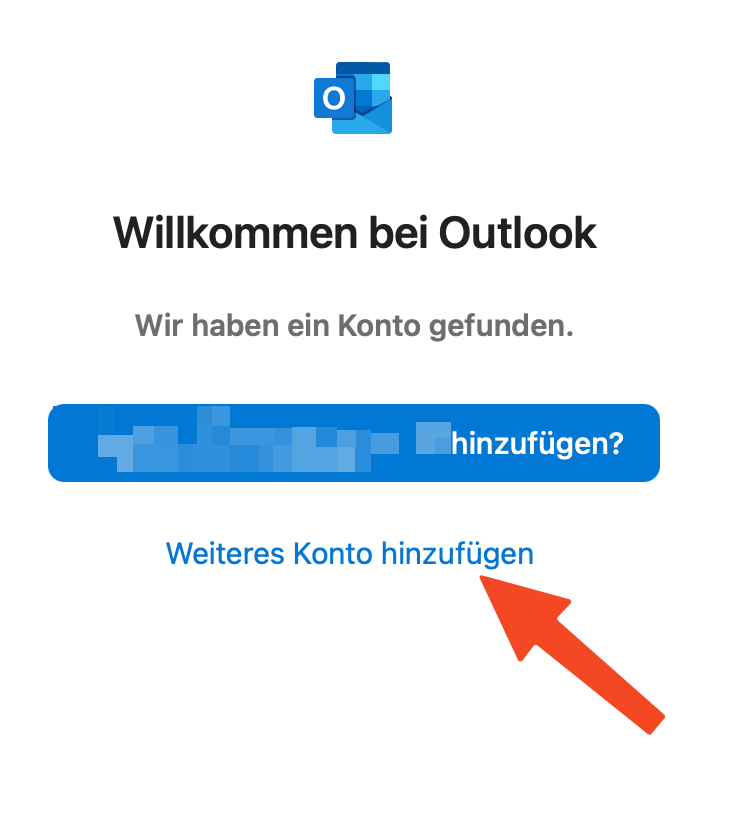
If you haven't used Outlook yet or you don't have an account yet, the setup wizard will open when you start
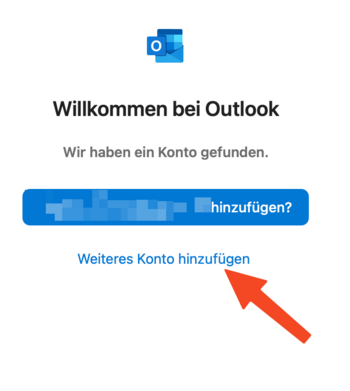
- Do not use the suggested email address if one is shown.
- Click "Add another account"
- Skip the next point in this guide and continue to "Setting up Outlook".
Re-setup[Bearbeiten | Quelltext bearbeiten]
If you are already using Outlook and the setup wizard does not appear, follow these steps.
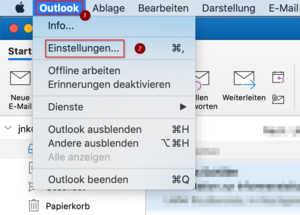
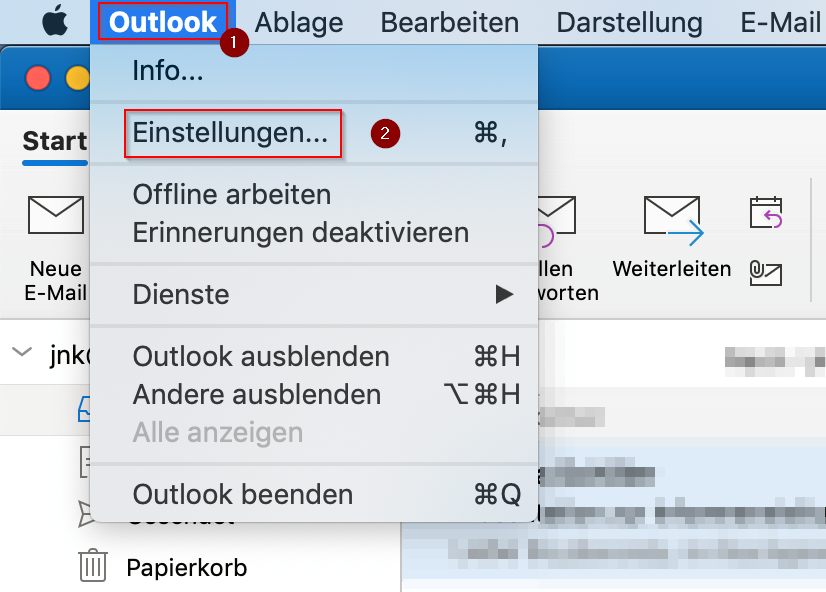
- Open Microsoft Outlook
- Click “Outlook” at the top right
- Then click on “Settings…”
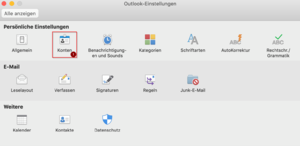
- Click on “Accounts”
- Click on the + symbol at the bottom left and then click on “New Account…”
Setting up Outlook[Bearbeiten | Quelltext bearbeiten]
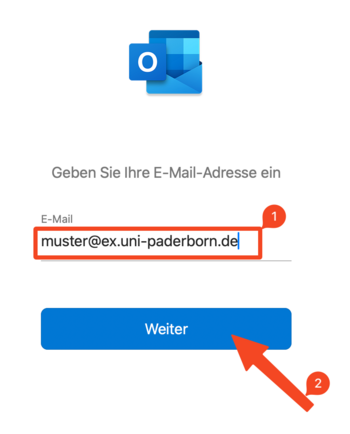
- Enter <username>@ex.uni-paderborn.de in the email address field
- Don't forget to replace “<username>” with your personal university account username
- Then click “Next”
Info: This is the technical email address for the Exchange setup. This is not intended for sending and receiving emails. You only need this for setup.
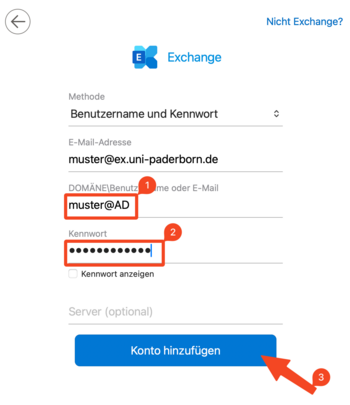
- Username and Password must be selected under Method
- The technical email address for Exchange must still be under email address, as described in the previous point
- In the DOMAIN username or email field, enter Username@AD
- Don't forget to replace “username” with your personal username from your university account
- Then click on “Add Account”
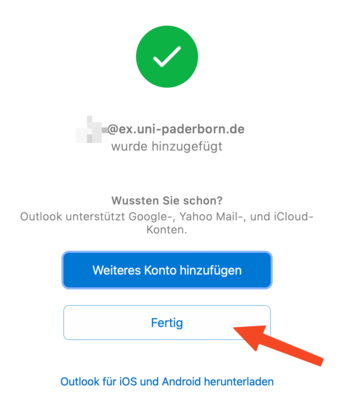
- Your Exchange account has been successfully added
- Click “Done” to finish
Troubleshooting[Bearbeiten | Quelltext bearbeiten]
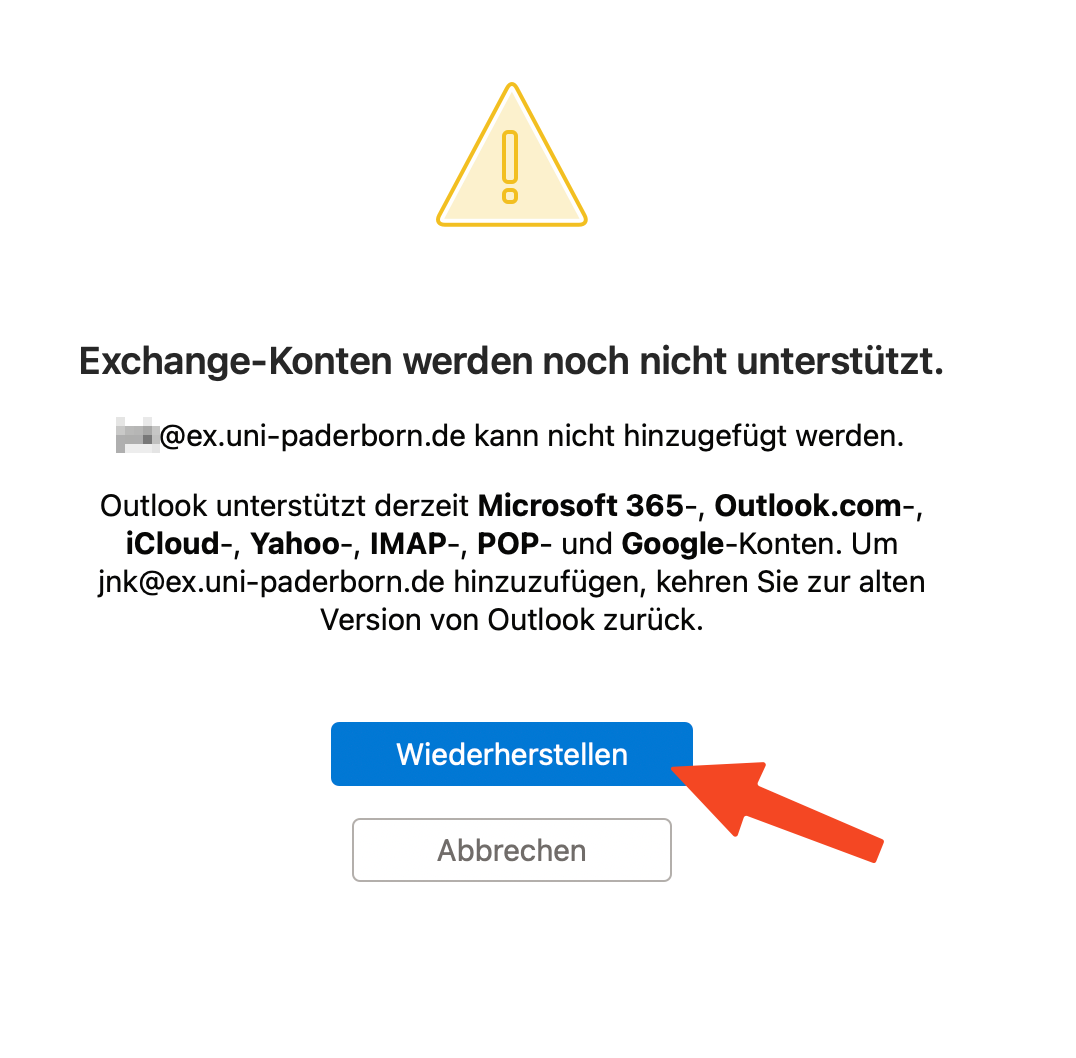
If you receive this error message when setting up Outlook:
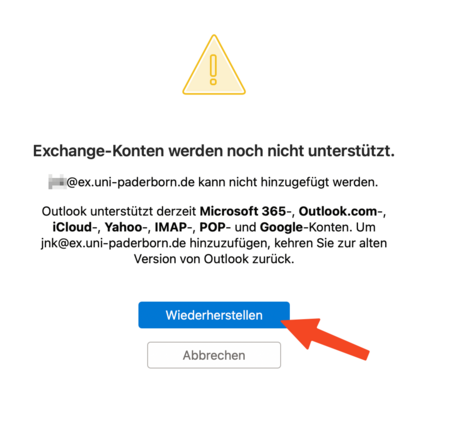
- The new Outlook user interface does not currently support Exchange On Premise accounts.
- Click "Restore" to switch to Legacy Outlook.


_(3).png)
_(4).png)


