Zoom - Anmeldung/en
| Zeile 41: | Zeile 41: | ||
[[Datei:Zoom-Anmeldung-05.png|rechts|mini|ohne|350px]] | [[Datei:Zoom-Anmeldung-05.png|rechts|mini|ohne|350px]] | ||
<br> | <br> | ||
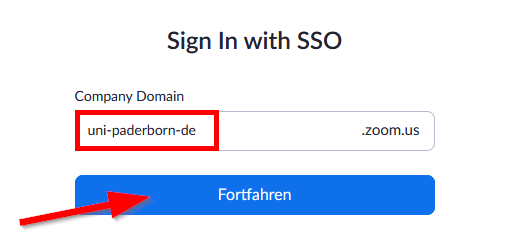
| − | * Enter the company domain of | + | * Enter the company domain of Paderborn University: |
* <code> uni-paderborn-de </code> | * <code> uni-paderborn-de </code> | ||
* Then click '''"Continue"'''. | * Then click '''"Continue"'''. | ||
Aktuelle Version vom 3. Juni 2026, 10:41 Uhr
Die deutsche Version finden Sie auf der Seite Zoom - Anmeldung
If you already have a Zoom license, this article shows how to login.
You have no Zoom license yet? Take a look at Zoom - Registration.
Login[Bearbeiten | Quelltext bearbeiten]
Via Browser
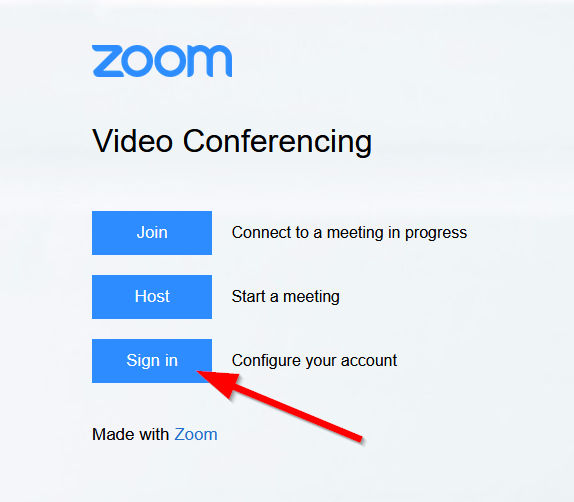
Use the following link to login:
https://uni-paderborn-de.zoom.us/
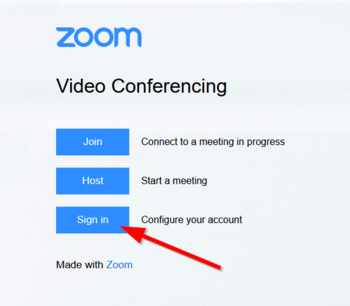
- Click on "Sign in".
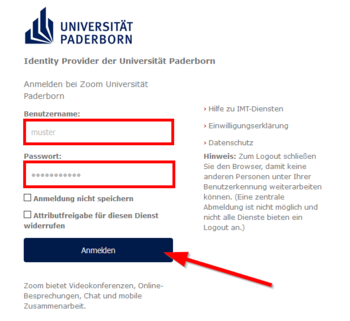
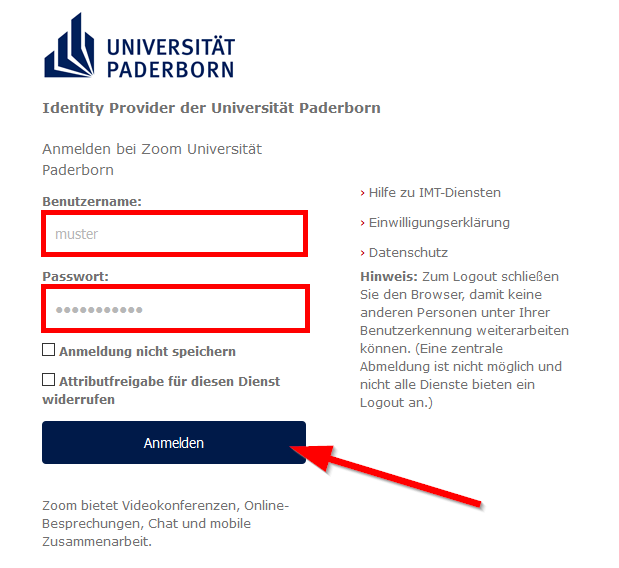
- Login with your Uni-Account.
In the app
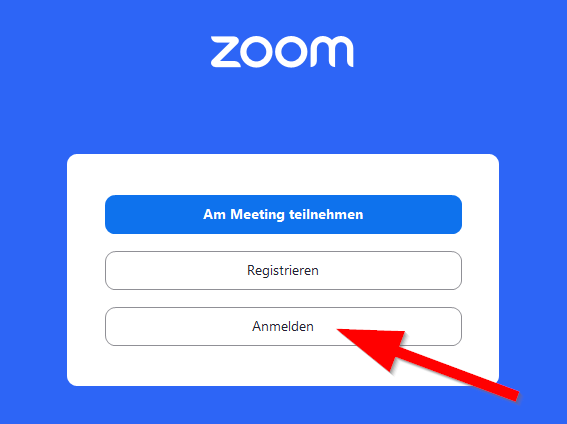
If you want to log in via the Zoom homepage or in one of the Zoom apps, follow these steps:
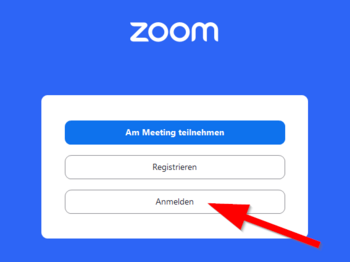
- Click "Login".
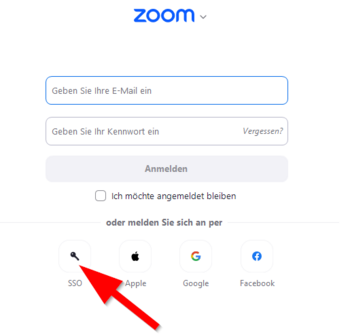
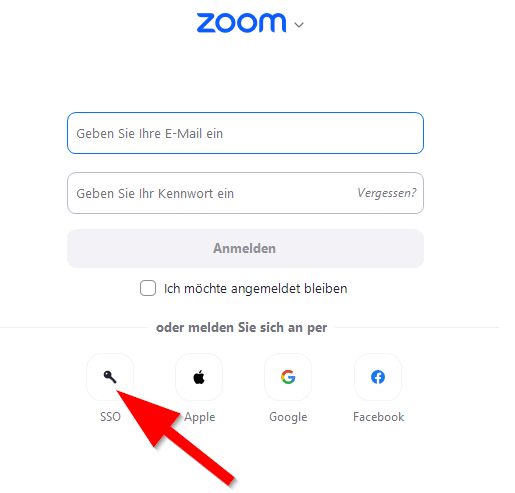
- Click "Sign in with SSO".
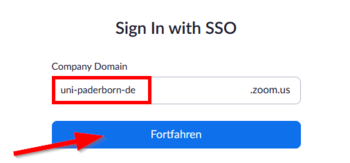
- Enter the company domain of Paderborn University:
uni-paderborn-de- Then click "Continue".
- Log in with your university account.
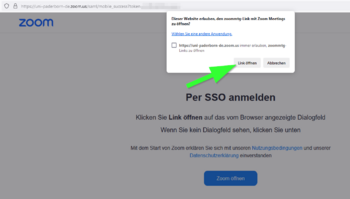
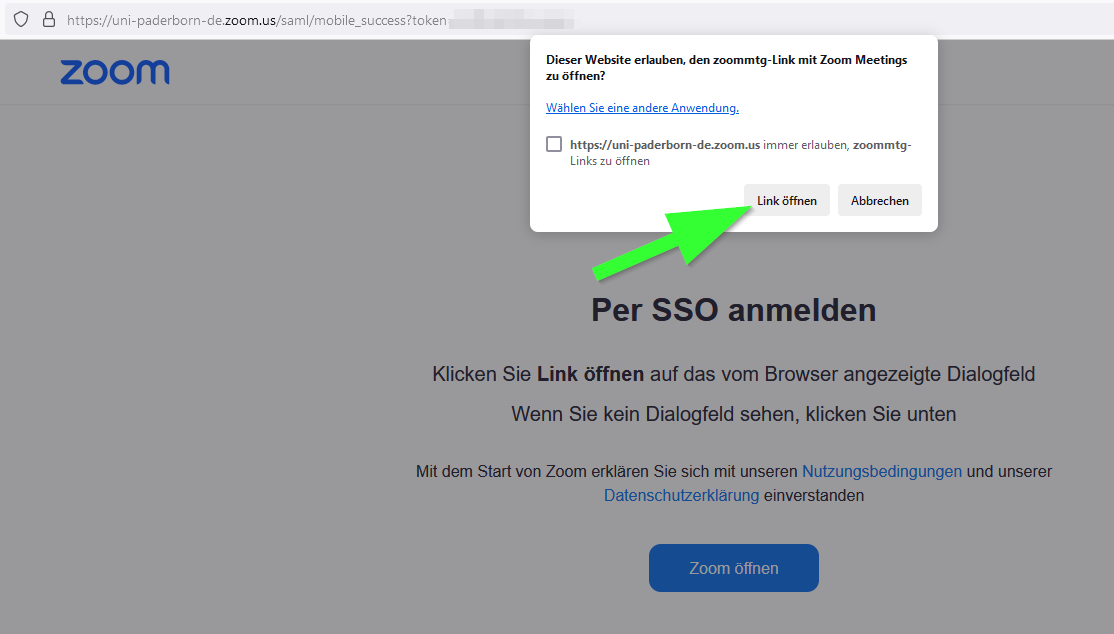
- Click on "Open link" to complete the registration in the Zoom app.
See also[Bearbeiten | Quelltext bearbeiten]
- Zoom - Allgemeine Informationen
- Zoom - Overview of all Zoom articles