Dienstausweis/en
Jnk (Diskussion | Beiträge) |
Jnk (Diskussion | Beiträge) (Reihenfolge geändert) |
||
| Zeile 4: | Zeile 4: | ||
|translated title=Staff ID Card | |translated title=Staff ID Card | ||
}} | }} | ||
| − | |||
| − | |||
| − | |||
| − | |||
| − | |||
| − | |||
| − | |||
| − | |||
==Validity== | ==Validity== | ||
| Zeile 76: | Zeile 68: | ||
==Physical ID cards== | ==Physical ID cards== | ||
Plastic cards in credit card format will no longer be issued. Existing cards remain valid. | Plastic cards in credit card format will no longer be issued. Existing cards remain valid. | ||
| + | |||
| + | ==PDF File== | ||
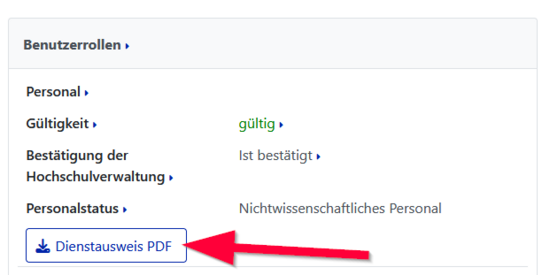
| + | As an alternative to the app, you can also download the service card as a PDF file in the Serviceportal. | ||
| + | * Log in to the service portal | ||
| + | : https://serviceportal.uni-paderborn.de | ||
| + | * Log in with your university account | ||
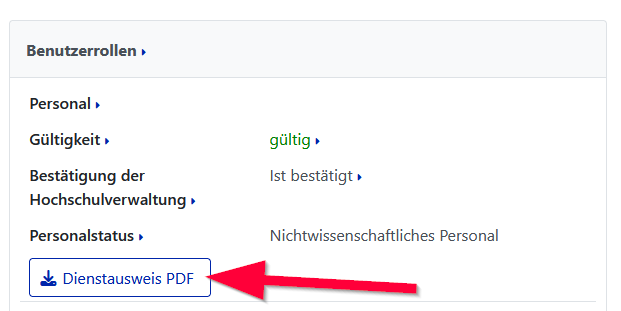
| + | * You can download your staff ID card under '''"User Setting"''', '''"Personal Data"'''. | ||
| + | [[Datei:Dienstausweis-Mitarbeitende-01.png|alternativtext=Das Bild zeigt einen Screenshot des Serviceportal mit dem Block "Benutzerrollen". Ein roter Pfeil zeigt auf die Schaltfläche "Dienstausweis PDF".|links|mini|ohne|550px|Dienstausweis herunterladen]] | ||
| + | <br clear=all> | ||
== See also == | == See also == | ||
* [[UPB-App_im_Ueberblick]] | * [[UPB-App_im_Ueberblick]] | ||
* [[Uniweite Verfahren]] | * [[Uniweite Verfahren]] | ||
Version vom 17. Oktober 2025, 08:10 Uhr
Die deutsche Version finden Sie auf der Seite Dienstausweis
Validity[Bearbeiten | Quelltext bearbeiten]
The service card is valid until the end of the current calendar year. If the employment contract ends before the turn of the year, it is only valid until the end of the contract period. The service card in the UPB app is automatically renewed. If you use the service card as a PDF, you must download a new PDF from the service portal at the beginning of the new year.
UPB-App[Bearbeiten | Quelltext bearbeiten]


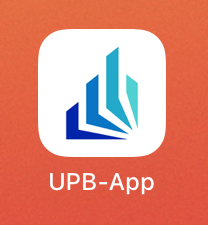
 Open the UPB-App
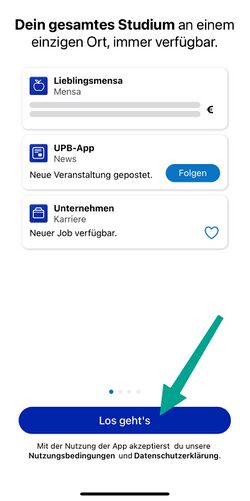
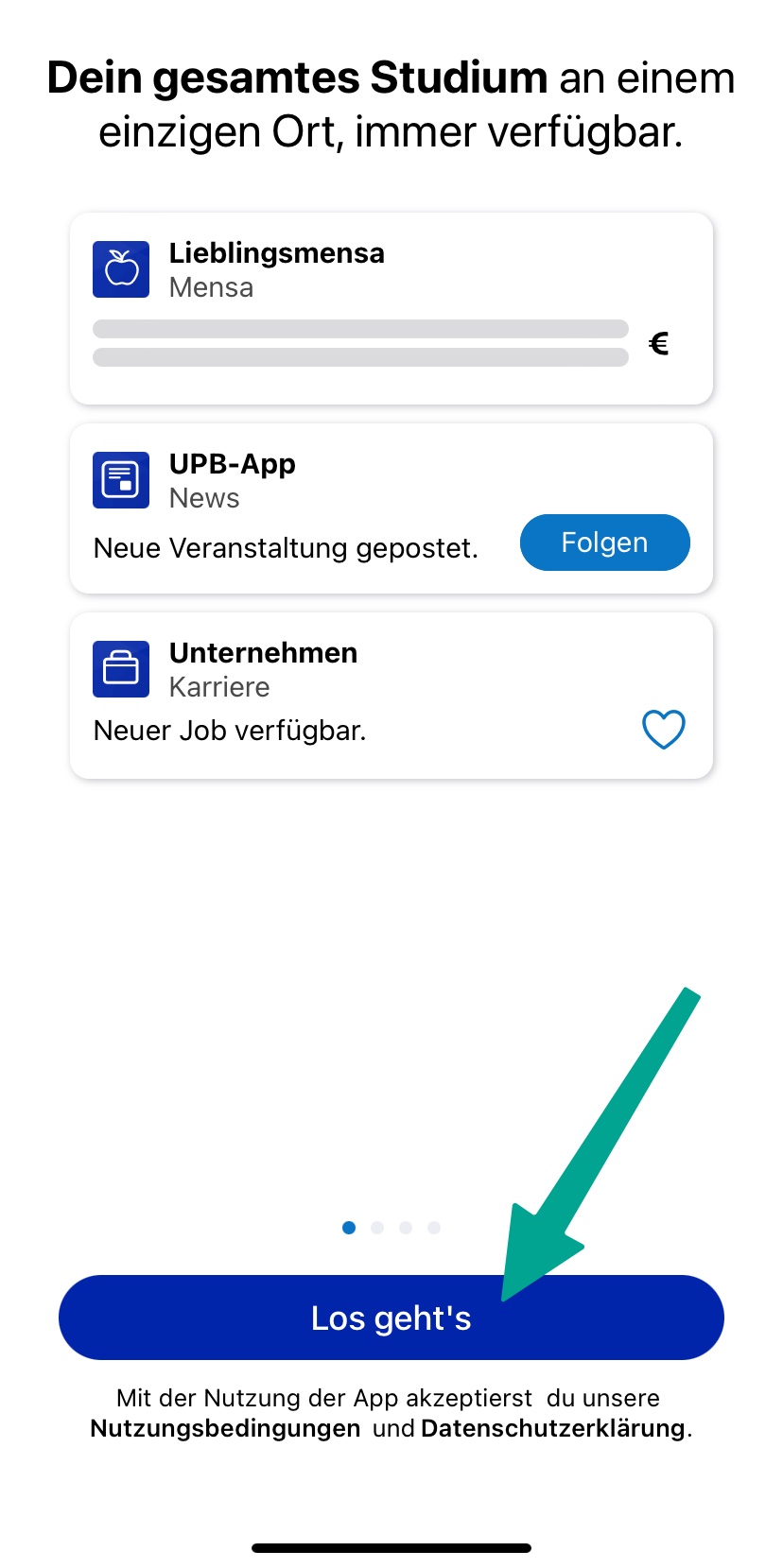
- Click on "Let's go".
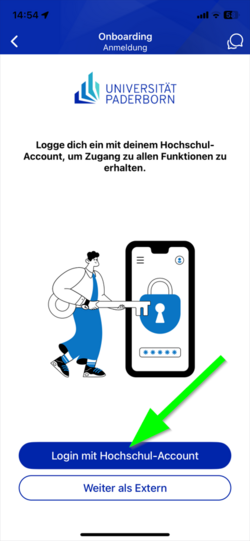
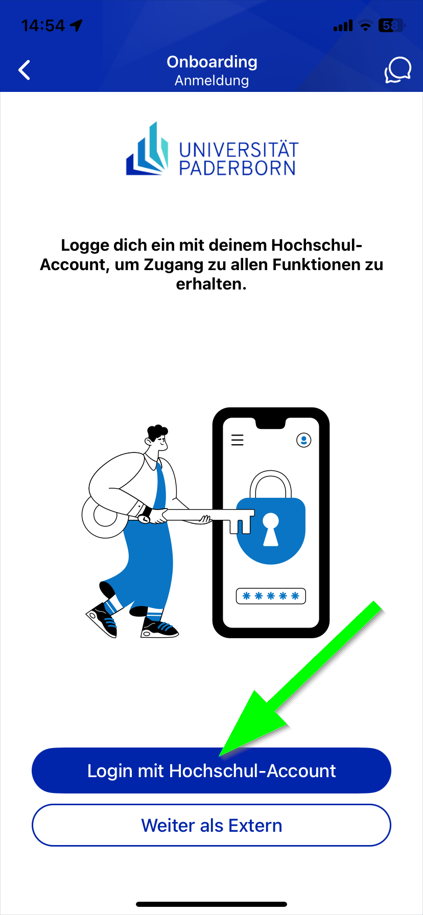
- Click on "Sign in with University account".
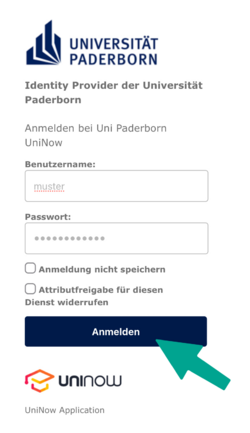
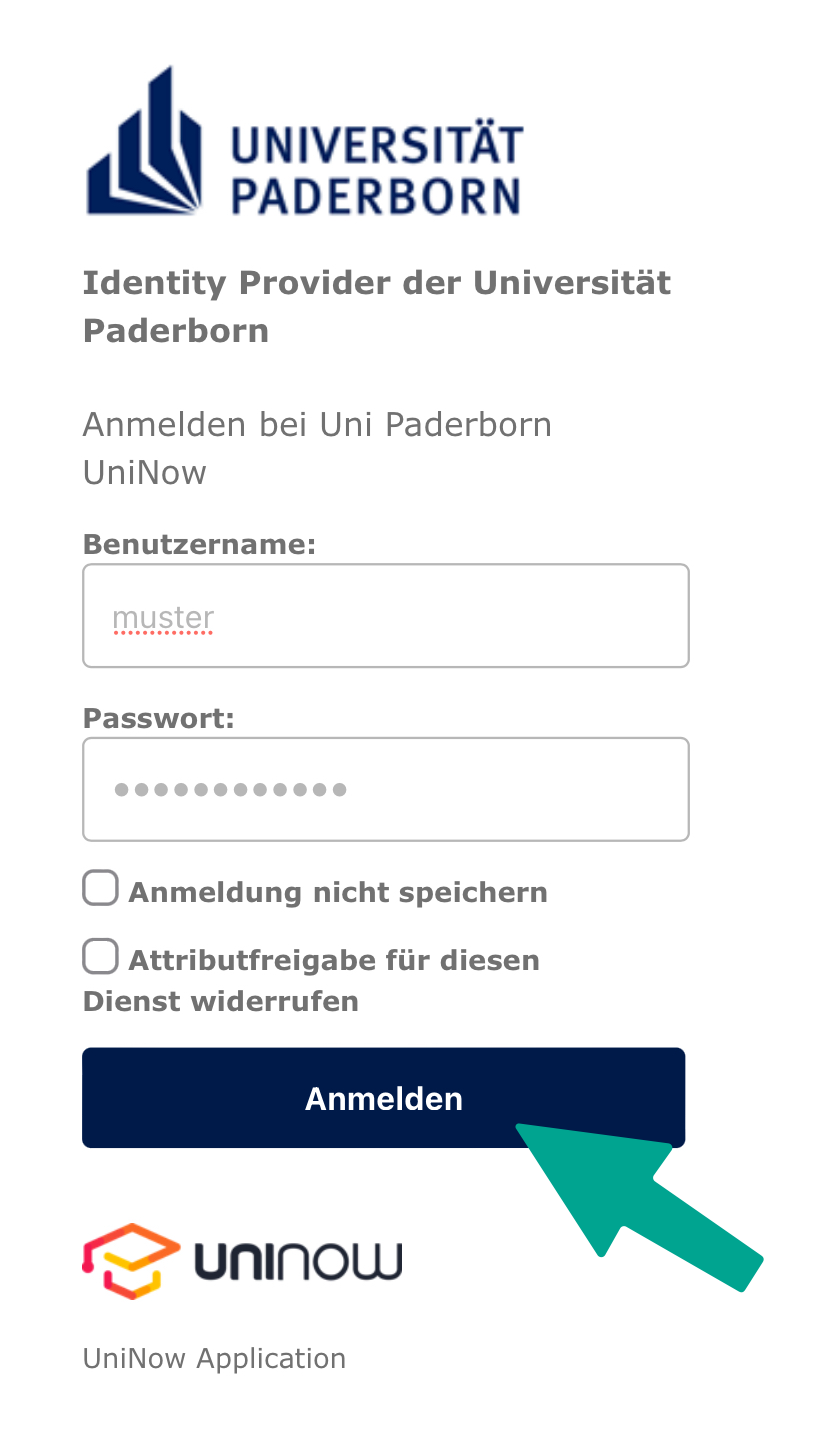
- Enter Username and Password for the Uni-Account
- Click on "Login".
- If you have the password automatically filled in by a password manager, problems may occur.
- Recommendation: Insert password manually
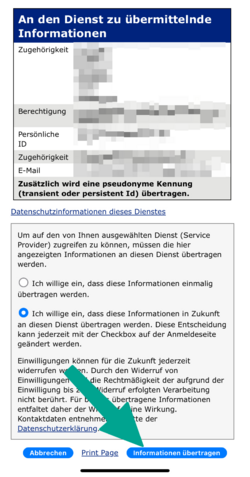
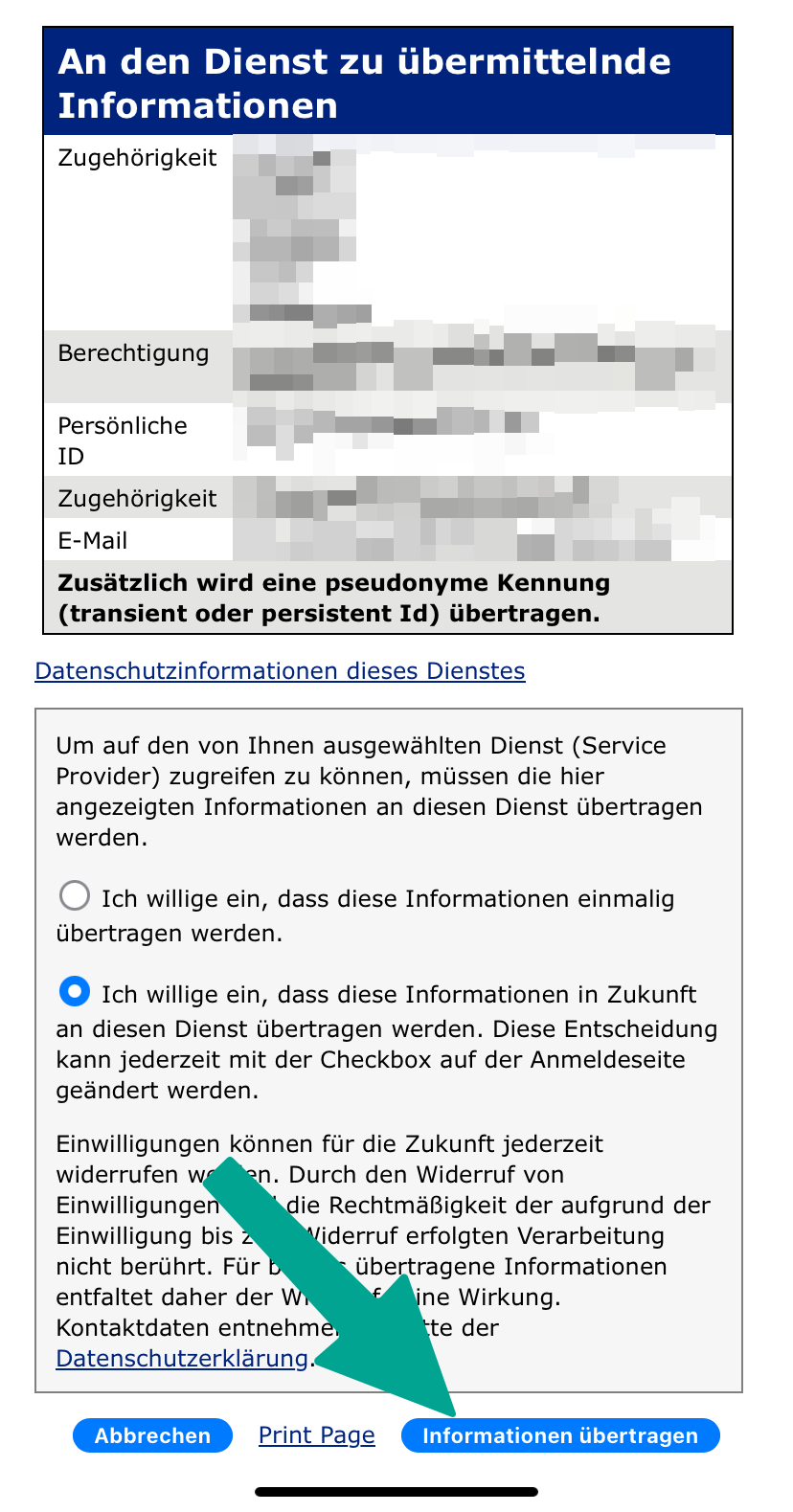
- You will now see a list of the information that will be transmitted to UniNow.
- Click on "Transfer information".
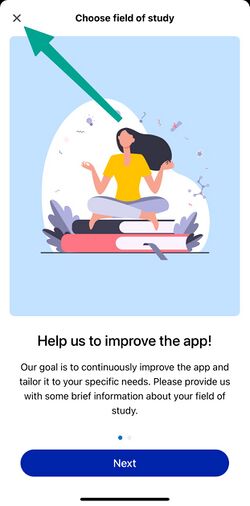
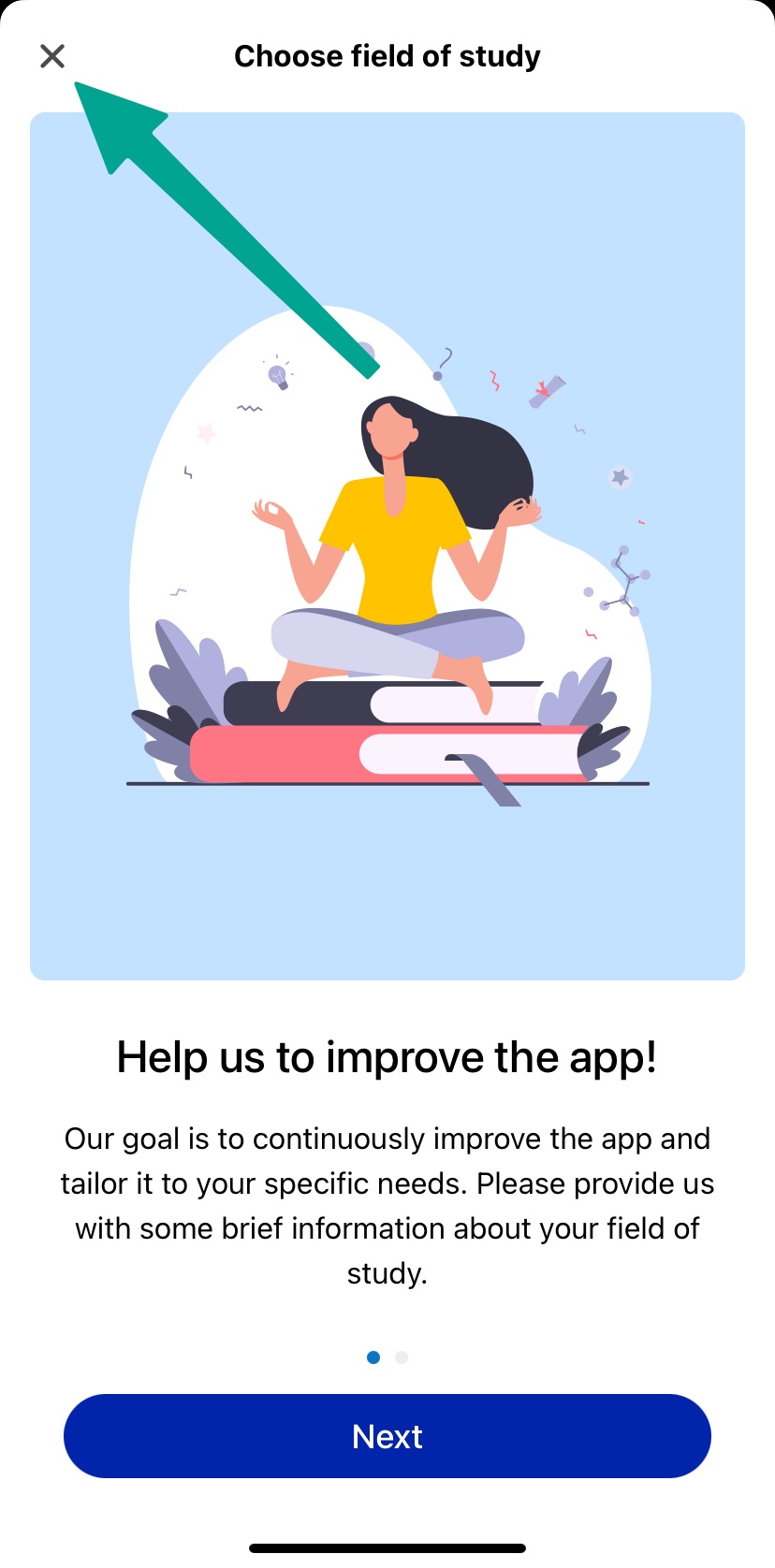
- Now you can choose your field of study
- This step is optional
- You can click on "Cancel"
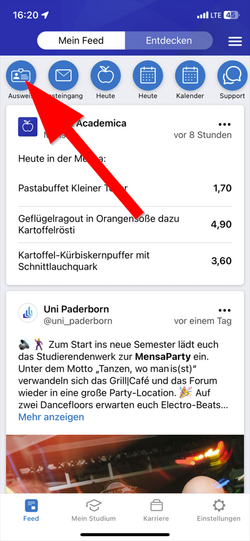
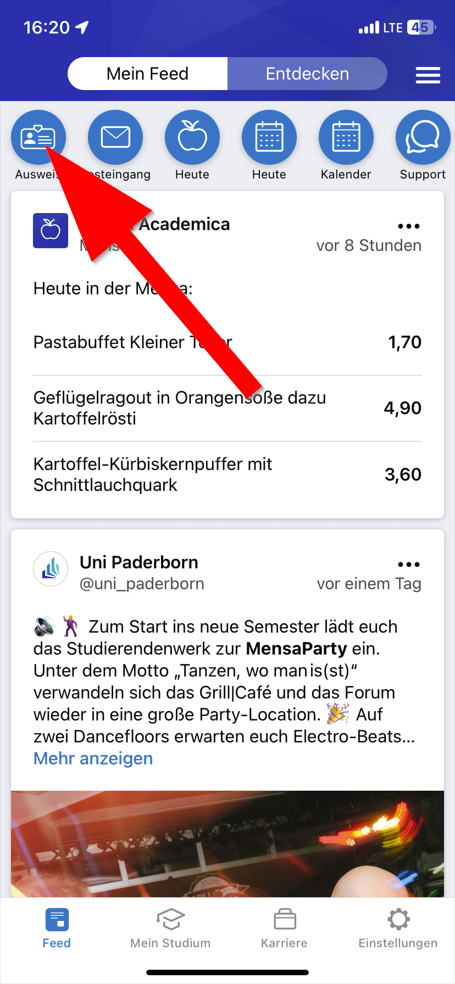
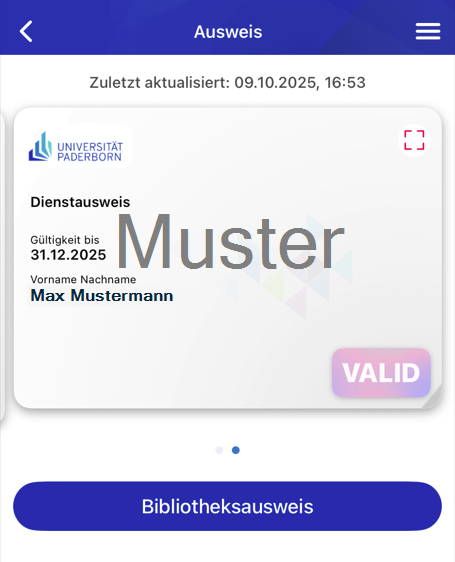
- Click in the top left hand corner on "ID Card"
You can now use your ID card in the UPB-App.
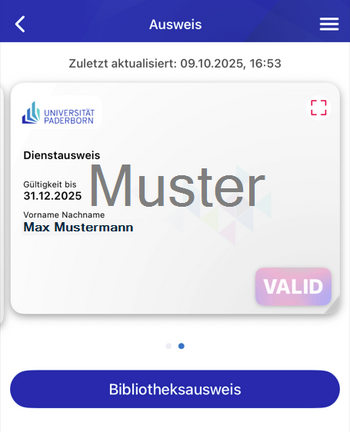
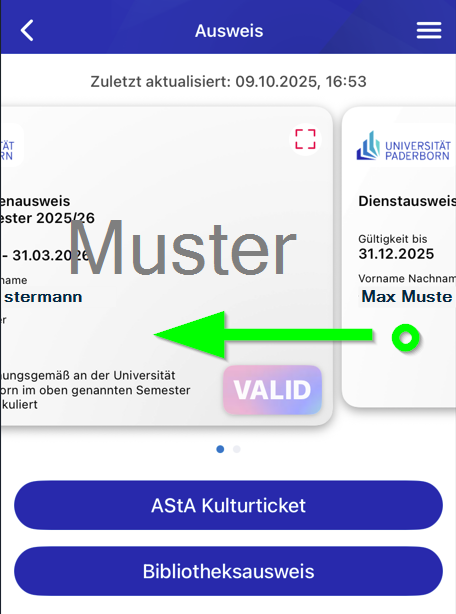
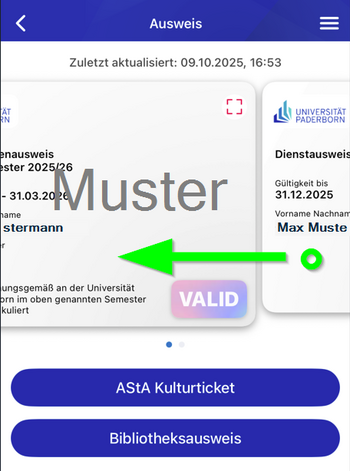
For employees who also have a student role: Swipe left or right to switch between the available ID cards.
Physical ID cards[Bearbeiten | Quelltext bearbeiten]
Plastic cards in credit card format will no longer be issued. Existing cards remain valid.
PDF File[Bearbeiten | Quelltext bearbeiten]
As an alternative to the app, you can also download the service card as a PDF file in the Serviceportal.
- Log in to the service portal
- Log in with your university account
- You can download your staff ID card under "User Setting", "Personal Data".