Dienstausweis/en
Jnk (Diskussion | Beiträge) |
Jnk (Diskussion | Beiträge) |
||
| Zeile 16: | Zeile 16: | ||
The service card is valid until the end of the current calendar year. If the employment contract ends before the turn of the year, it is only valid until the end of the contract period. The service card in the UPB app is automatically renewed. If you use the service card as a PDF, you must download a new PDF from the service portal at the beginning of the new year. | The service card is valid until the end of the current calendar year. If the employment contract ends before the turn of the year, it is only valid until the end of the contract period. The service card in the UPB app is automatically renewed. If you use the service card as a PDF, you must download a new PDF from the service portal at the beginning of the new year. | ||
| + | ==UPB-App== | ||
<bootstrap_alert color=info> | <bootstrap_alert color=info> | ||
Download the UPB-App in the correspondig store: | Download the UPB-App in the correspondig store: | ||
| Zeile 24: | Zeile 25: | ||
|} | |} | ||
</bootstrap_alert> | </bootstrap_alert> | ||
| − | |||
| − | |||
[[Datei:Digitaler-Studierendenausweis-01.jpeg|50px]] Open the UPB-App | [[Datei:Digitaler-Studierendenausweis-01.jpeg|50px]] Open the UPB-App | ||
Version vom 14. Oktober 2025, 08:36 Uhr
Die deutsche Version finden Sie auf der Seite Dienstausweis
Staff ID card[Bearbeiten | Quelltext bearbeiten]
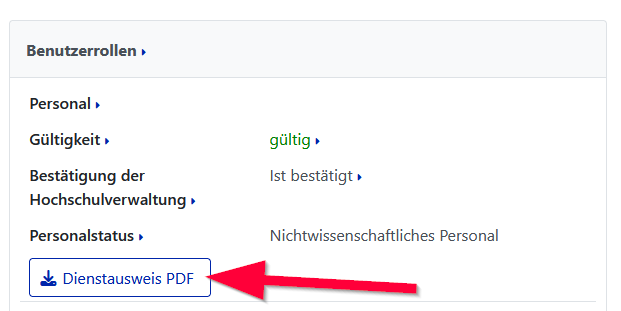
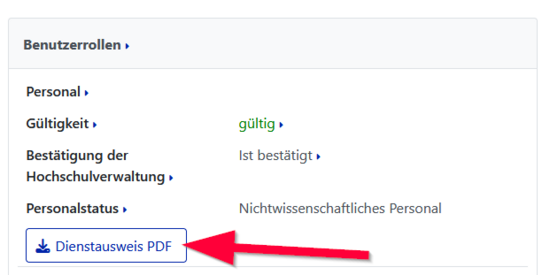
Staff members can download a staff ID card as a PDF file from the service portal.
- Log in to the service portal
- Log in with your university account
- You can download your staff ID card under "User Setting", "Personal Data".
Validity[Bearbeiten | Quelltext bearbeiten]
The service card is valid until the end of the current calendar year. If the employment contract ends before the turn of the year, it is only valid until the end of the contract period. The service card in the UPB app is automatically renewed. If you use the service card as a PDF, you must download a new PDF from the service portal at the beginning of the new year.
UPB-App[Bearbeiten | Quelltext bearbeiten]


 Open the UPB-App
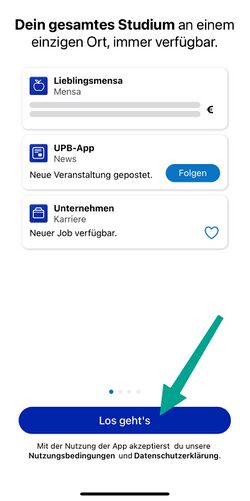
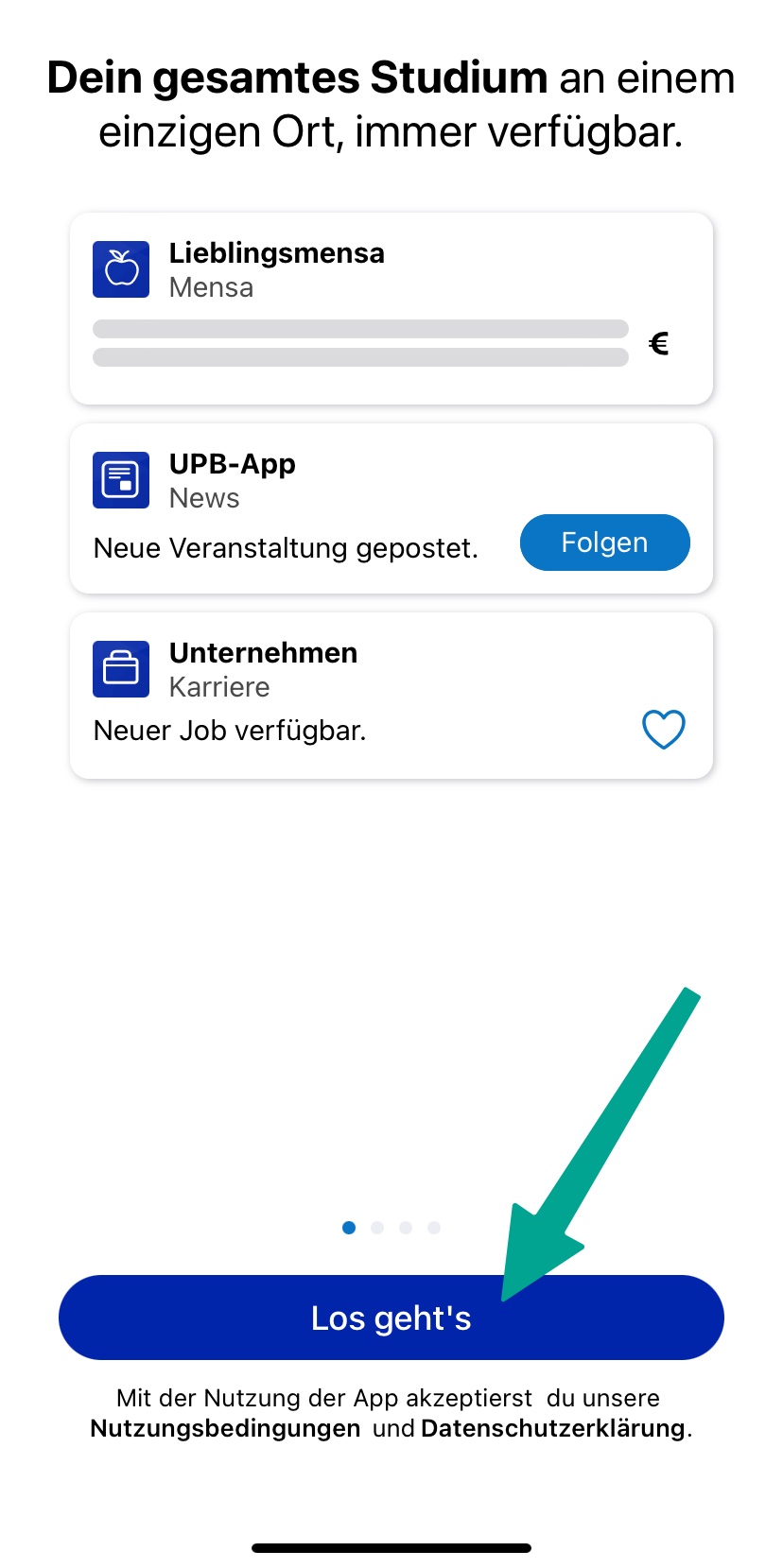
- Click on "Let's go".
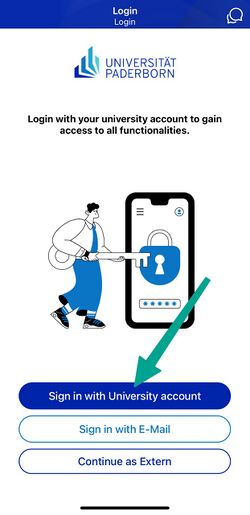
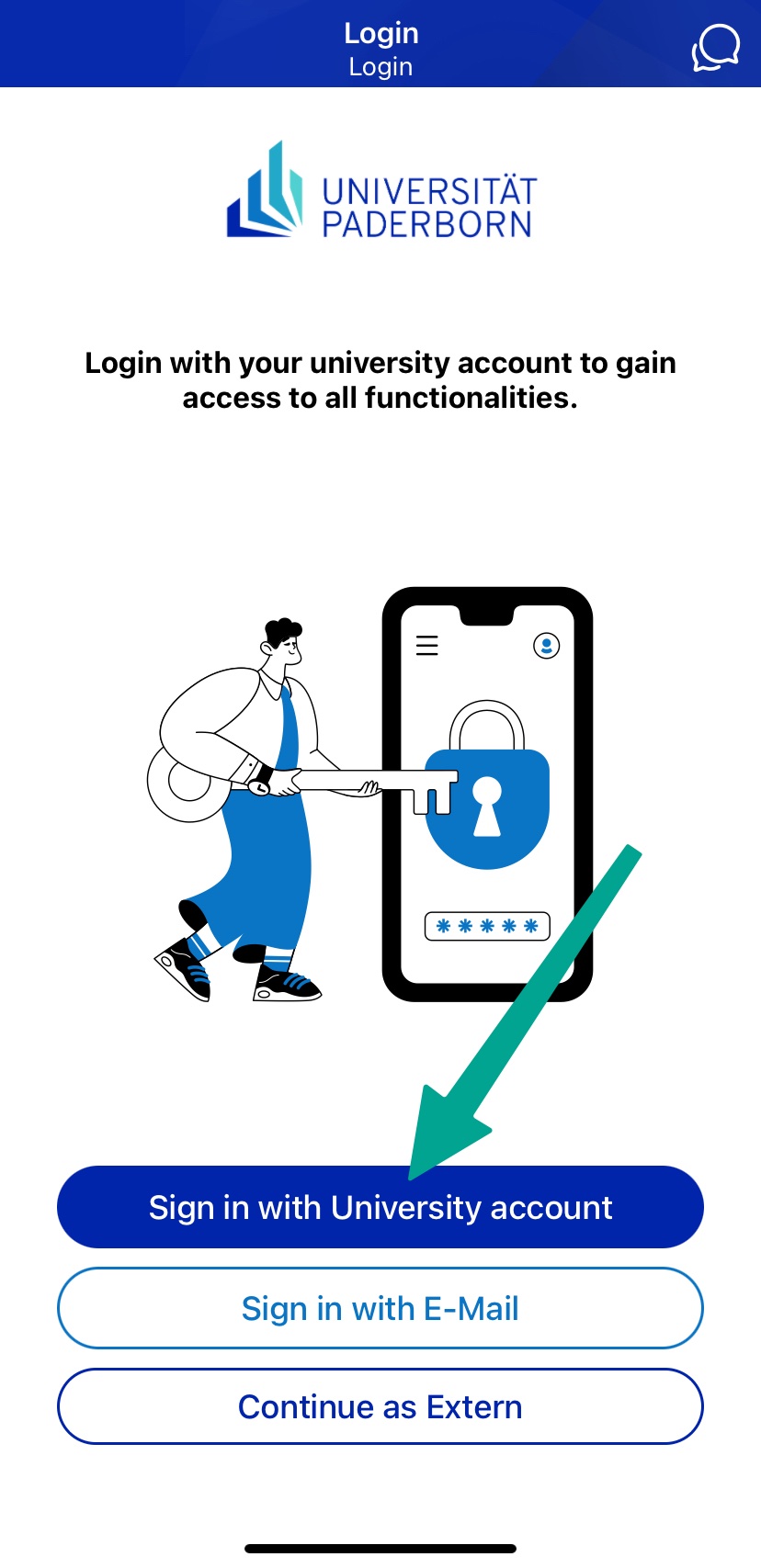
- Click on "Sign in with University account".
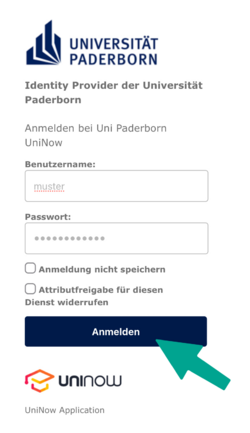
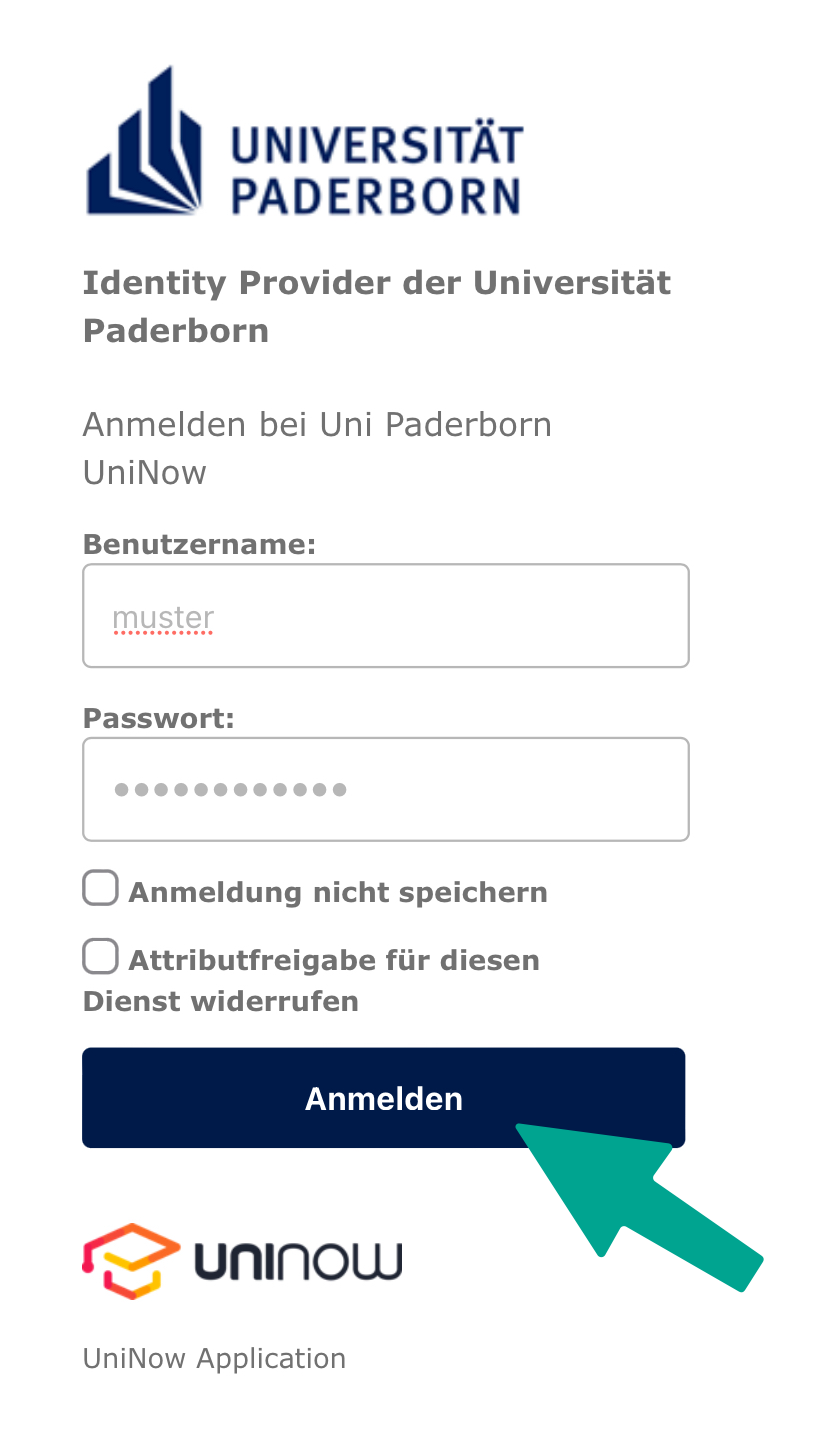
- Enter Username and Password for the Uni-Account
- Click on "Login".
- If you have the password automatically filled in by a password manager, problems may occur.
- Recommendation: Insert password manually
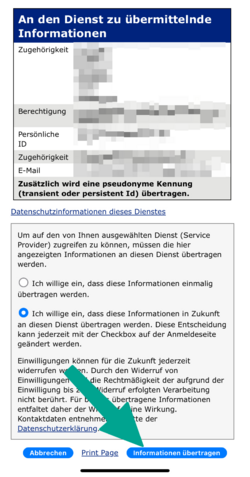
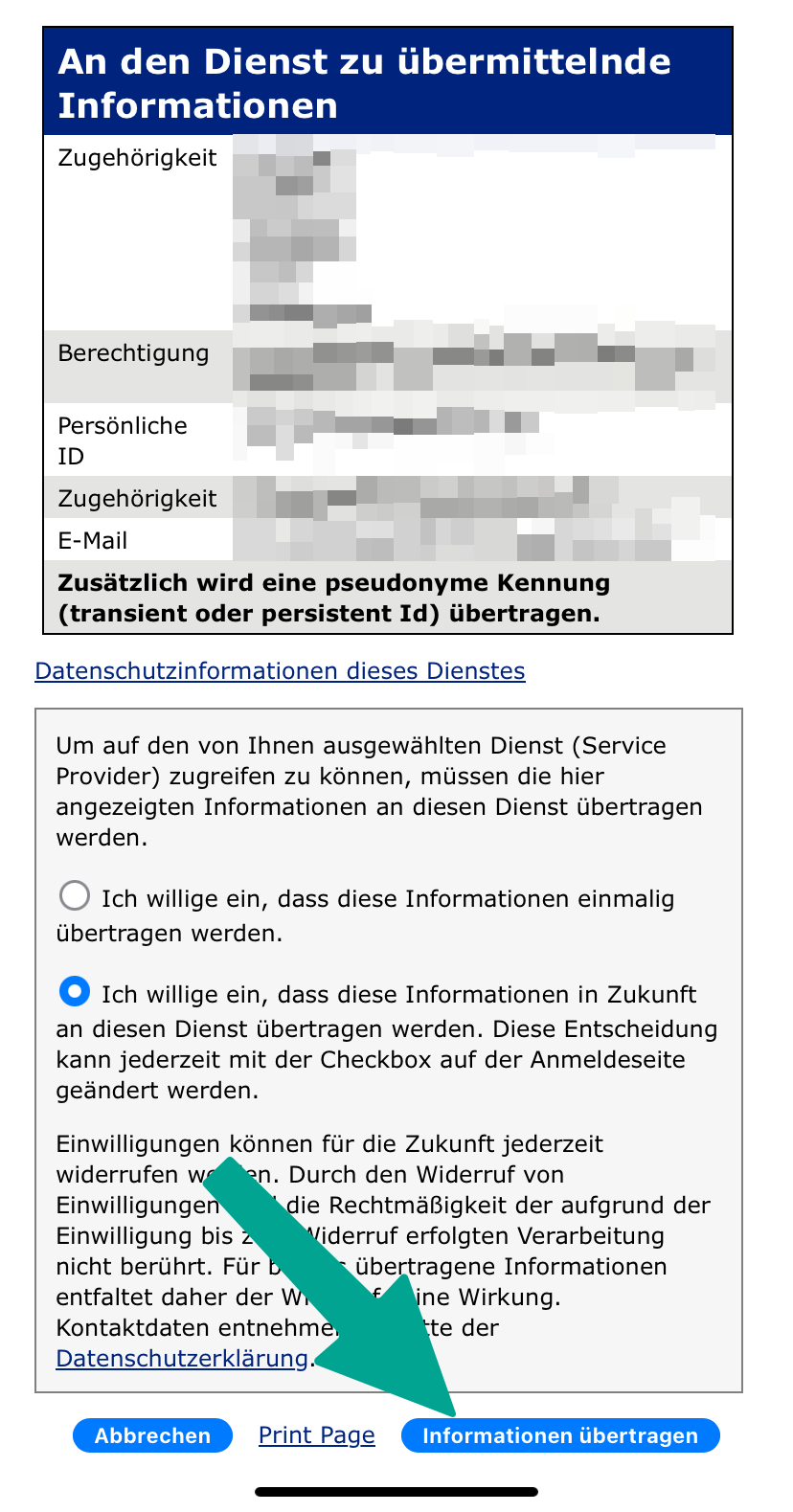
- You will now see a list of the information that will be transmitted to UniNow.
- Click on "Transfer information".
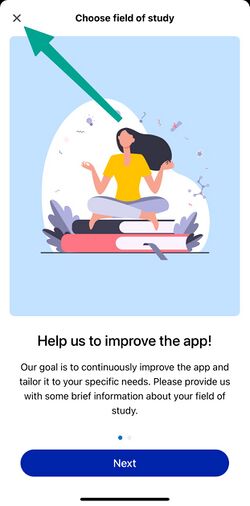
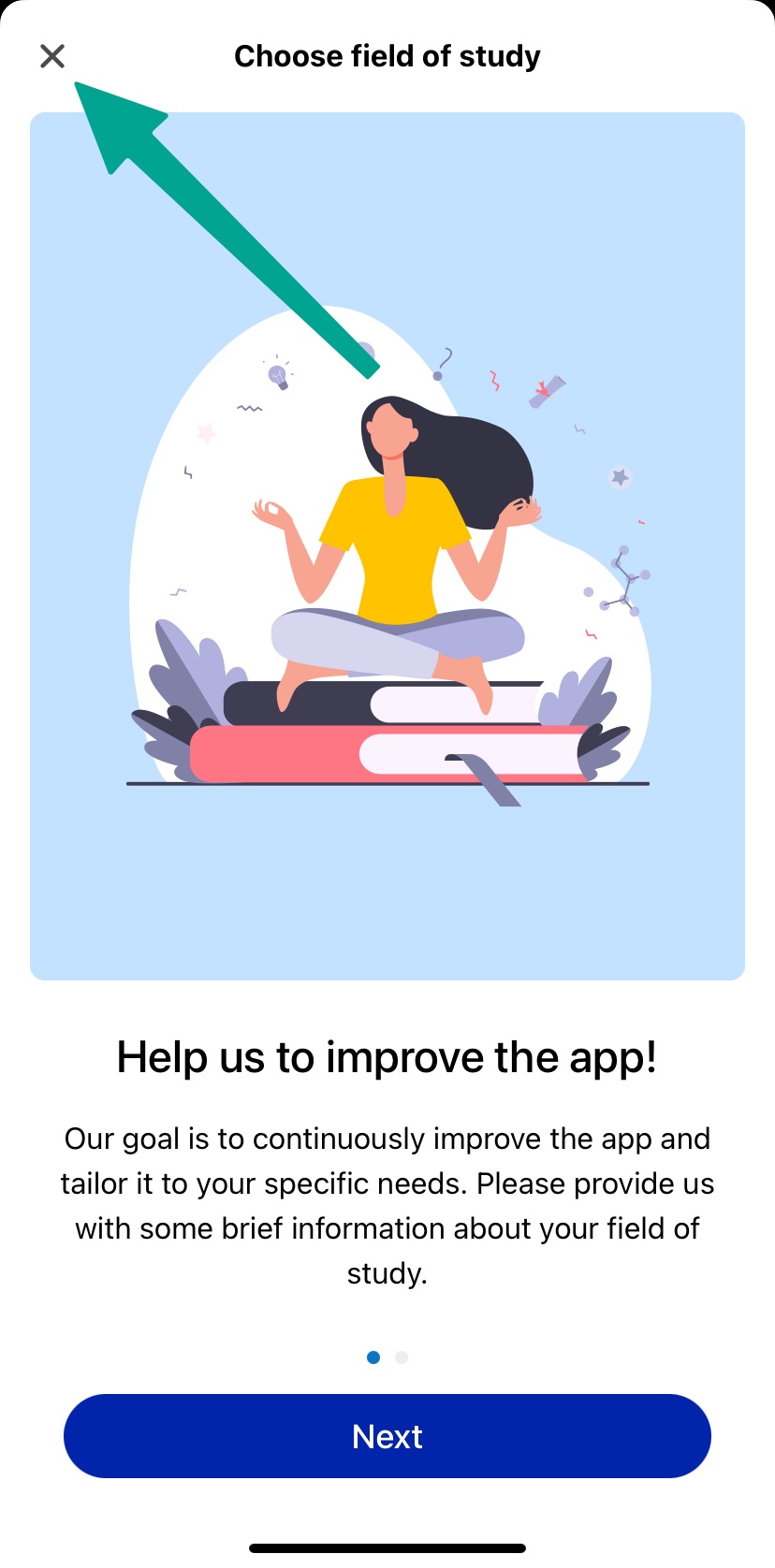
- Now you can choose your field of study
- This step is optional
- You can click on "Cancel"
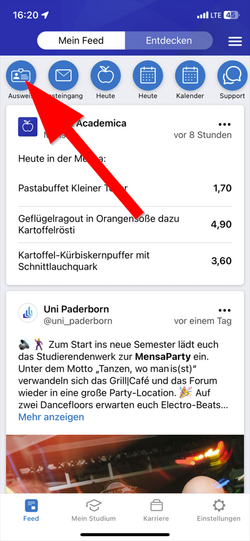
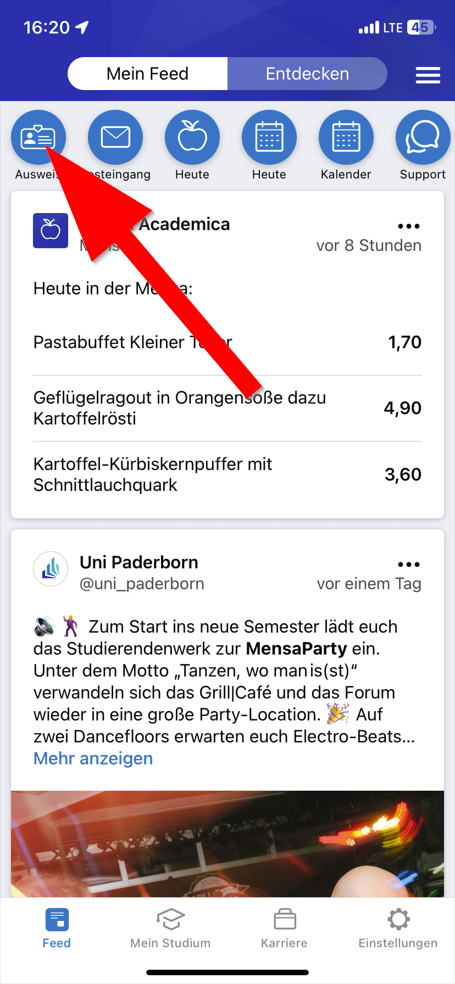
- Click in the top left hand corner on "ID Card"
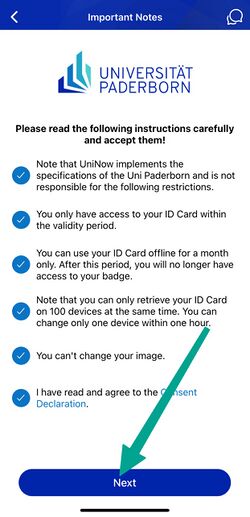
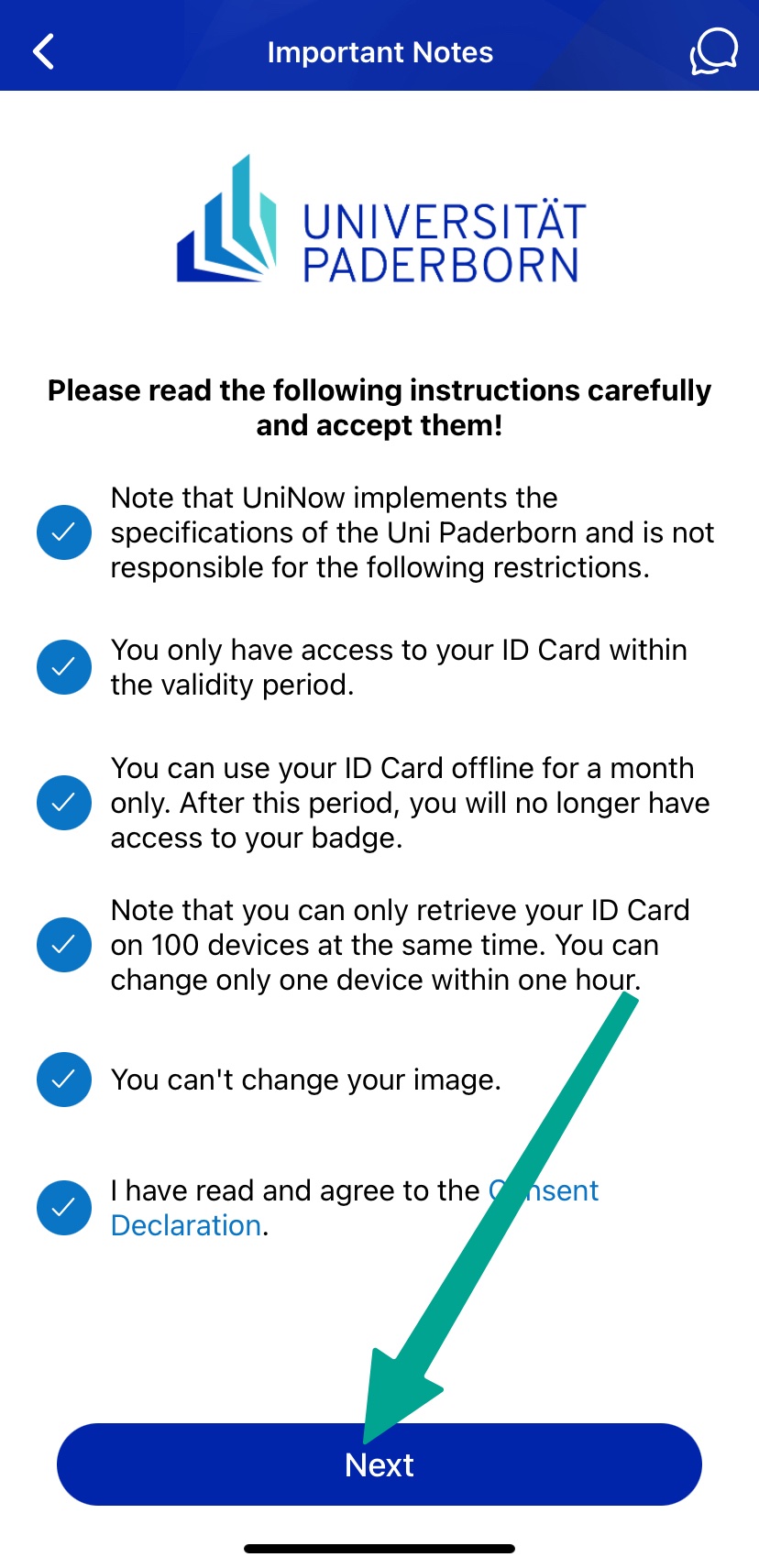
- Read through the instructions carefully and tick the appropriate boxes.
- Then click on "Continue".
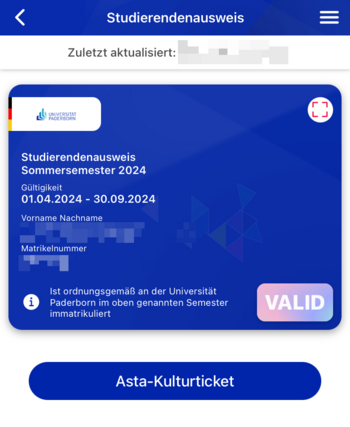
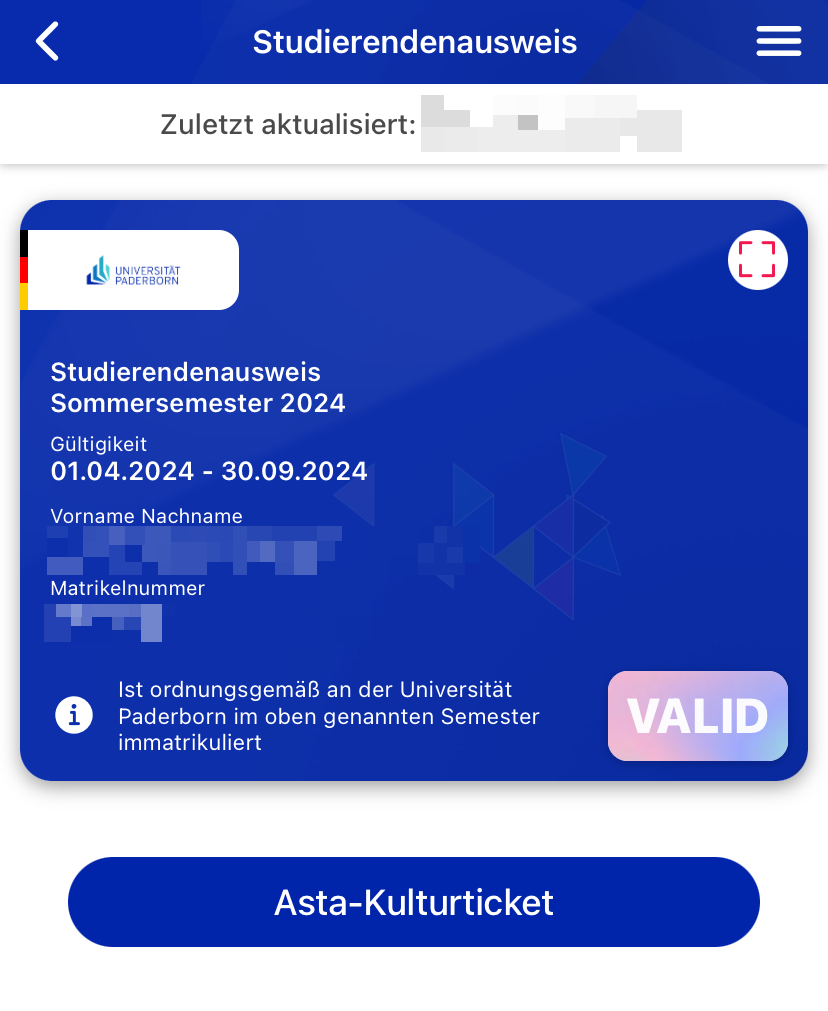
You can now use your digital student ID card.