Instructions for SCT Server and EDA Tool Access
What is the service needed for?[Bearbeiten | Quelltext bearbeiten]
- the SCT VPN
- the SCT servers: sct-01, sct-02, sct-03, sct-04, sct-05, sct-06
- the SCT Pool Room
Activate SCT Server Access (Rechnerzugang Schaltungstechnik (SCT))[Bearbeiten | Quelltext bearbeiten]
You have to activate SCT server access (Rechnerzugang) to enable your private PC or the PCs in the SCT pool for SCT server access.
Open the ZIM selfservice portal of Paderborn University in a browser: https://serviceportal.uni-paderborn.de and login with your University Account credentials. Select "Additional Services -> User Settings". There you find the following entry under "Rechnerzugang und Poolräume" where you can request it under “Options”.

You will receive an End-User-Agreement form, which you have to fill out, sign, and submit to your supervisor or to the letter box of Schaltungstechnik (Room F0.421). Your department is "EIM-E". The activation typically takes 1-3 working days. Thereafter, you can proceed with the next steps.
Working with your private PC[Bearbeiten | Quelltext bearbeiten]
You need to create certificates and to install VPN software for remote SCT server access.
You need to create a network certificate first[Bearbeiten | Quelltext bearbeiten]
If you use "eduroam" WLAN and/or the Universities VPN-Connection, you already installed a valid certificate and can proceed to generate a new configuration. If you have not setup neither eduroam, nor the University VPN yet, you have to create a network certificate and to install it on your computer first. To do so you have to apply the following steps
- Open the University service-portal in a browser: https://serviceportal.uni-paderborn and login with your University account credentials.
- Select „Additional Services -> Network Settings“.
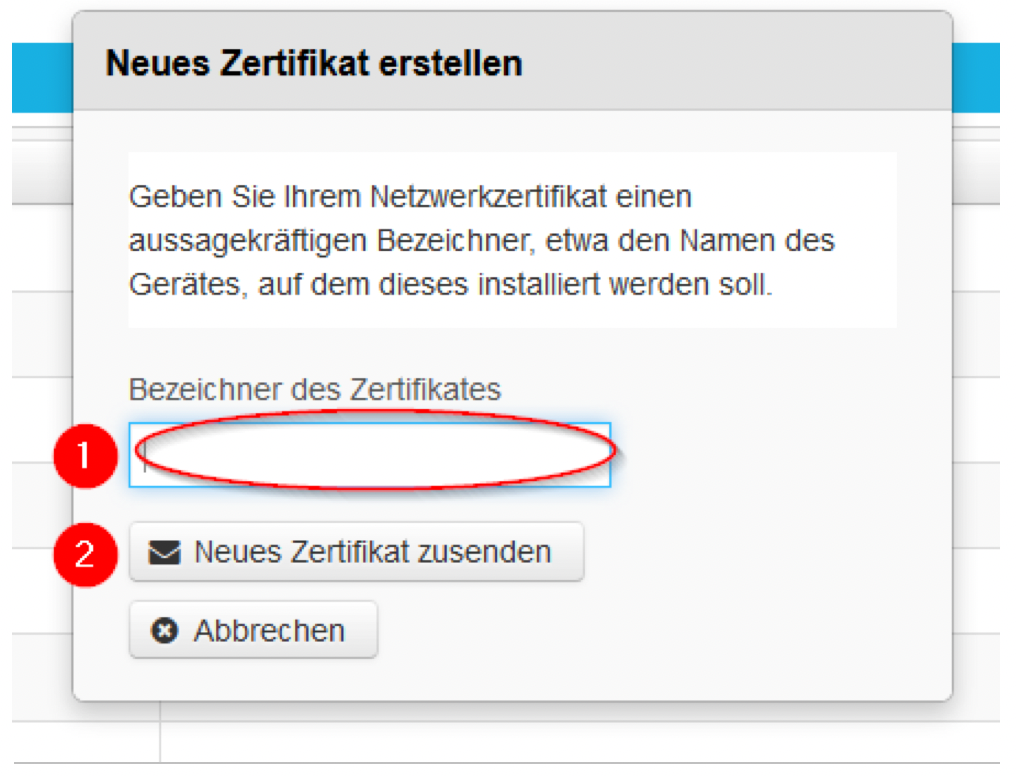
- Click on the “New Certificate” button. Thereafter a form opens:
In the ➊ field you may enter a comment (i.e. Win11 Notebook…)
When you click on the Button ➋ the newly generated certificate is sent to you by mail and a new window pops up. In this Window you can download your certificate (which has already been sent to you via email) and the root-certificate (which is only needed by Android-devices).
IMPORTANT: It shows your Import-password, which is later necessary to install the certificate on your computer.
Additional SCT VPN Configuration[Bearbeiten | Quelltext bearbeiten]
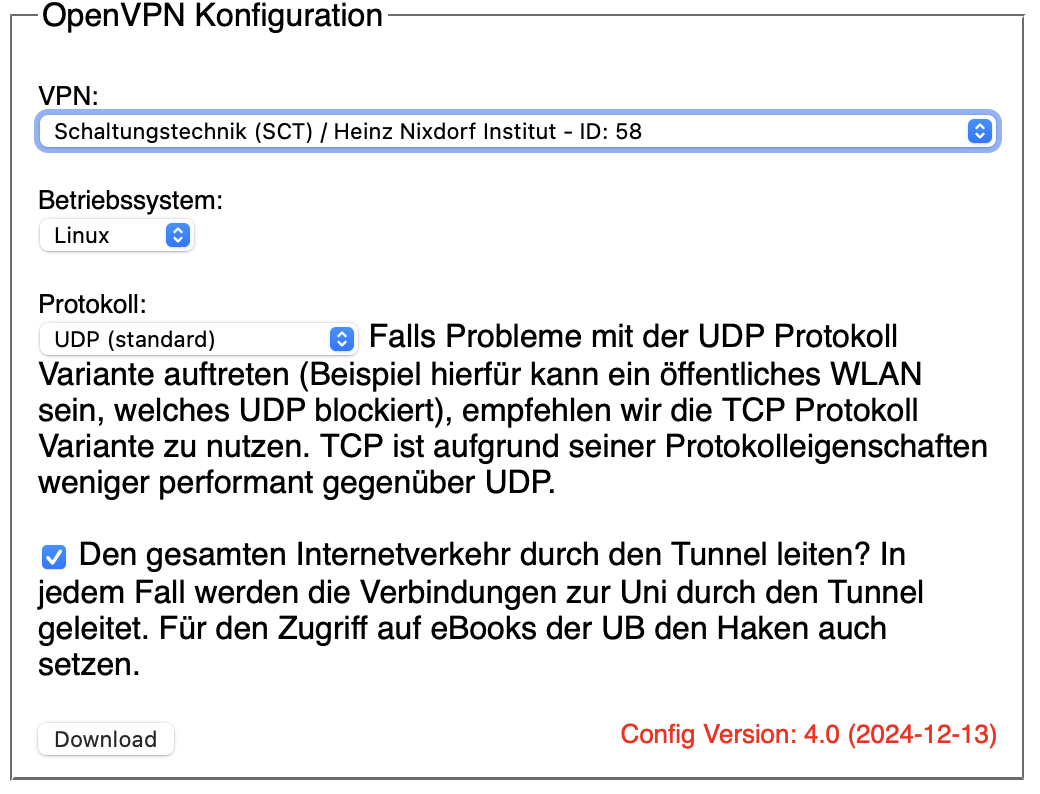
If you already use the University’s VPN, you only need an additional configuration file for your existing OpenVPN software. You can create/download a suitable configuration file under https://hilfe.uni-paderborn.de/VPN_einrichten, where you have to follow the link for your operating system: Linux, Windows, or MacOS. Find the OpenVPN configuration generator box where you have to select your operating system and "Schaltungstechnik (SCT) …- ID: 58" as given hereafter.
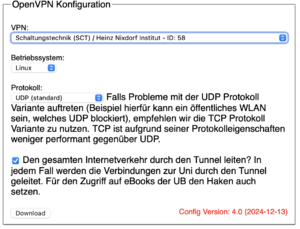
When you import the generated configuration into OpenVPN or tunnelblick you are asked for the password of your certificate, which you can find in your ZIM selfservice portal account under network settings and the respective certificate you are using.
New VPN Software Installation[Bearbeiten | Quelltext bearbeiten]
If you have not installed OpenVPN yet, you have to consult the VPN webpages https://hilfe.uni-paderborn.de/VPN_einrichten where the links to Linux, Windows, and MacOS are also available in English:
- https://hilfe.uni-paderborn.de/VPN_unter_Windows/en
- https://hilfe.uni-paderborn.de/VPN_unter_Linux/en
- https://hilfe.uni-paderborn.de/VPN_unter_macOS/en
IMPORTANT: At the step when you are asked to generate a OpenVPN configuration generator you have to select the VPN “Schaltungstechnik (SCT) …- ID: 58” as given hereafter.
VPN trouble shooting[Bearbeiten | Quelltext bearbeiten]
If you have doubts about your VPN connection, open the following link in your browser (while the connection is established): http://go.upb.de/ip.This should show the IP address which your computer uses to access the University Network. It should look like this on a green field: 131.234.87. [random number between 66 and 126]
- If it shows a different number on a green field, you chose the wrong VPN or created a configuration file for the wrong VPN.
- If it shows a number on a red field, your VPN is not working at all.
No VPN connection with Windows system[Bearbeiten | Quelltext bearbeiten]
You should check if the correct certificate is installed on your computer.
To do so, search for "cert" on your computer. Windows will find the "User Certificate Manager" and the "Computer Certificate Manager". You should start the "User Certificate Manager" and select "own certificates" → "certificates". On the right side of the window, you should see one certificate for „[your account name]@uni-paderborn.de“.
If there is no certificate, you need to install one. The instructions for creating and installing a certificate can be found here: https://hilfe.upb.de/Netzwerkzertifikate (sorry, only in German). If there is more than one certificate for your account, this might be a problem as well. In this case, you should delete the older certificates only keeping the newest one. If you double-click on a certificate, the cert-manager shows details. In the certificate details you will also find a serial number for each certificate which may help to identify it. The serial numbers are identical with the ID of the network certificate(s) you created (and are listed) in the service portal https://serviceportal.uni-paderborn.de.
Server Access from Private PC or from the SCT Pool via RDP[Bearbeiten | Quelltext bearbeiten]
You can connect to the SCT servers from the Linux PCs in the SCT pool or from your private computer with VPN via RDP (remote desktop protocol).
Access from Private PC[Bearbeiten | Quelltext bearbeiten]
Provided you are connected with VPN you can also directly access the SCT servers via RDP from your private PC as follows. You first need a RDP client on your computer.
- Windows: To create a Remote PC connection search for “Remote Desktop Connection” or “Remote Desktop Verbindung” in your apps and execute.
- Linux: Install and run the Remmina RDP client (see below).
- MacOS: Goto the App store and download & execute an RDP client (i.e. Windows-App).
Thereafter, start the RDP client and enter “sct-01.uni-paderborn.de” for the server name and your ZIM credentials.
Access from the SCT Pool[Bearbeiten | Quelltext bearbeiten]
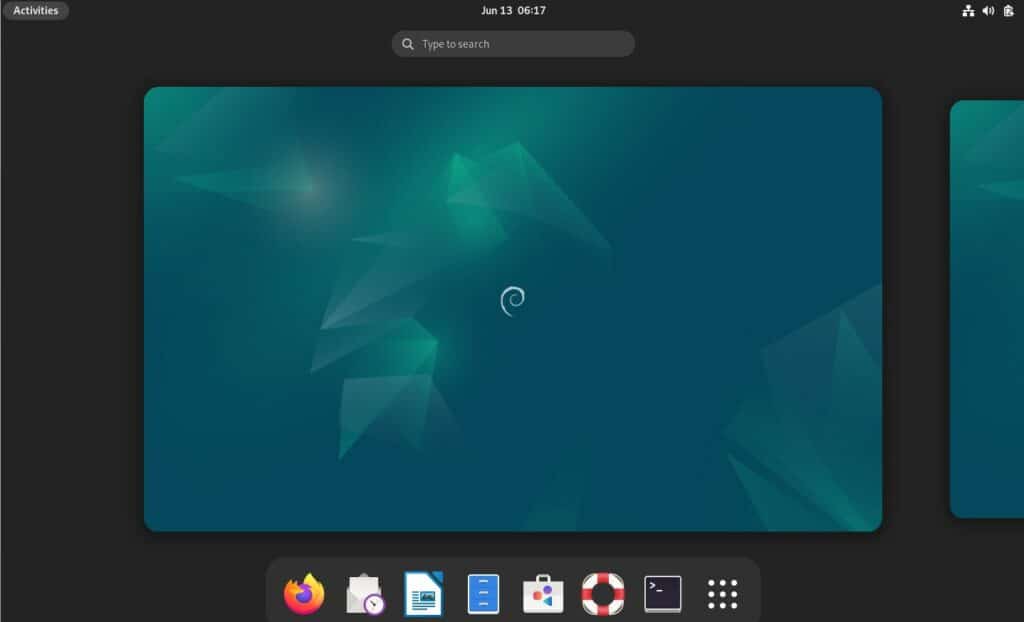
You can login with your ZIM credentials on each PC in the SCT pool once you have SCT access (Rechnerzugang) activated. The PCs in the SCT pool have Debian linux with Gnome windows manager installed. After login, you see the Gnome desktop as given hereafter:
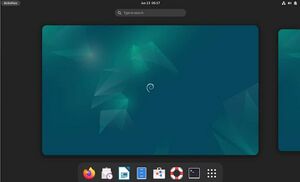
Press the Windows button and enter “Remmina” or “SCT-RDP” in the search field on top of the desktop and start Remmina or SCT-RDP. After you have entered the server name “sct-01.uni-paderborn.de” in the field “RDP”, after which Remmina ask you for your ZIM credentials. This opens an RDP session to the sct-01 server which will show you the desktop of the sct-01 server.
IMPORTANT: we strongly recommend to logout once you have finished your session (you find it at the top right of the window). Otherwise, your RDP session continues with your next RDP access.
Server Access via SSH[Bearbeiten | Quelltext bearbeiten]
For SCT server access via ssh, you need to have a valid Kerberos ticket for the specific server. For SSH access with Kerberos contact your supervisor or check the information on Single-Sign-On einrichten.