Dozent: Bewertungen Export von Gruppen/en
Die deutsche Version finden Sie auf der Seite Dozent: Bewertungen Export von Gruppen
This article will show how instructors can both import and export assessments.
What needs to be done?[Bearbeiten | Quelltext bearbeiten]
- Assessment setup
- Import and export
- Edit course settings if necessary
PANDA Assessments[Bearbeiten | Quelltext bearbeiten]
To edit the assessment area and display the assessment overview, click on Assessments in the course navigation. This takes you directly to the assessment overview.
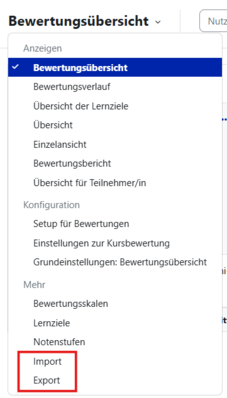
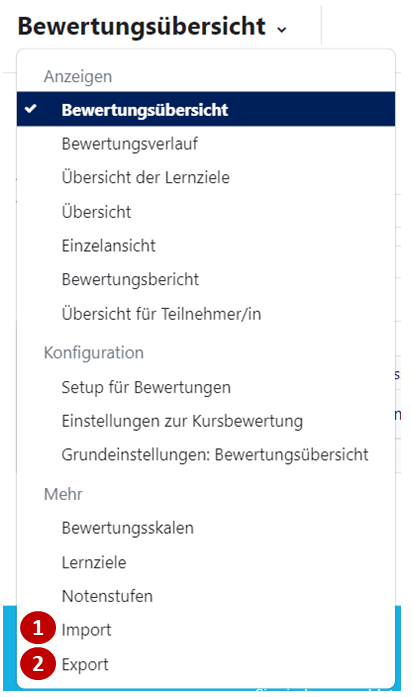
Clicking on "Assessment overview" in the top left opens a drop-down menu. This menu contains numerous assessment settings and overviews.
- To, for example, enter assessments offline and then import them later, click Import (1).
- Previous assessments or empty participant lists with the activities to be assessed can be saved under Export (2).
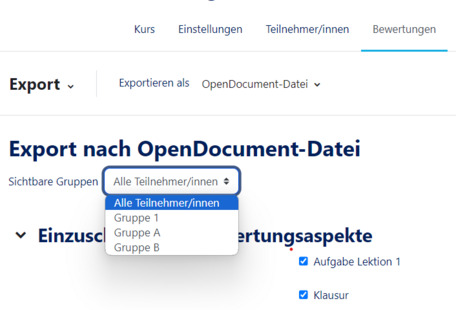
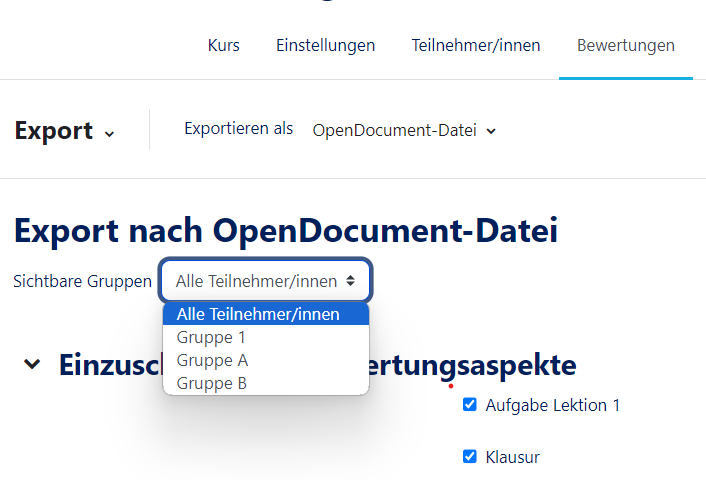
Clicking on Export (2) opens the following overview:
- In this overview, you can also select a single group (i.e., a selection of students) under "Visible Groups" so that only these groups are exported.
- If the "Visible Groups" (or "Separate Groups") option is not displayed, this is because you have not configured any visible/separated groups for the course in the course settings.
Changing Course Settings[Bearbeiten | Quelltext bearbeiten]
To change your course settings to "Visible Groups" or "Separate Groups", you must click on the Settings tab in the course navigation. In the course settings, you can make the appropriate settings under "Groups" in "Group Mode".
- Advantage: Groups can now also be addressed individually by the instructor via messages. However, it is important to ensure that from now on, all new activities are set to "Visible Groups" or "Separate Groups" group mode. (Tip: Set up everything in the course first and then change the global course settings later.)